BizCrush Enterprise Plan: Payment and Team Management Guide
5
min

BizCrush
Growth
The BizCrush Enterprise plan is designed for companies and teams that want to use BizCrush together under one shared workspace.
This guide walks you through how to review and pay for your Enterprise plan after your plan terms have been confirmed with the BizCrush sales team. You’ll also learn how to add or remove team members after payment is complete.
Before you begin
This guide is for customers whose Enterprise plan has already been configured by the BizCrush team.
Before starting payment, make sure you have completed the following:
You have discussed and confirmed your Enterprise plan terms with the BizCrush sales team.
You have shared the email address that will be used as the admin account.
You can sign up or log in to BizCrush using that admin email address.
If your plan terms have not been finalized yet, or if you do not see the payment button in your account, do not proceed with payment. Contact your BizCrush representative first.
For help, contact business@bizcrush.ai.
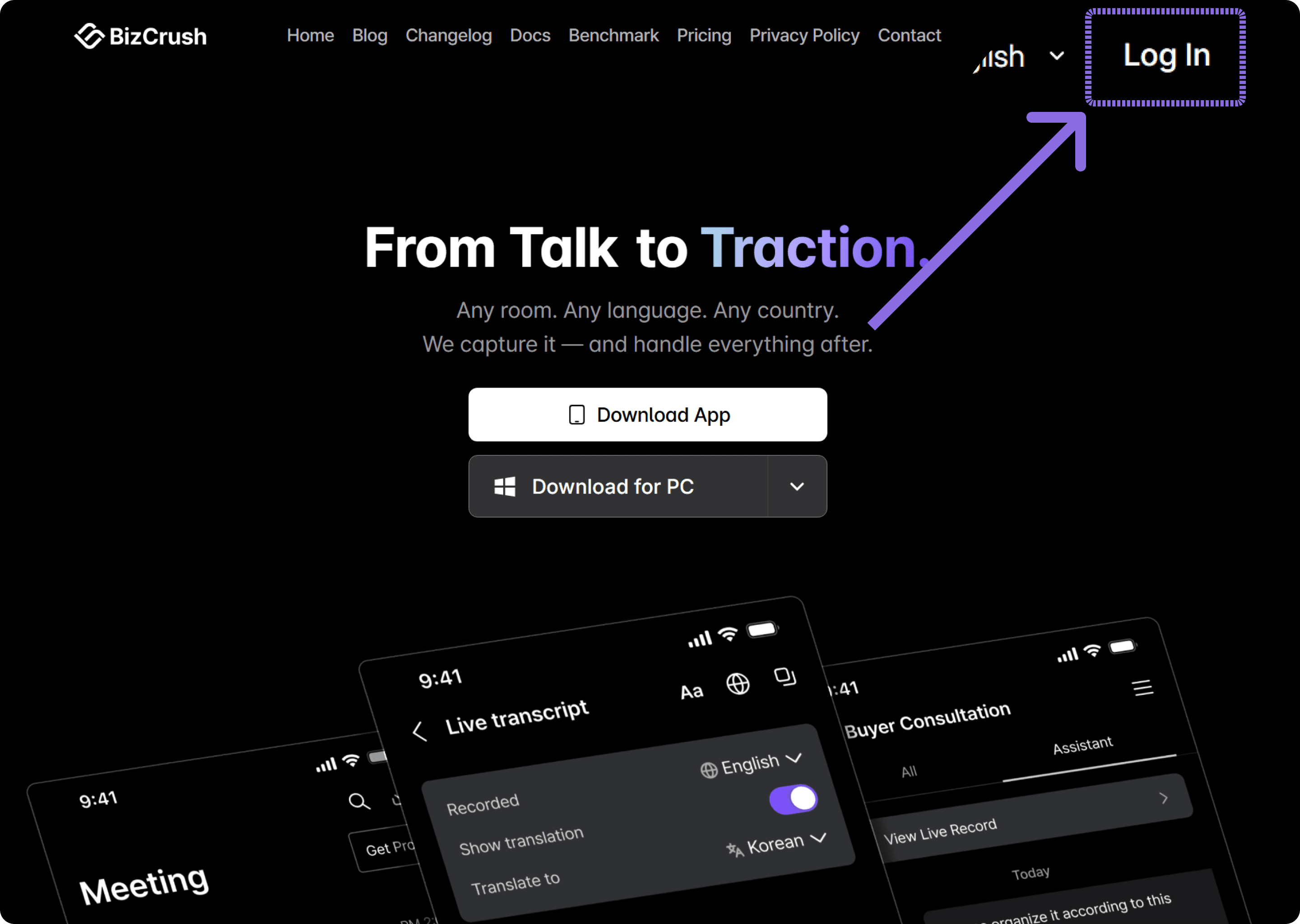
1. Log in with your admin account
Enterprise plan details and the payment button are only available from the admin account that was configured in advance.
Go to the BizCrush website and log in with the email address you provided to the BizCrush team as your admin account.
If you log in with a different email address, the Enterprise payment button may not appear. Make sure you are using the correct admin email before continuing.
2. Open the Billing page
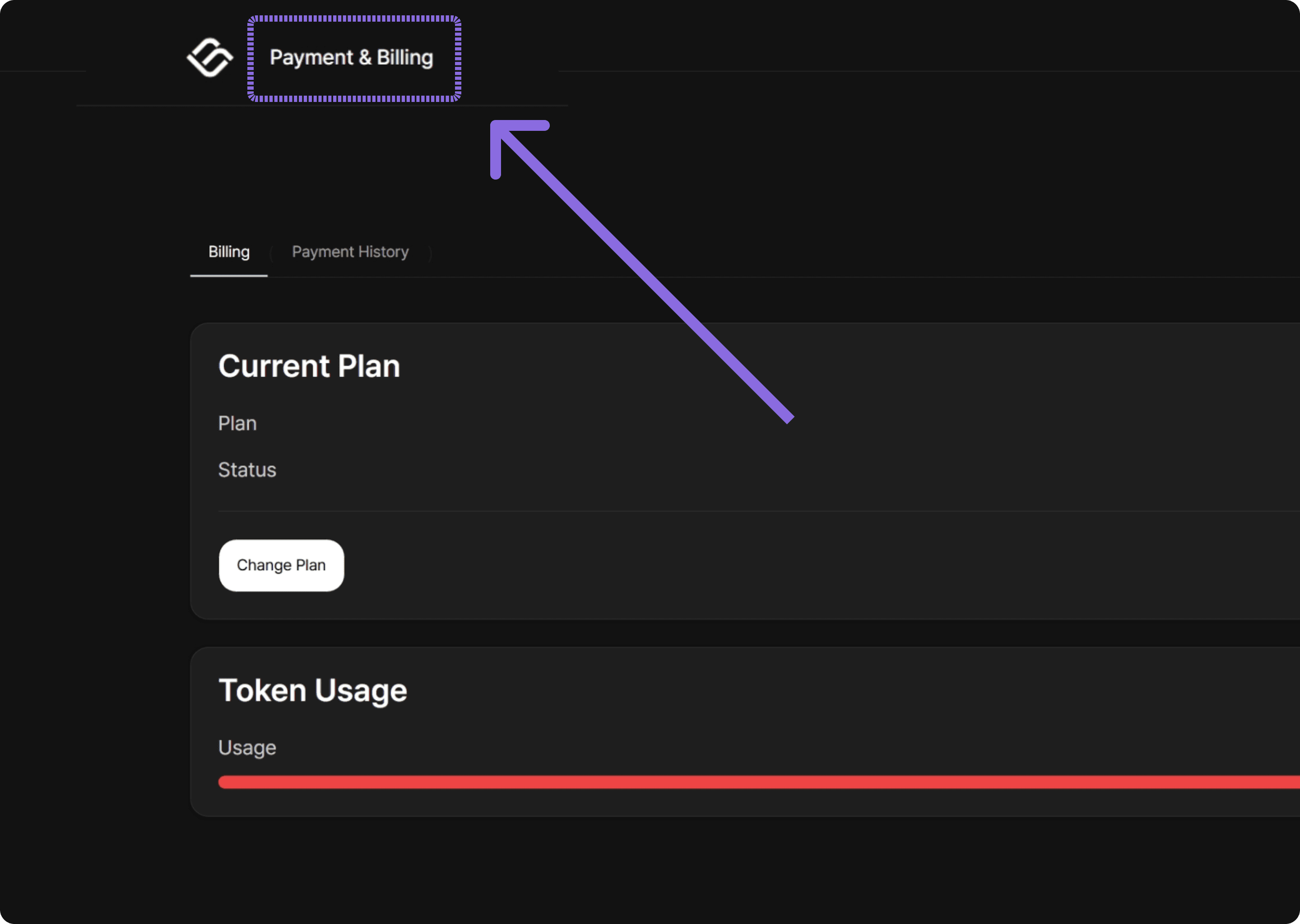
After logging in, go to the Payment & Billing page from the top navigation menu.
On this page, you can review your current plan, Enterprise details, usage, member list, and payment status.
3. Review your Enterprise plan
On the Billing page, review the Enterprise plan details configured for your account.
You should see information such as:
Company name
Plan status
Billing period
Subscription change button
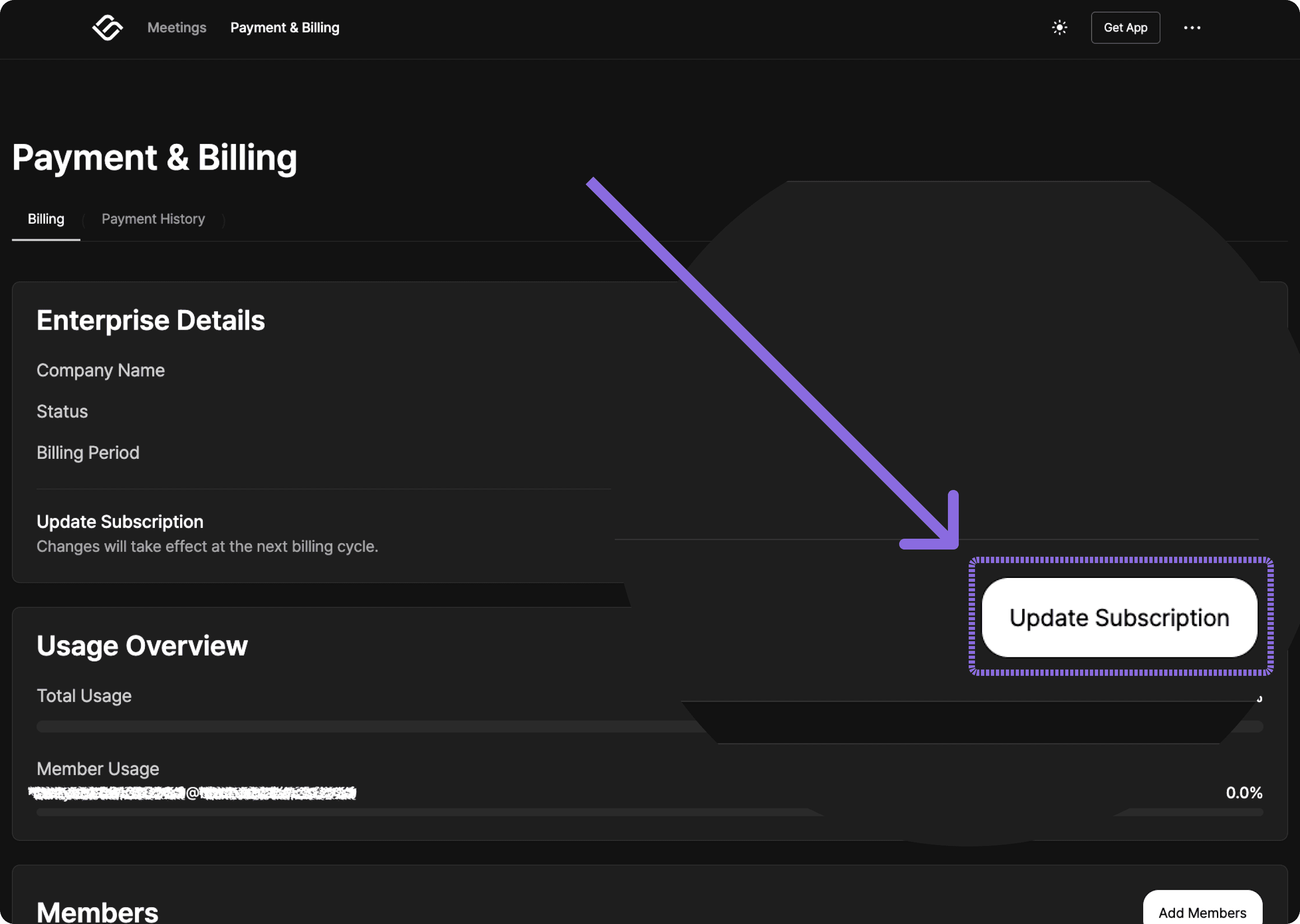
Click Update subscription, then select the Enterprise Plan card on the right.
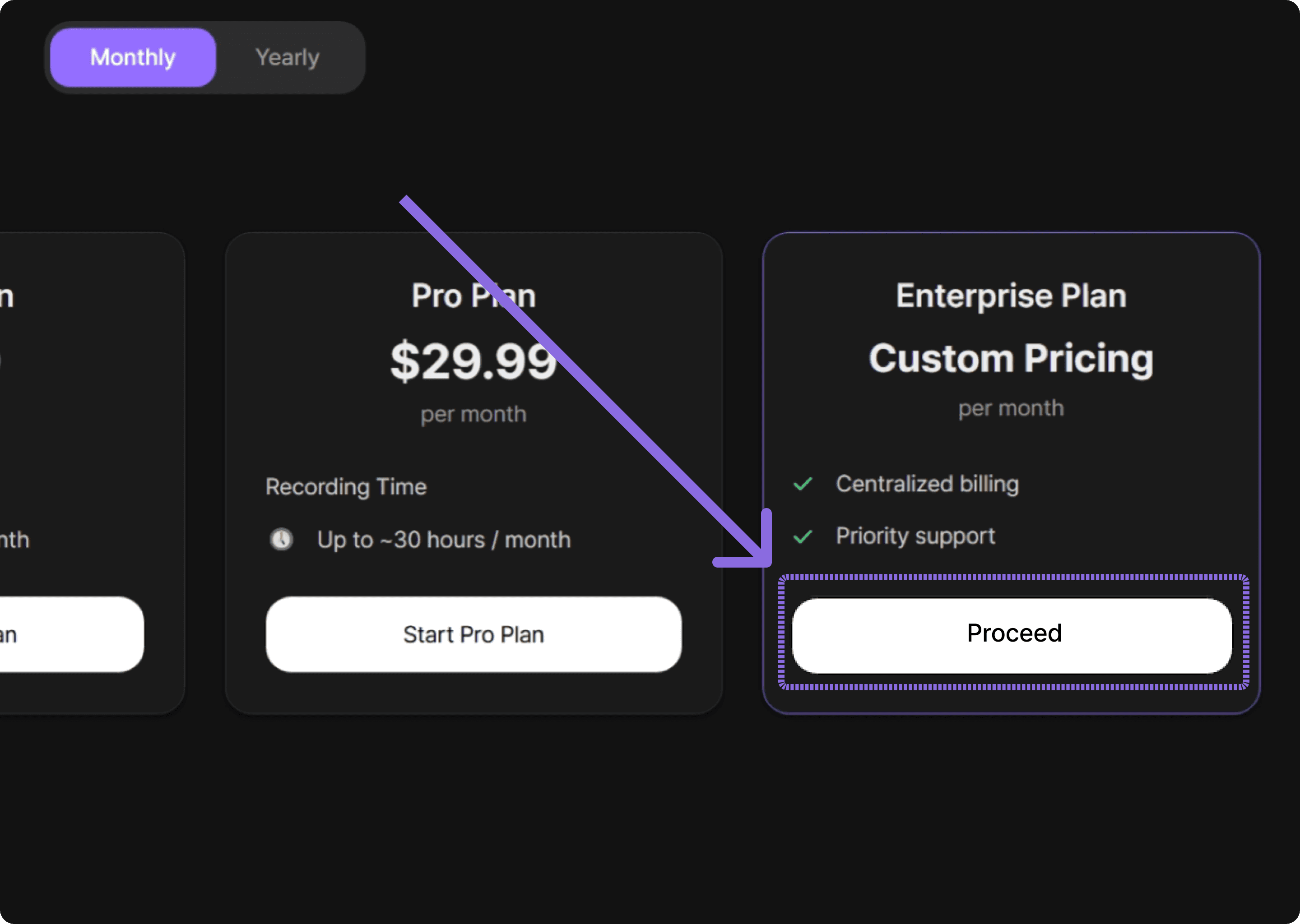
Before continuing, make sure the plan details match the terms you discussed with the BizCrush sales team.
4. Complete payment through Stripe
Once you have reviewed the plan details, click the payment button.
You will be redirected to Stripe, where you can enter your company’s payment information and complete the transaction.
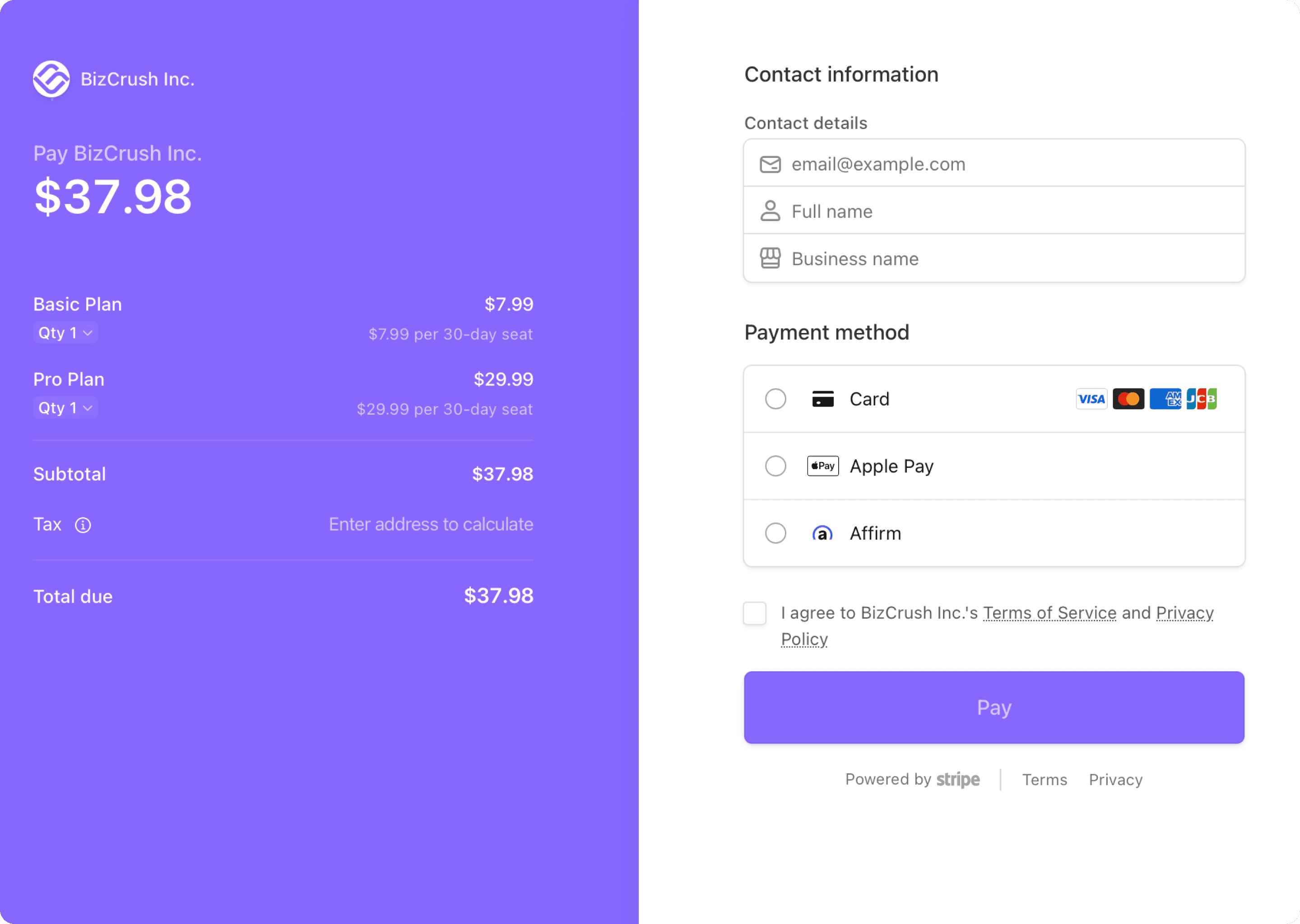
Before paying, confirm that the following details match your agreed Enterprise terms:
Plan status
Payment amount
If anything looks different from what you discussed with the BizCrush sales team, do not complete payment. Contact your BizCrush representative first.
After payment is completed, your Enterprise plan will be activated, and the admin account will be able to manage team members.
Important
Enterprise plan details and the payment button are only shown in the admin account that was configured by the BizCrush team. If you do not see the payment button, check whether you are logged in with the correct admin email address.
5. Confirm that your Enterprise plan is active
After completing payment, return to the Payment & Billing page and check your Enterprise plan status.
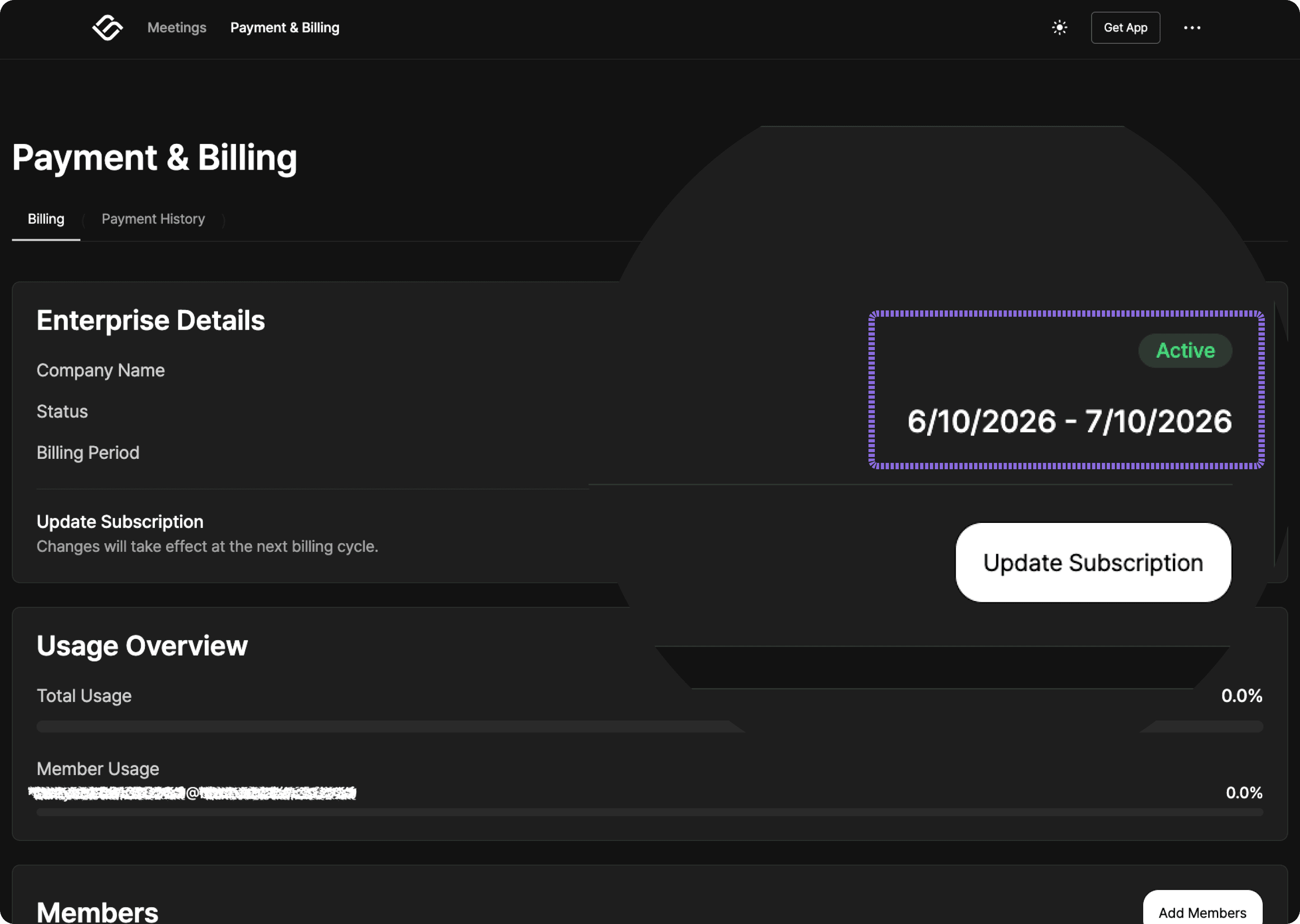
If payment was successful, the Enterprise details section should show that your plan is active. You should also be able to see the usage overview, member list, and Add member button.
After payment, check the following:
The Enterprise plan status is shown as active.
The billing period is correct.
The usage overview is visible.
The member list and Add member button are visible.
The admin account is shown as the owner or as an active member.
Important
Make sure you complete payment using the Enterprise payment button shown in the admin account. If you purchase an individual Basic or Pro Plan separately, team-wide shared usage and member management will not be applied.
6. Add team members
After your Enterprise plan is active, the admin account can add team members.
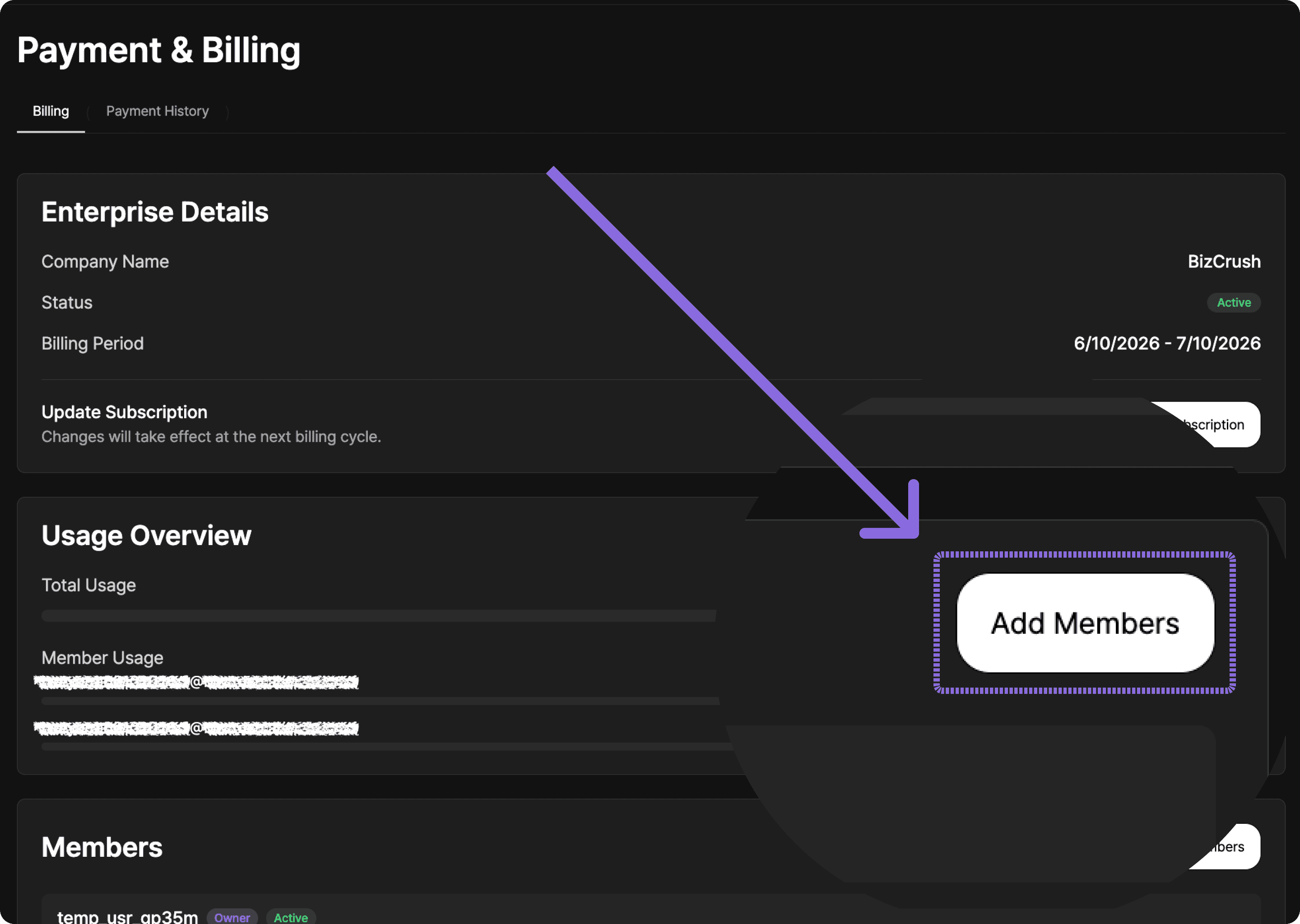
Go to the member section on the Payment & Billing page and click Add member.
6-1. Click Add member
In the member list, click the Add member button on the right.
6-2. Enter team member email addresses
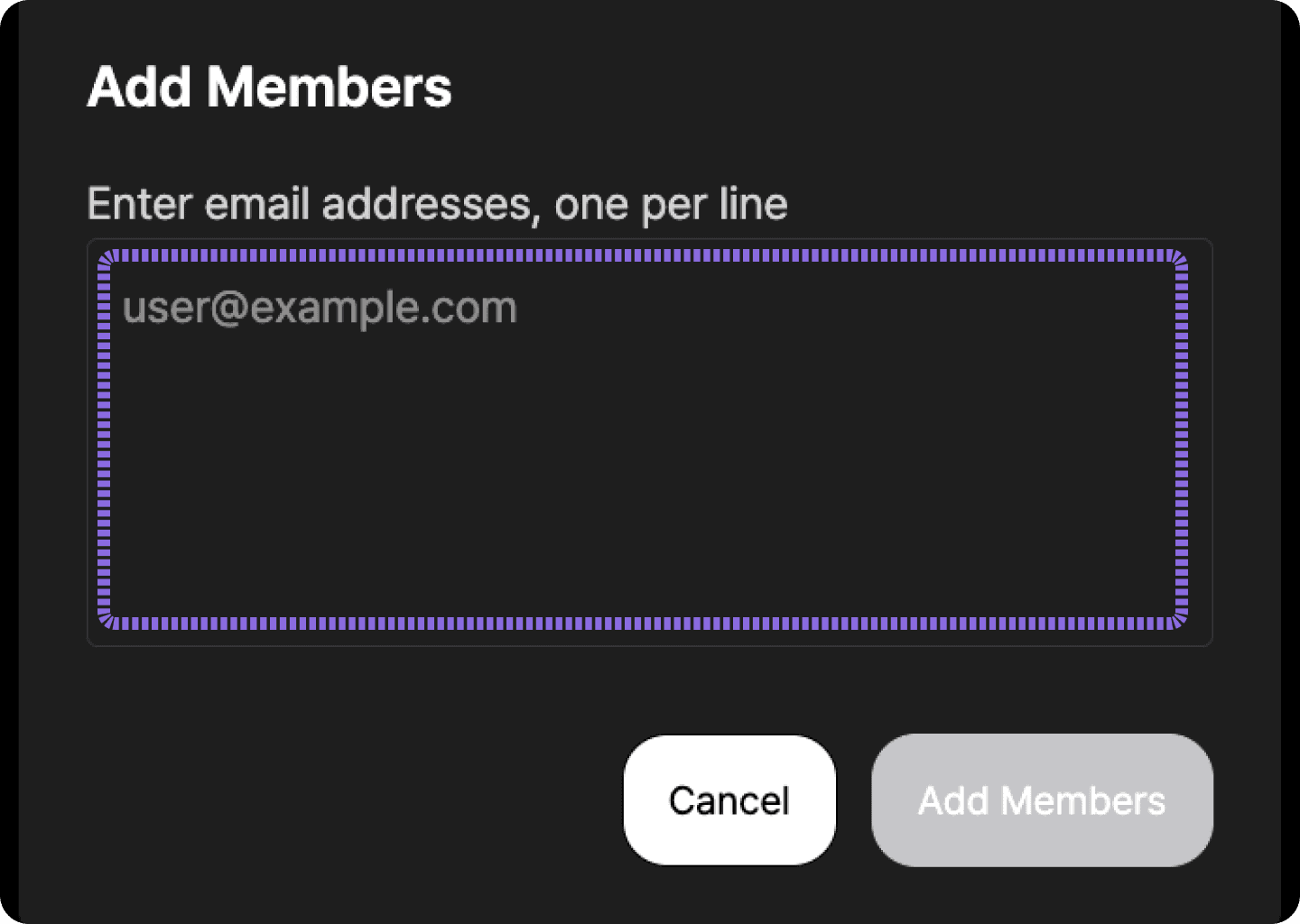
When the Add member window opens, enter the email addresses of the team members you want to add.
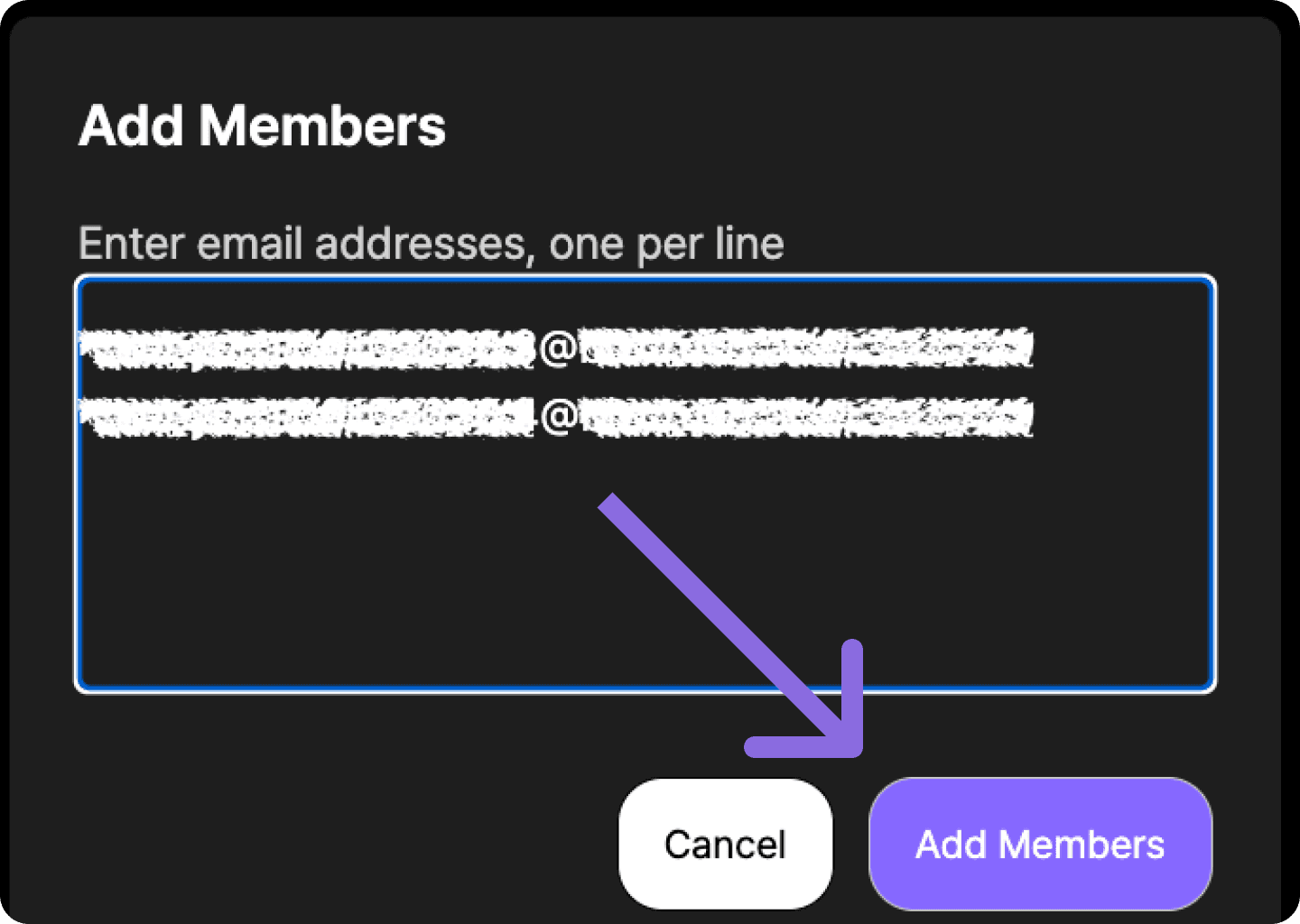
Enter one email address per line. To add multiple members at once, separate each email address with a line break.
Example:
After checking the email addresses, click Add member.
When adding multiple members, separate email addresses using a line break, such as Shift + Enter or Alt + Enter.
6-3. Confirm that members were added
Once members are added, you will see a confirmation message saying that the members have been added.
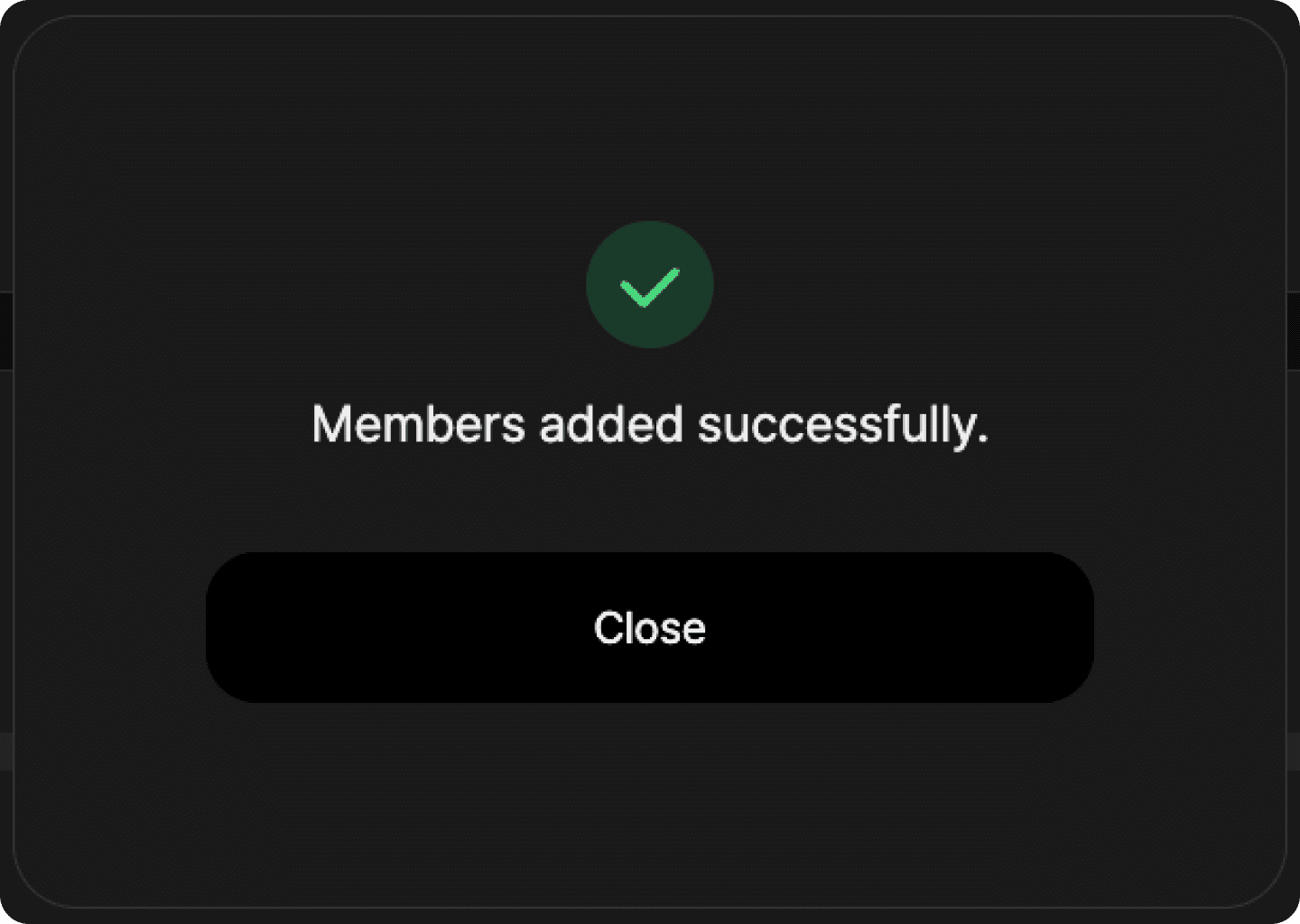
Close the message and check the member list to make sure the newly added team members appear.
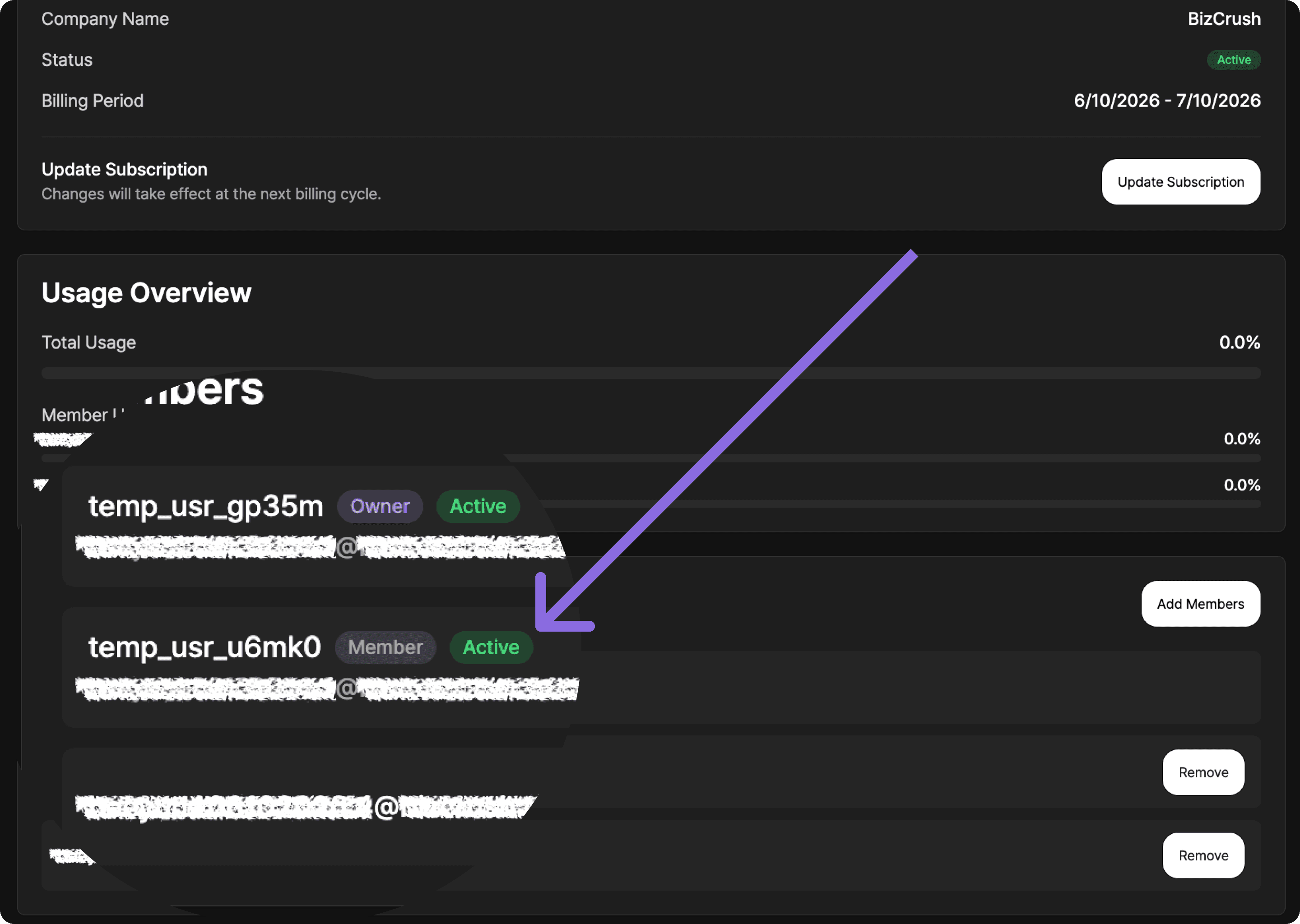
Added members may appear with one of the following statuses:
Invited: The team member has not accepted the invitation yet or has not logged in with that email address.
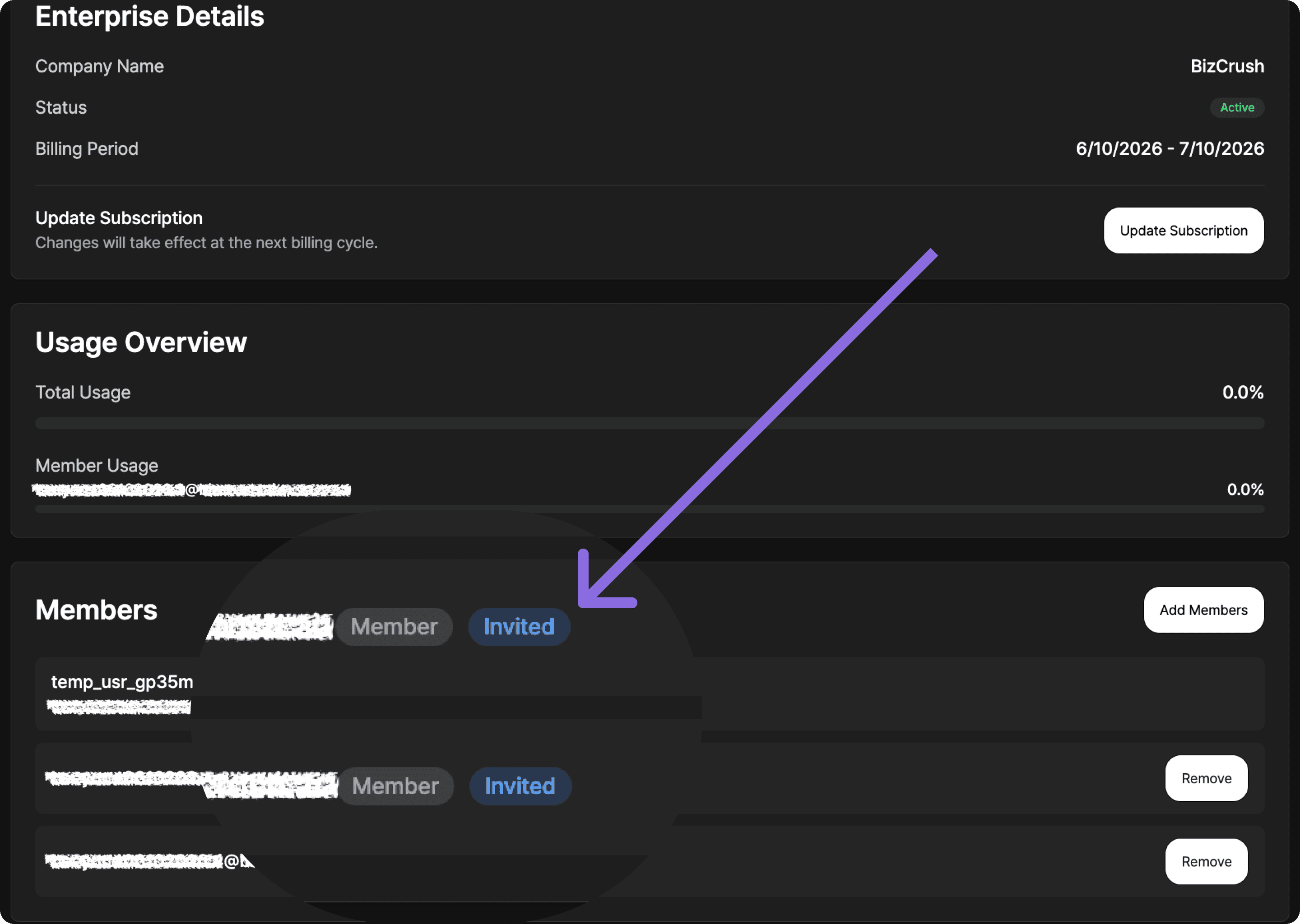
Active: The team member has logged in with that email address and is connected to the Enterprise group.
Important
When adding a team member, enter the email address they will actually use to log in to BizCrush. If the email address entered by the admin is different from the email address the team member uses, the account may not connect to the Enterprise group correctly.
7. Remove team members
If a team member no longer needs access to the Enterprise plan, the admin can remove them from the team.
When a team member is removed, they will no longer be able to use the Enterprise group’s shared usage.
7-1. Find the team member you want to remove
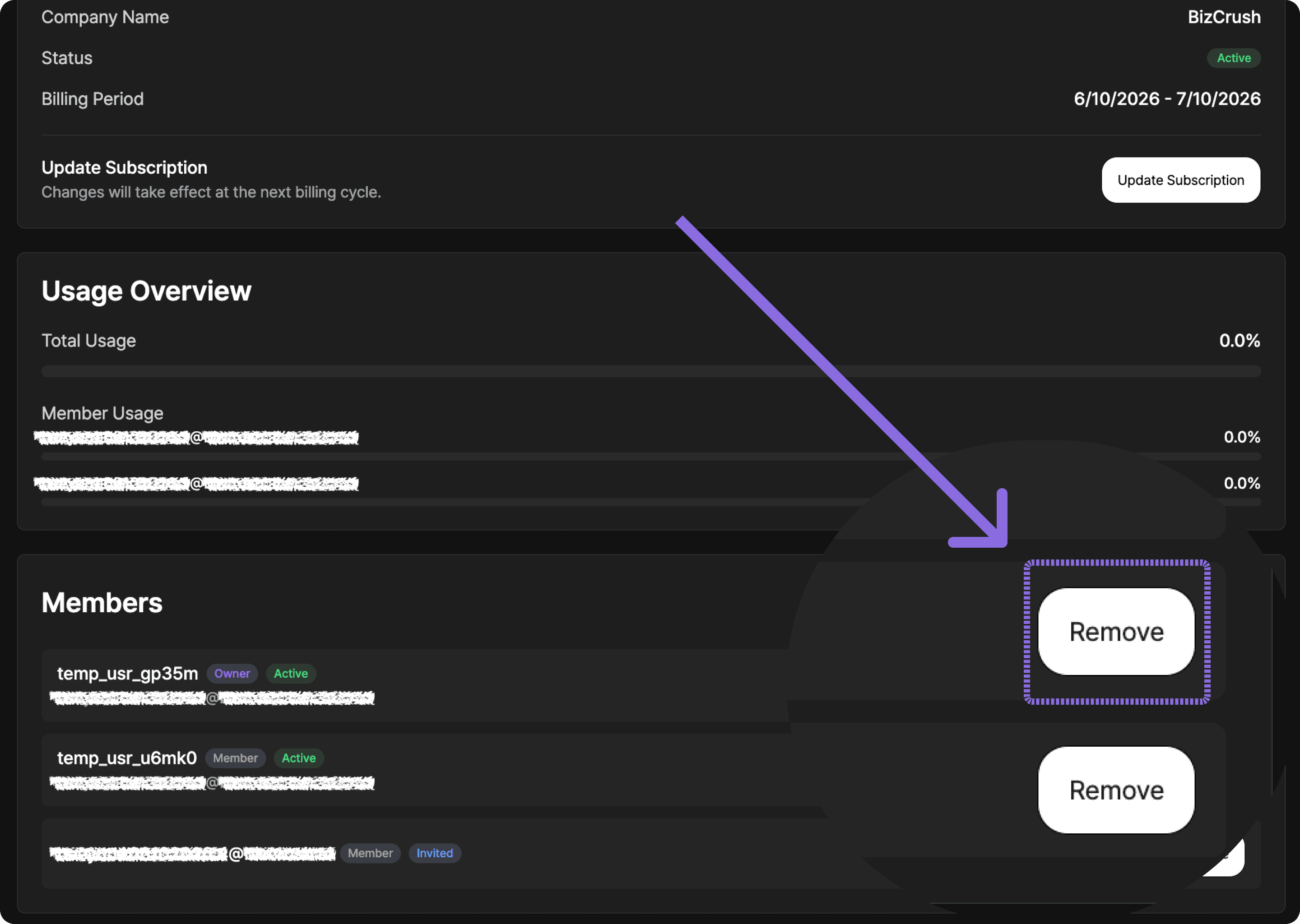
On the Payment & Billing page, go to the member list and find the team member you want to remove.
Before deleting a member, double-check their email address and username.
Click the Remove button on the right side of the member you want to remove.
7-2. Confirm deletion
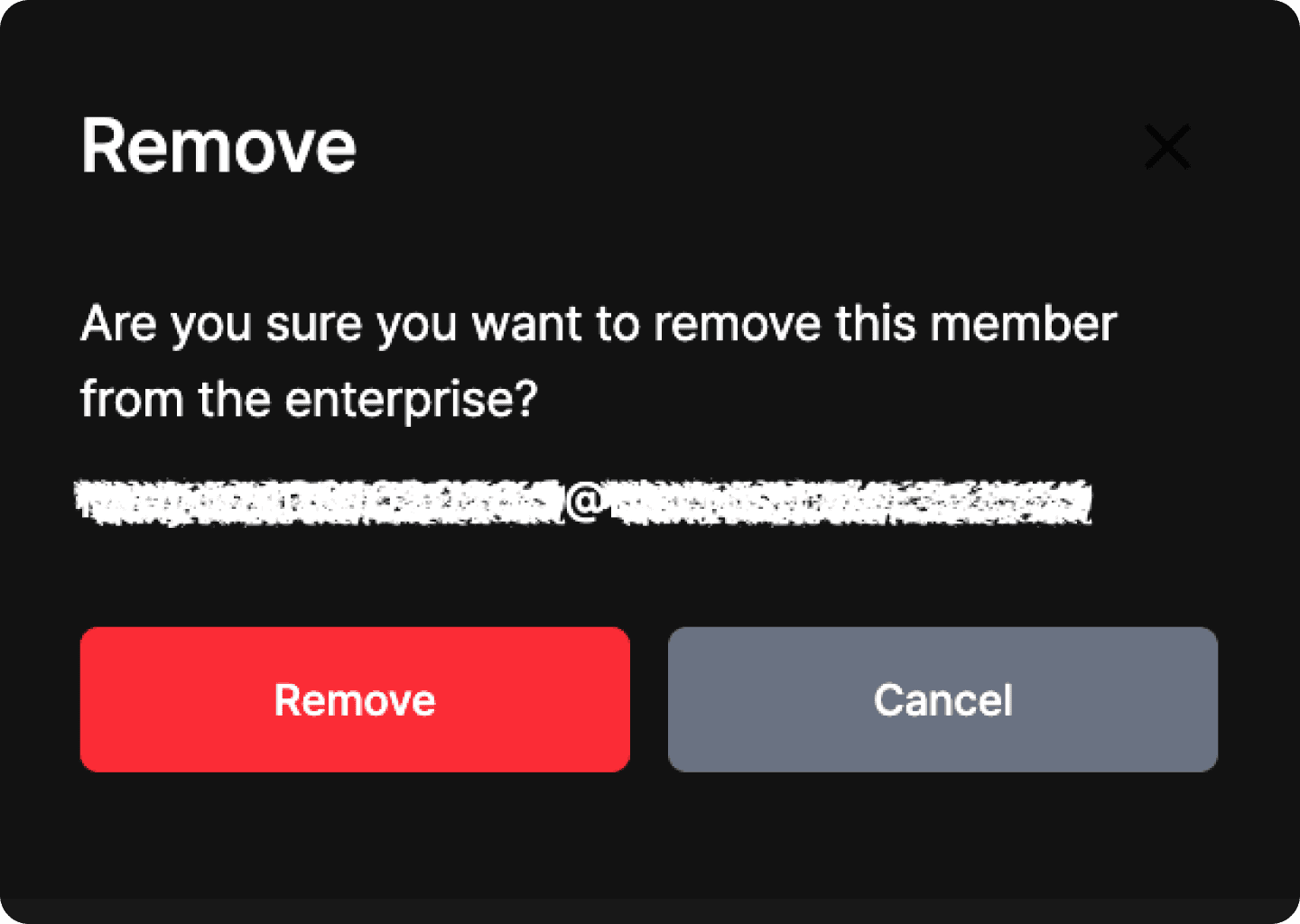
When the confirmation window opens, check that you are removing the correct team member, then click Remove.
Once deletion is complete, the team member will be removed from the Enterprise member list.
Important
Removed members cannot use the Enterprise group’s shared usage. If you remove someone by mistake, you can add them again using the Add member feature.
8. What to do if a team member already has an individual paid plan
If a team member is already using an individual Basic or Pro Plan and needs to move to the Enterprise plan, check their current subscription status first.
Keeping both an individual subscription and Enterprise access active at the same time may result in duplicate billing.
This is especially important if the team member subscribed through the Apple App Store or Google Play Store. In that case, they may need to cancel their existing subscription directly through the relevant store’s subscription management page.
Recommended steps:
Check the team member’s current individual subscription status.
Confirm whether the subscription was purchased on the web, through the App Store, or through Google Play.
Cancel the existing individual subscription if needed.
Confirm that the account switches to the Free Plan after the current billing cycle ends.
Have the admin add that same email address as an Enterprise team member.
If you are not sure whether the existing subscription should be kept or canceled before moving to Enterprise, contact your BizCrush representative.
Important
Individual Basic or Pro Plans do not include team-wide shared usage or member management. To use BizCrush as a team, users must log in with the email address added to the Enterprise plan.
FAQ
Can I purchase an Enterprise plan directly from the pricing page?
No. The Enterprise plan is configured after you discuss your usage terms with the BizCrush sales team.
Once setup is complete, you can review the price and payment button on the Billing page of the configured admin account.
Why can’t I see the payment button?
First, check whether you are logged in with the email address that was set as the admin account.
If you are logged in with a different email address, the payment button may not appear.
If you are using the correct admin account but still cannot see the button, contact your BizCrush representative.
What should I do if the plan details look different from what we discussed?
Do not proceed with payment.
Enterprise plans are configured based on the terms agreed in advance. If the plan details do not look correct, contact your BizCrush representative before completing payment.
Do team members need to pay separately?
No. Team members do not need to purchase separate individual subscriptions.
Once the admin adds their email addresses to the Enterprise plan, team members can log in with those same email addresses and connect to the Enterprise group.
The email address added by the admin must match the email address the team member actually uses to log in.
Can I share usage with my team by purchasing an individual Basic or Pro Plan?
No. Shared usage and member management are only available through the Enterprise plan.
To use BizCrush as a team, discuss your plan with the BizCrush sales team and complete payment using the Enterprise payment button configured in the admin account.
Need help?
If you need help with Enterprise payment or team member management, contact us anytime at: