How to Customize Follow-Up Emails with Ask AI
5
min

BizCrush
Growth
Turn meeting summaries into emails you’d actually send
A good follow-up shouldn’t take 20 minutes to rewrite.
With Ask AI, you can regenerate BizCrush’s auto-generated follow-up emails using simple instructions — tone change, added context, or next steps.
Here’s how it works
Step 1: Open the Follow-Up Email from your meeting
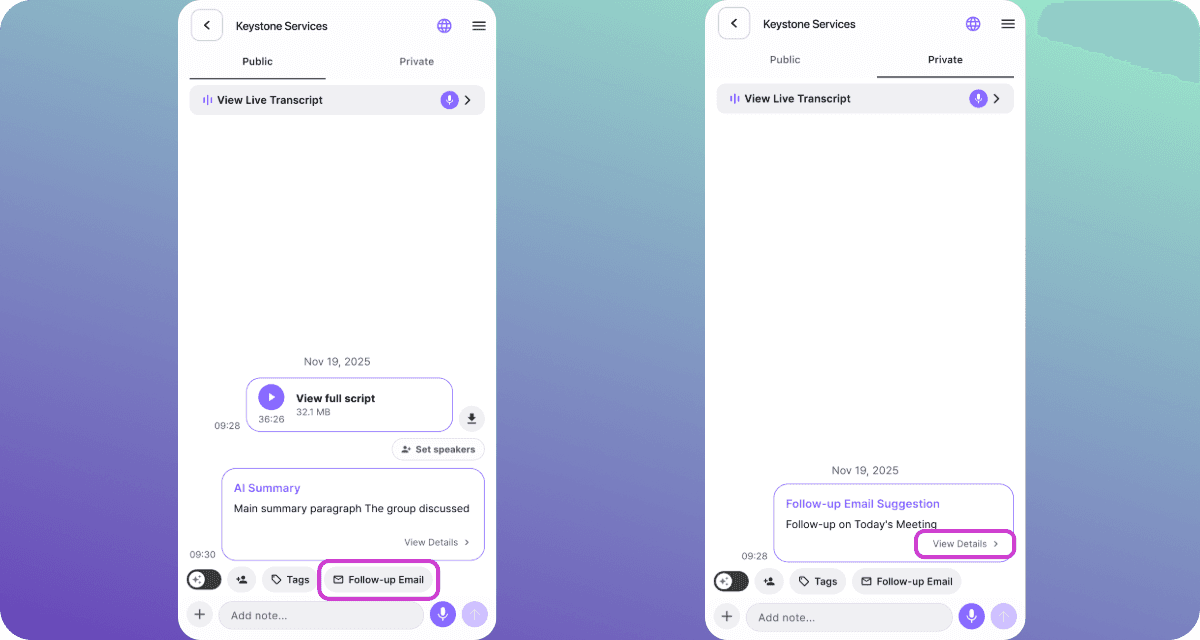
After the meeting, tap Follow-up Email.
In the Private tab, you’ll see a Follow-up Email Suggestion card.
Tap View Details to open the email editor.
💡 Tip: BizCrush uses your meeting summary to craft a relevant first draft automatically.
Step 2: Review the initial draft (Auto-generated)
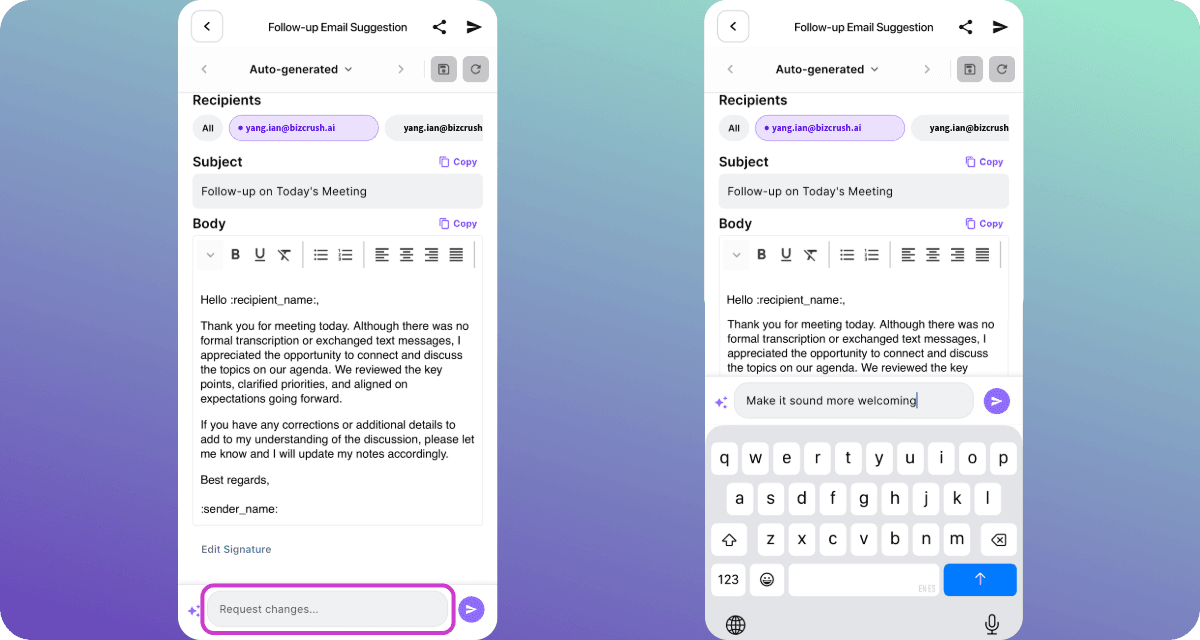
BizCrush generates a complete email, including:
Recipients
Subject line
Email Body (editable)
Quick Copy buttons for easy sharing
This draft is designed to be usable.
Step 3: Request changes with Ask AI
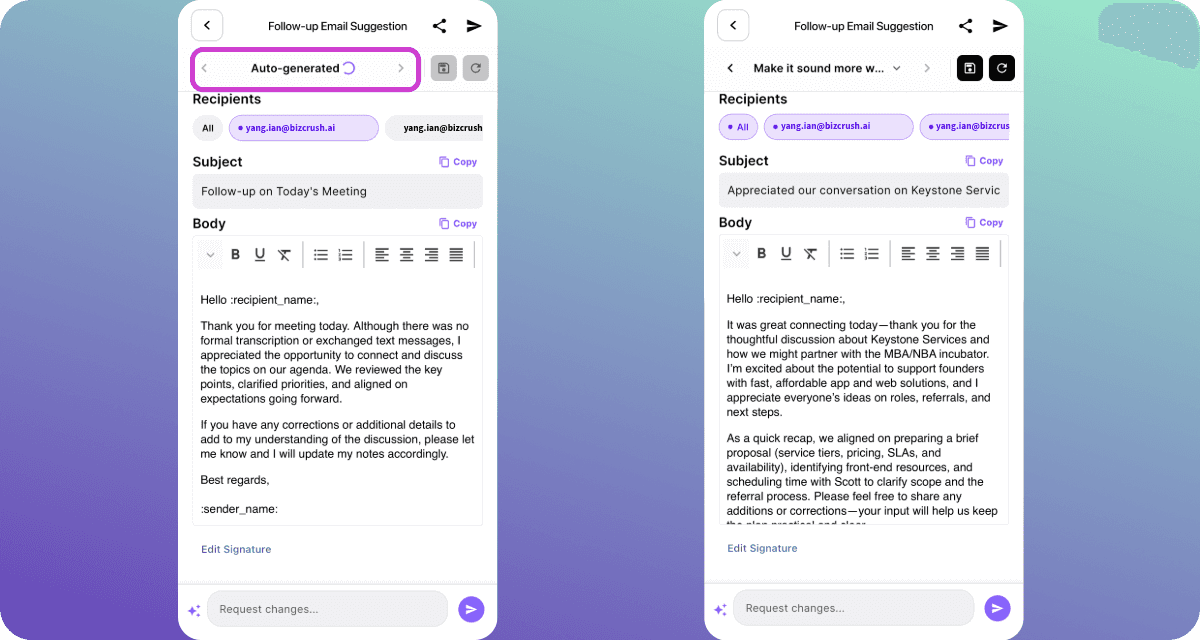
At the bottom of the editor, tap Request changes
Type a short instruction, for example:
“Make it more welcoming.”
“Add a brief recap + next steps”
“Make it shorter or more direct.”
“Rewrite the opening paragraph.”
“Add context about our partnership goals”
Tap the Send (➤) icon to regenerate instantly.
Step 4: See your revised version
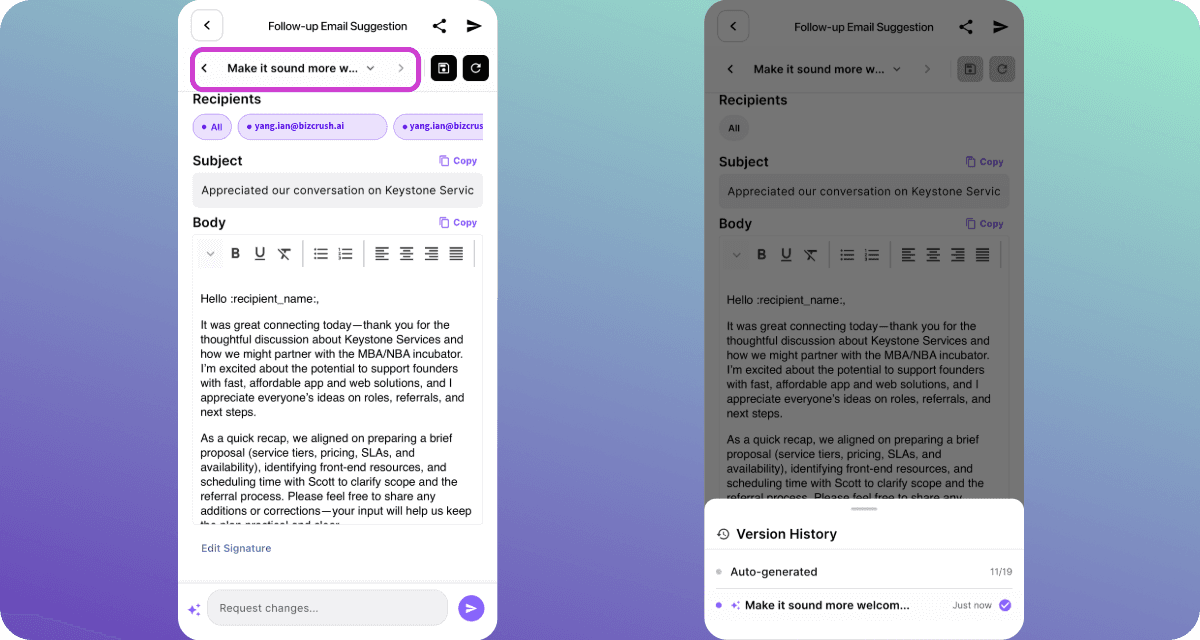
Ask AI applies your instruction and produces a new version, improving:
tone (friendlier / more confident / more formal)
clarity and structure
context and relevance.
Both the subject and body update automatically.
To compare versions, open Version History:
The original Auto-generated draft
Rach Ask AI revision (labeled by your request)
You can iterate freely without losing earlier drafts.
Step 5: Choose the best version and send it
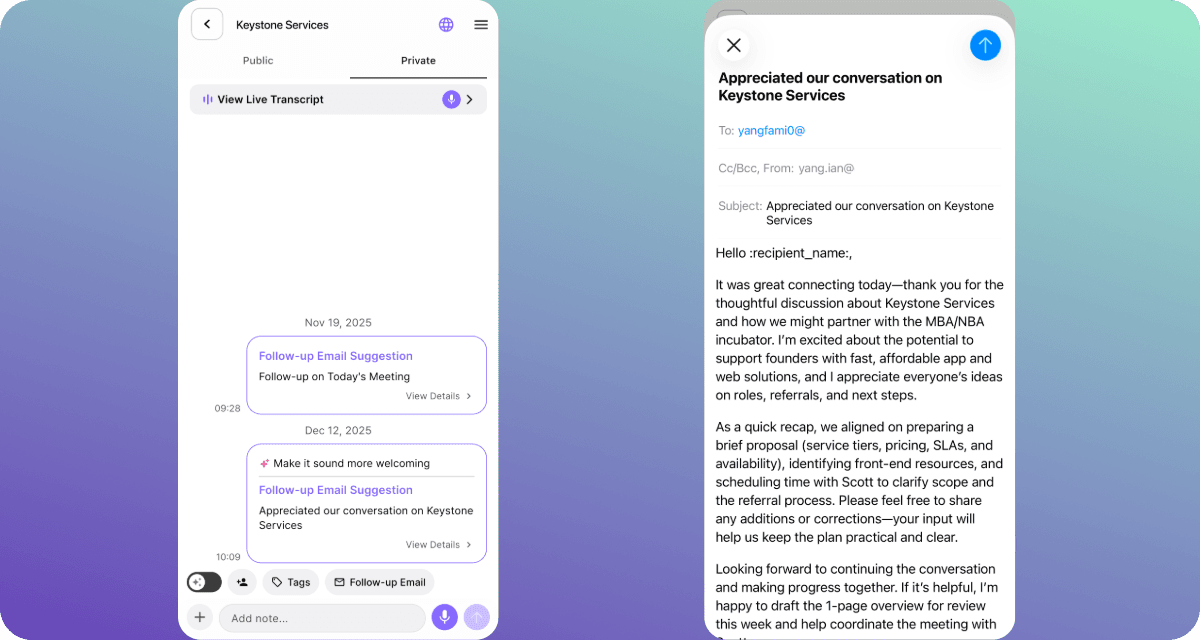
Back on the meeting page, you’ll see multiple Follow-up Email versions.
Open the one you like best, then copy or send it using your email app.
Pro Tips
Be specific: Add 2 bullet next steps” works better than “make it better.”
Include context when needed (the org, project name, or decision point)
Example Ask AI prompts:
“Confident but not salesy’
“Turn the recap into bullet points.”
“Mention the demo we discussed.”
“Add context about timeline and ownership.”
“Include a CTA for scheduling a follow-up.”
TD; LR
Open your meeting → Follow-up Email → View Details
Review the Auto-generated draft
Tap Request changes → type instruction → send (➤)
Compare drafts in Version History
Choose the best version and send it
Try it now.