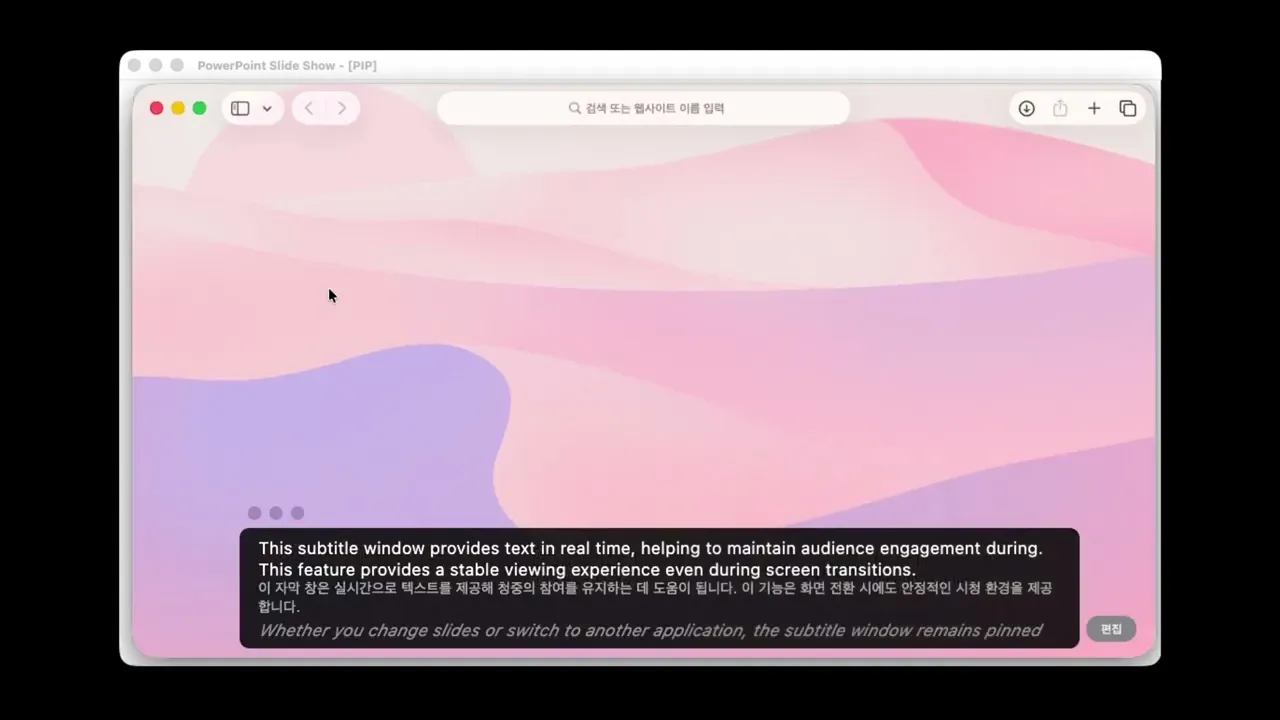
How to Use BizCrush Live Subtitle Mode
2
min

BizCrush
Growth
BizCrush’s Real-Time Subtitle PIP (Picture-in-Picture) Overlay lets you keep live captions (and translation) visible while you work in any app—slides, docs, browser tabs, or online meetings.
Here's a short video showing how to use real-time subtitles.
Or here's a simple visual to get you started.
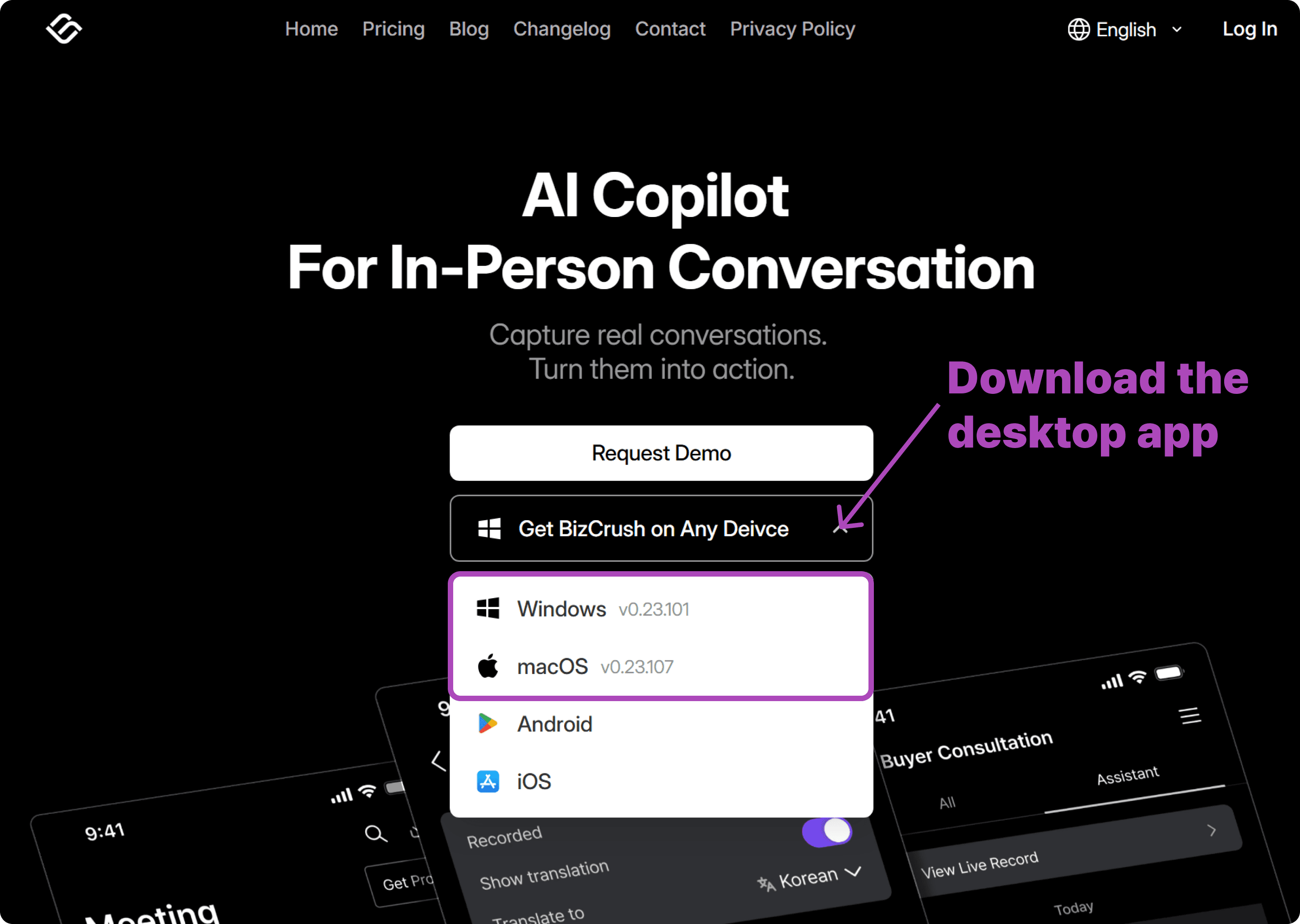
1. Install the BizCrush Desktop App
PIP subtitles are a desktop-only feature. If you haven't already, head to our website to download the version for your OS.
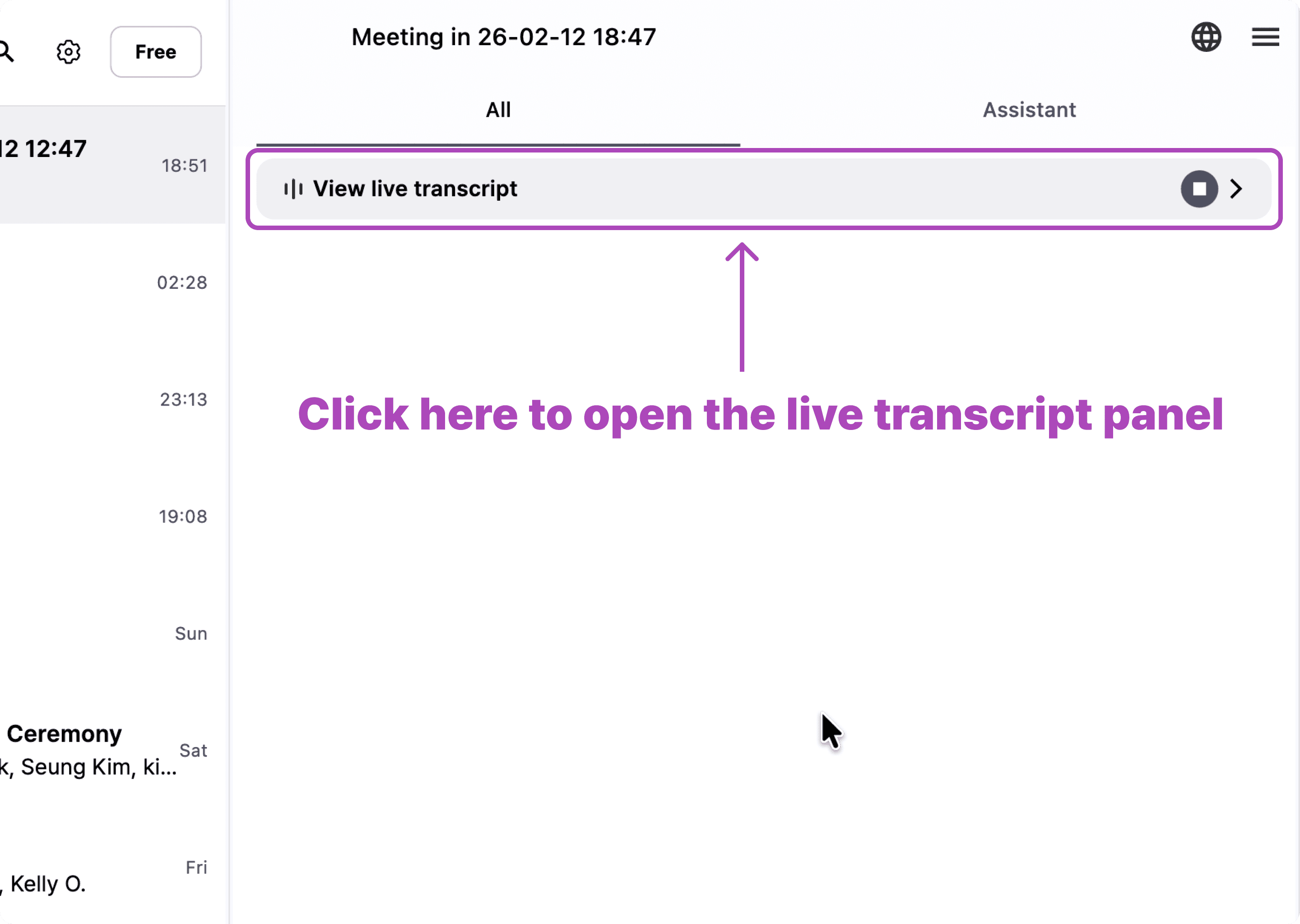
2. Open the Real-Time Script Panel
Start a meeting and open your live transcript panel to set things up.
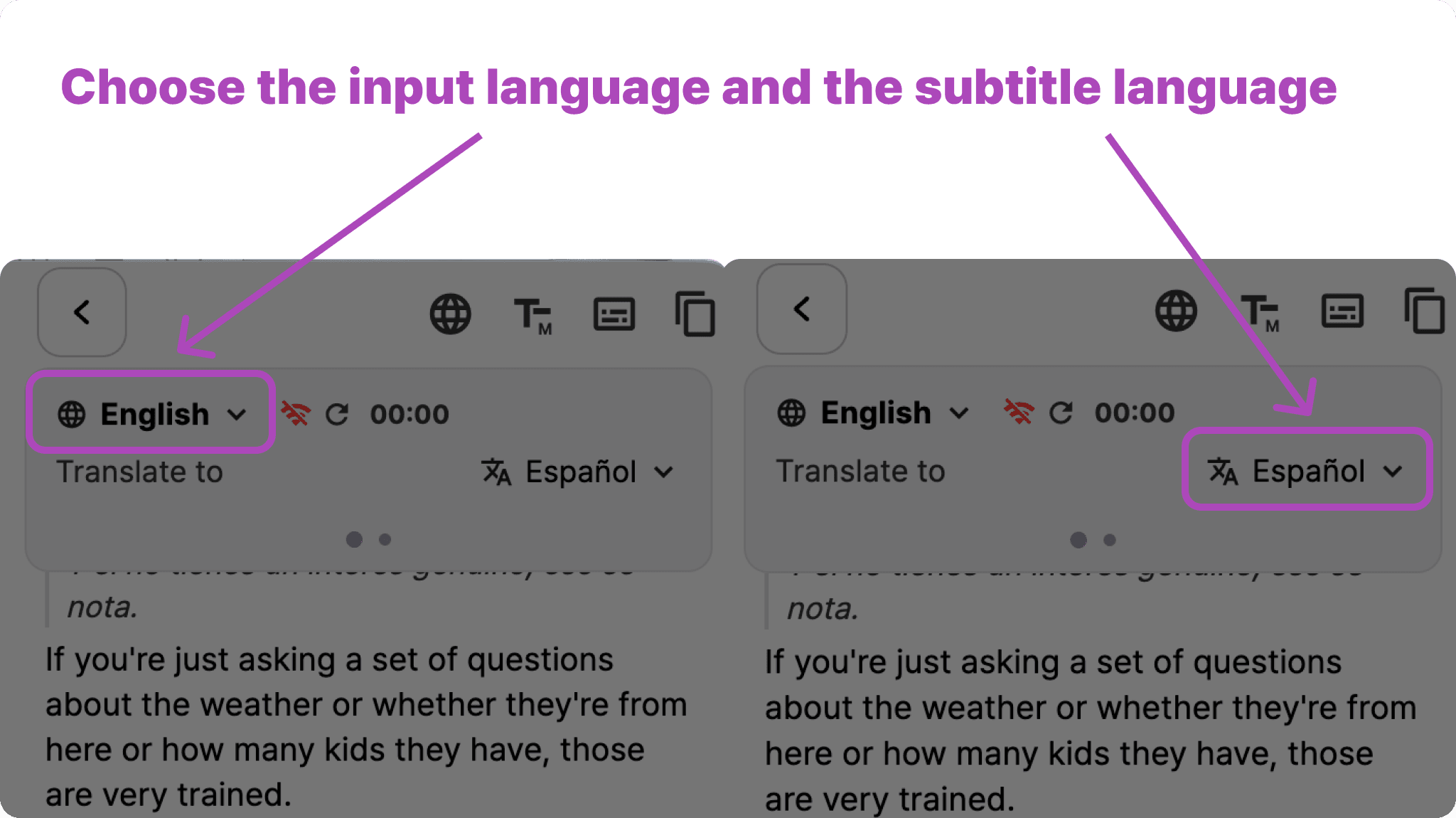
3. Set Your Languages
Choose your spoken language and the language you want subtitles translated into.
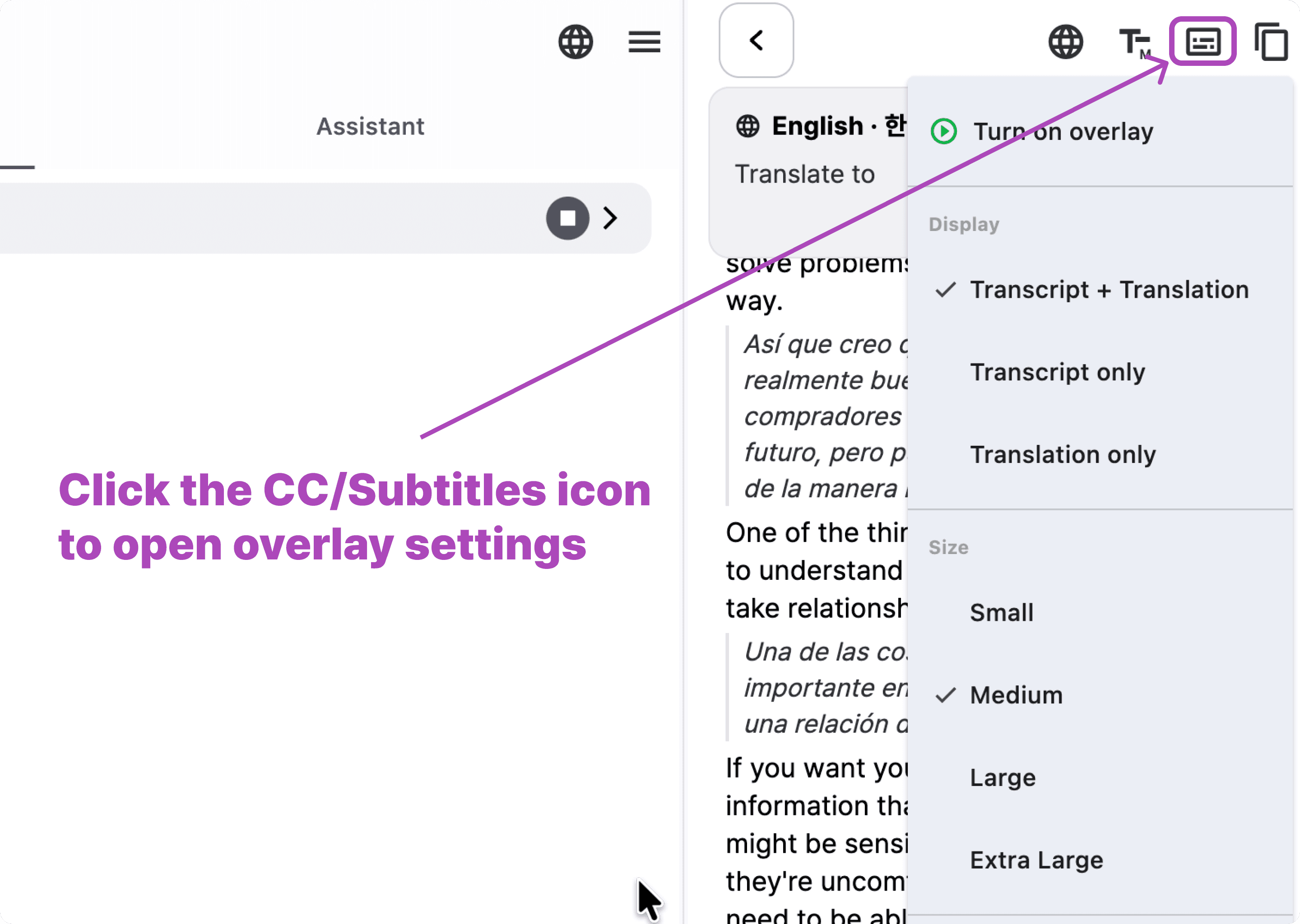
4. Open Subtitle Menu
Next, open the subtitle menu from the script panel’s top-right area.
5. Customize Your Overlay Settings
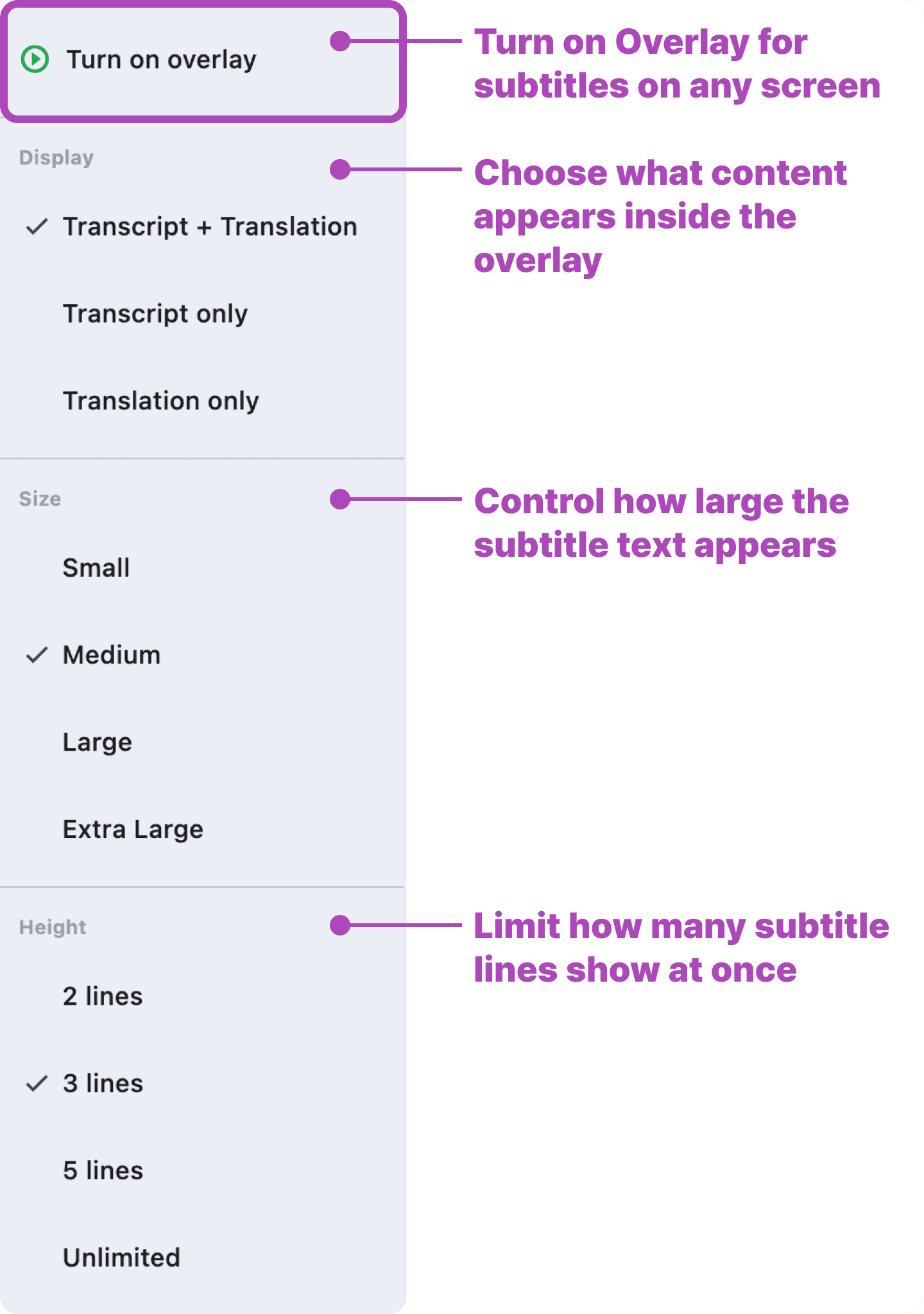
The dropdown lets you choose display mode, text size, and how many lines appear.
6. Turn On PIP Subtitles
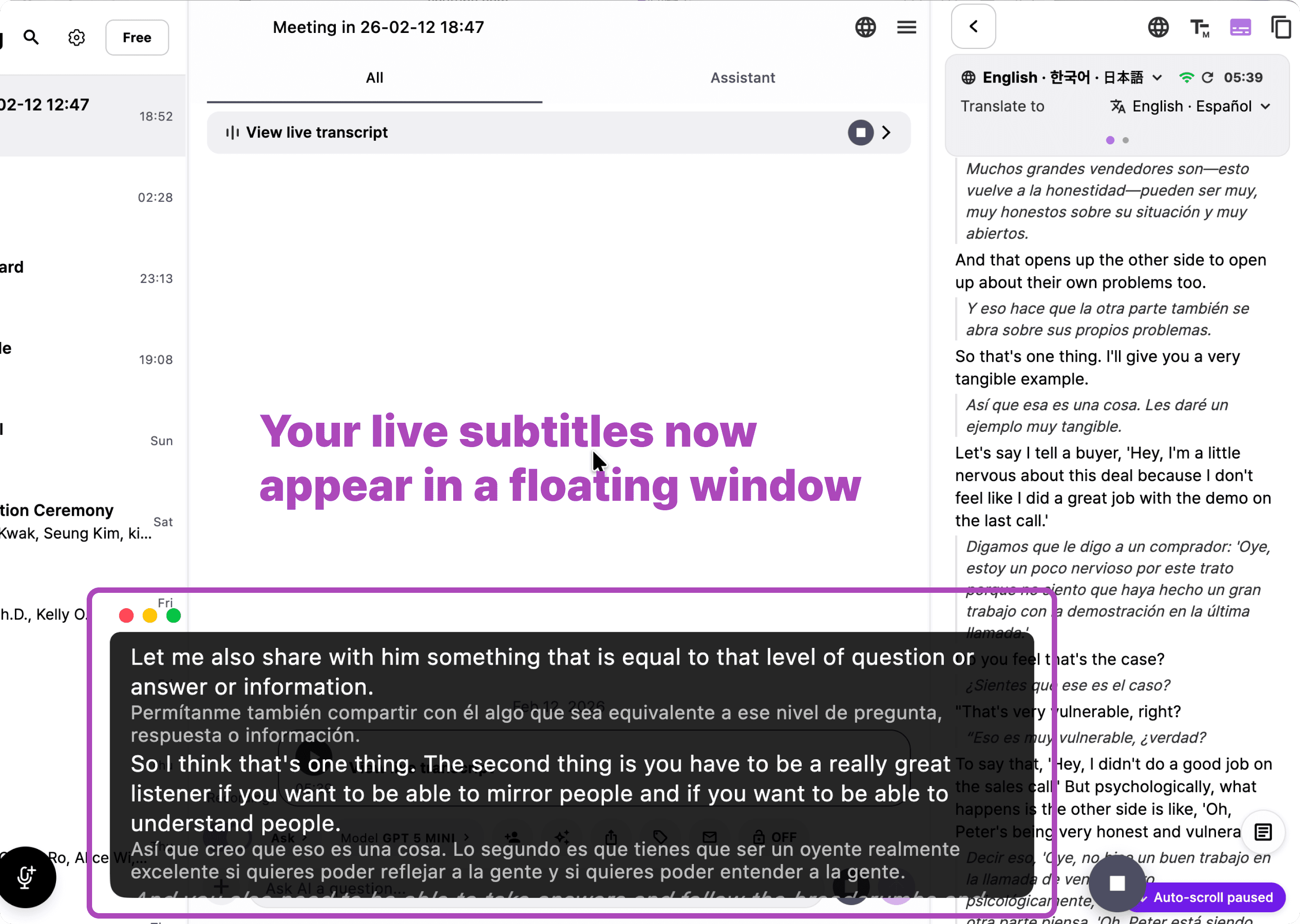
Once you enable overlay mode, subtitles appear instantly in a floating window.
7. Move the Subtitle Window Anywhere
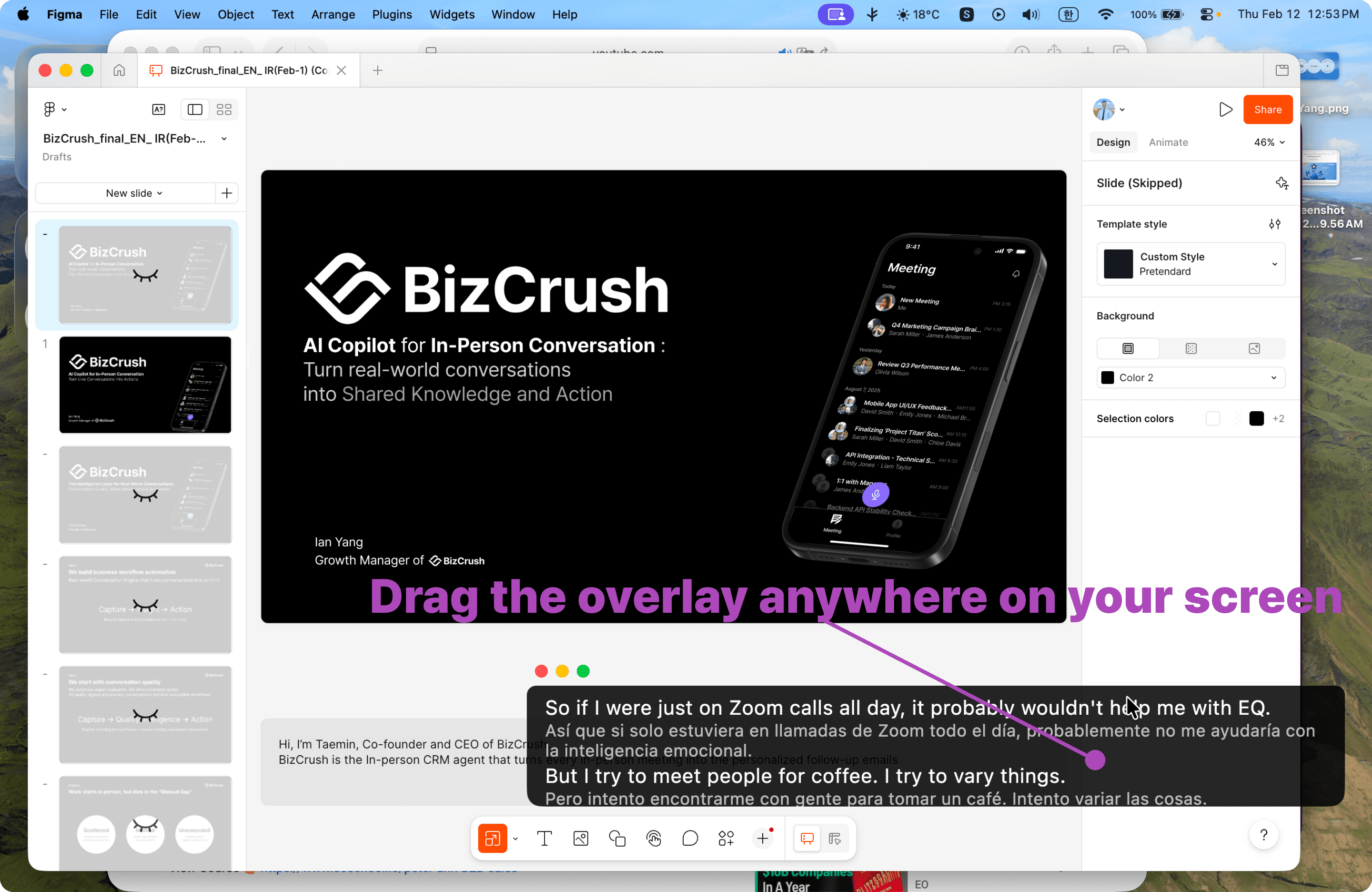
Drag the overlay to wherever it’s most comfortable on your screen.
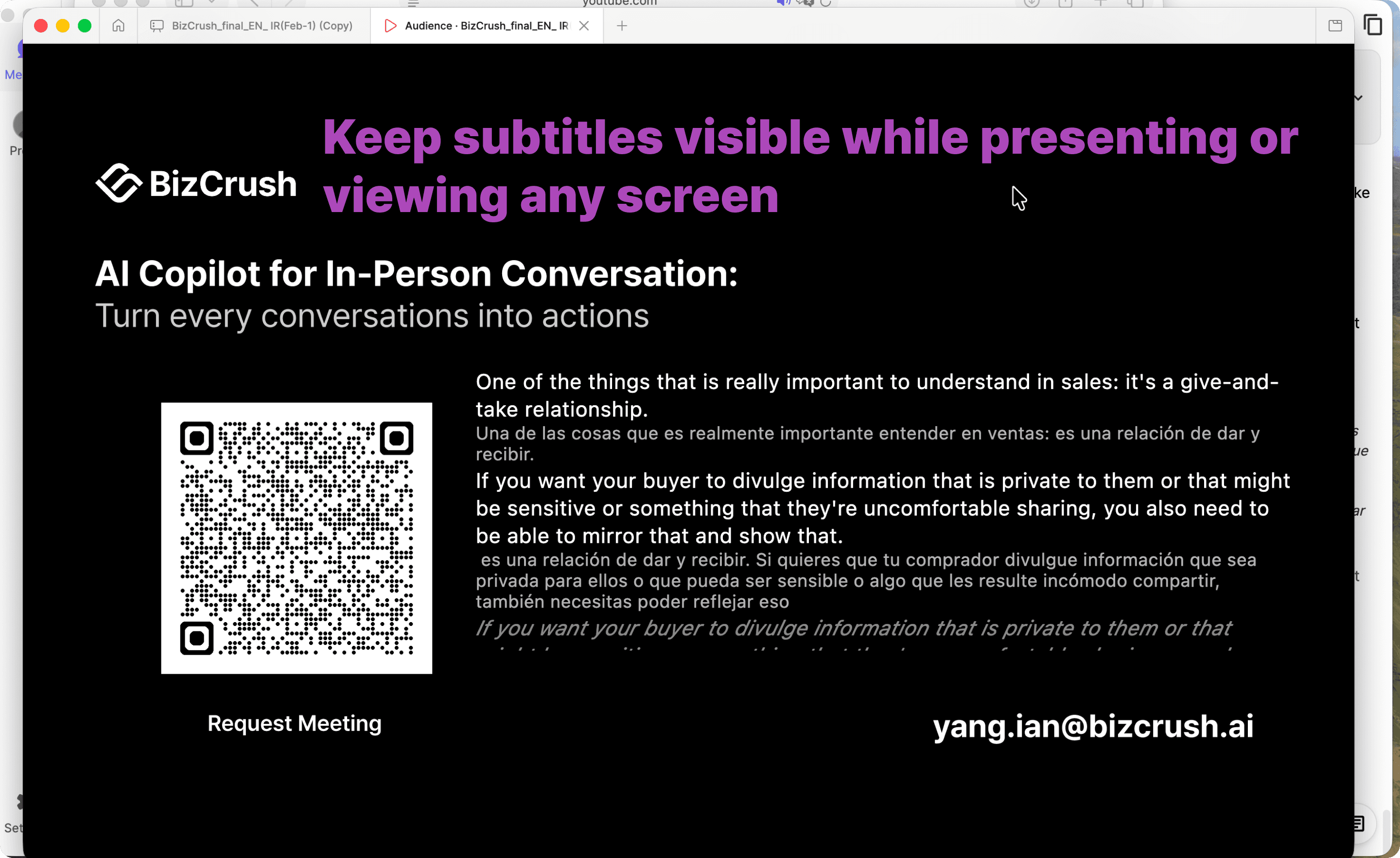
8. Use It While Presenting or Multitasking
Your subtitles stay visible on top of slides, browsers, or any app.
Great for presenters, trainers, and meetings.
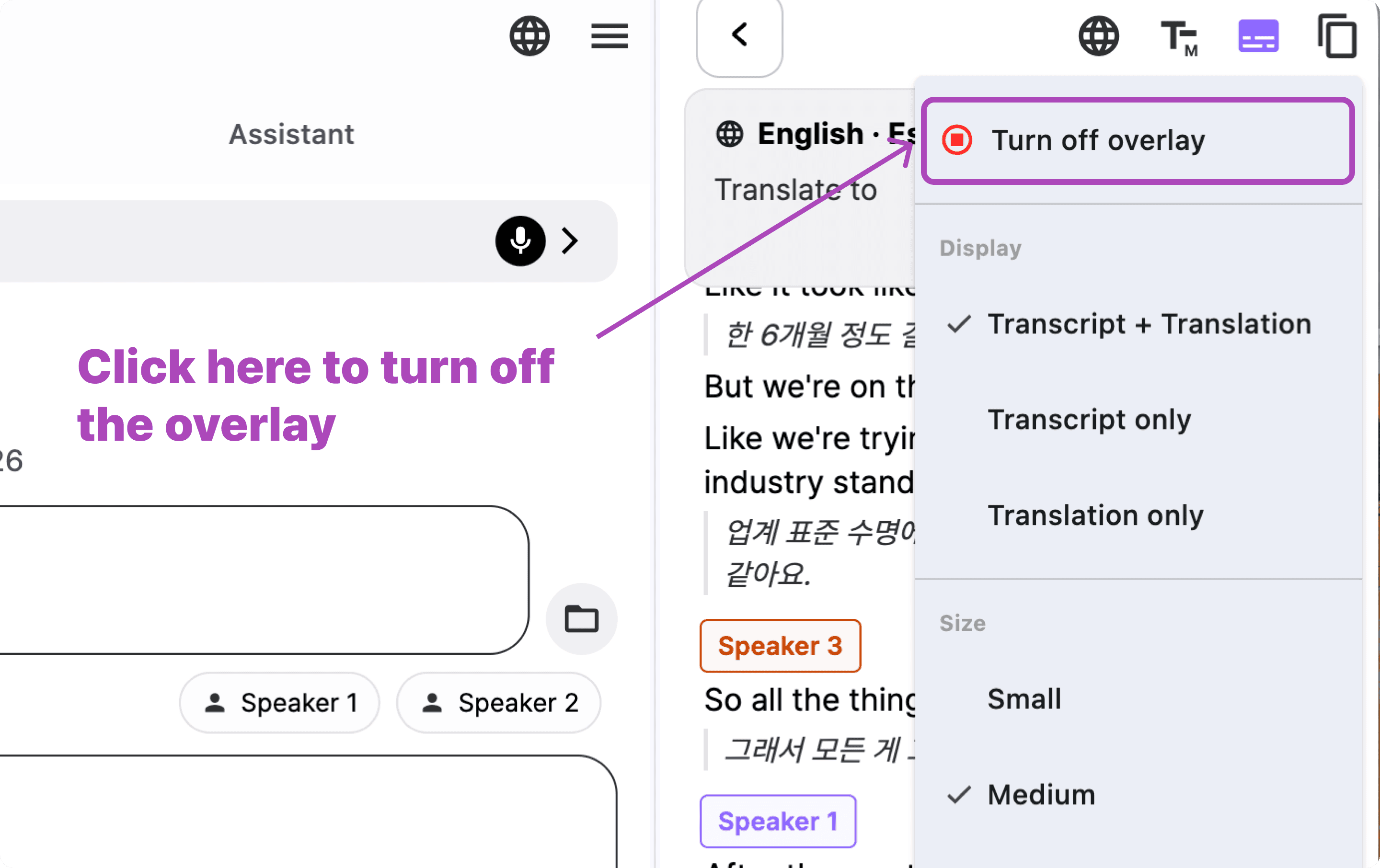
9. Turn Off Anytime
Turn off the overlay window when you’re done.
Need more help?
Contact us at business@bizcrush.ai
Explore More updates
We’re making BizCrush smarter, faster and more connected every week.
See everything new → Change log