Quick Start Guide
5
min

BizCrush
Growth
BizCrush turns real conversations into clear notes, follow-ups, and next steps — in minutes. This guide walks you through your first recording and follow-up.
Before You Start
Note: This walkthrough is based on the mobile app. BizCrush is also available on Windows and macOS desktops.
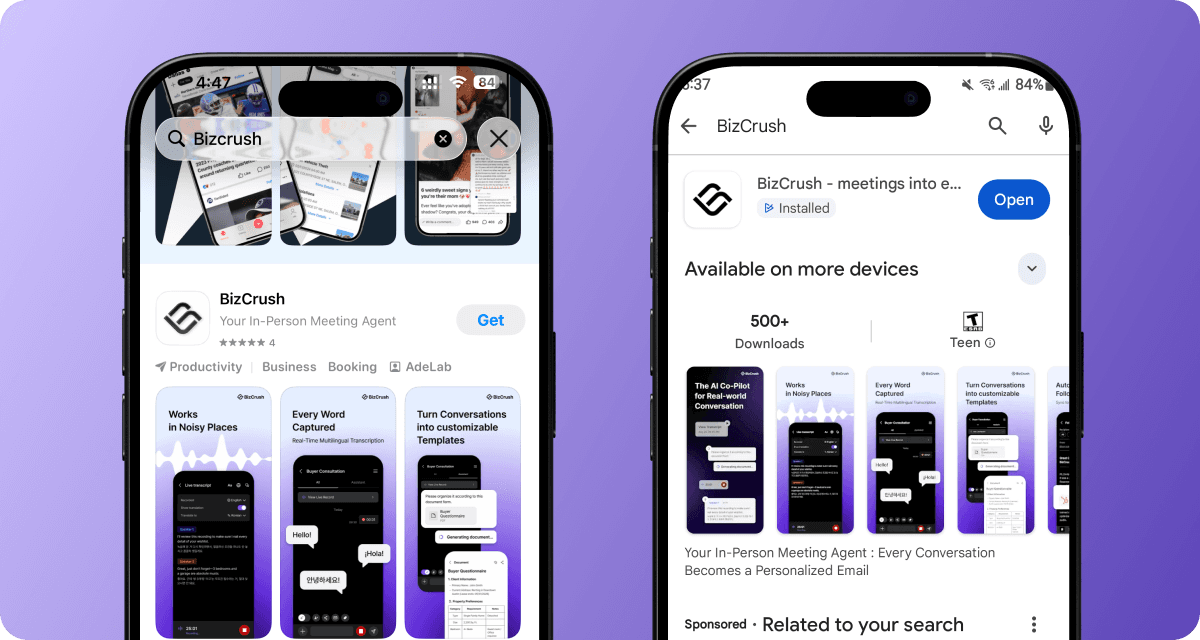
Mobile: Search for BizCrush in the App Store or Google Play and download the app.
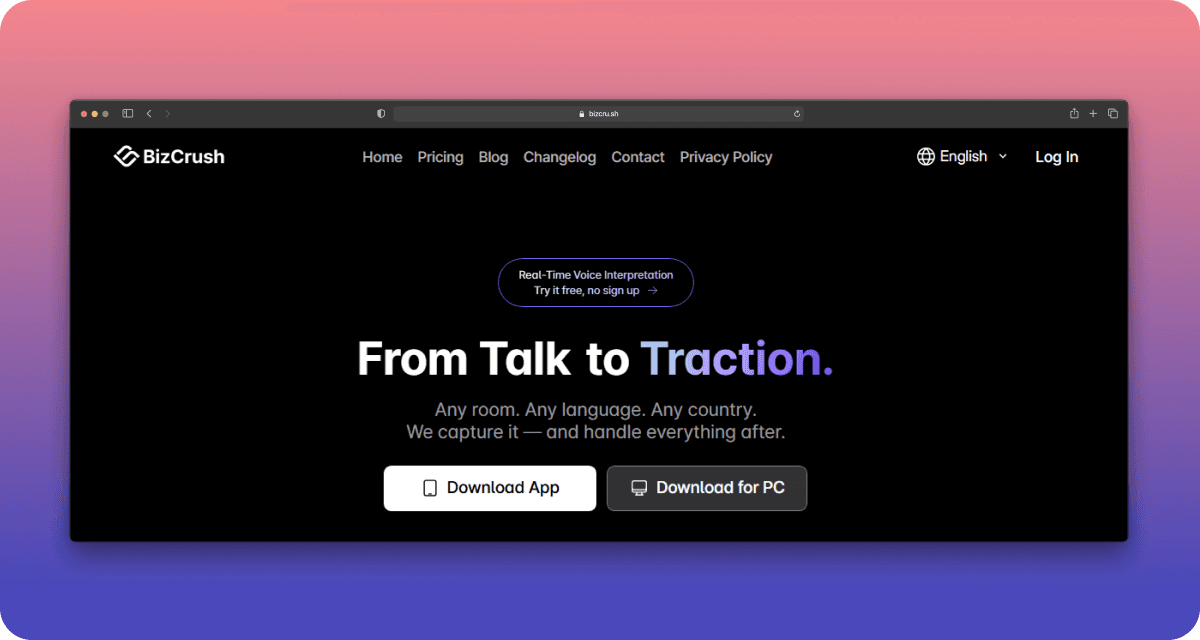
Desktop: Go to bizcrush.ai and click Get BizCrush on Any Device to download the desktop version.
1. Create Your Account
Sign up with your Google, Apple, or email account.
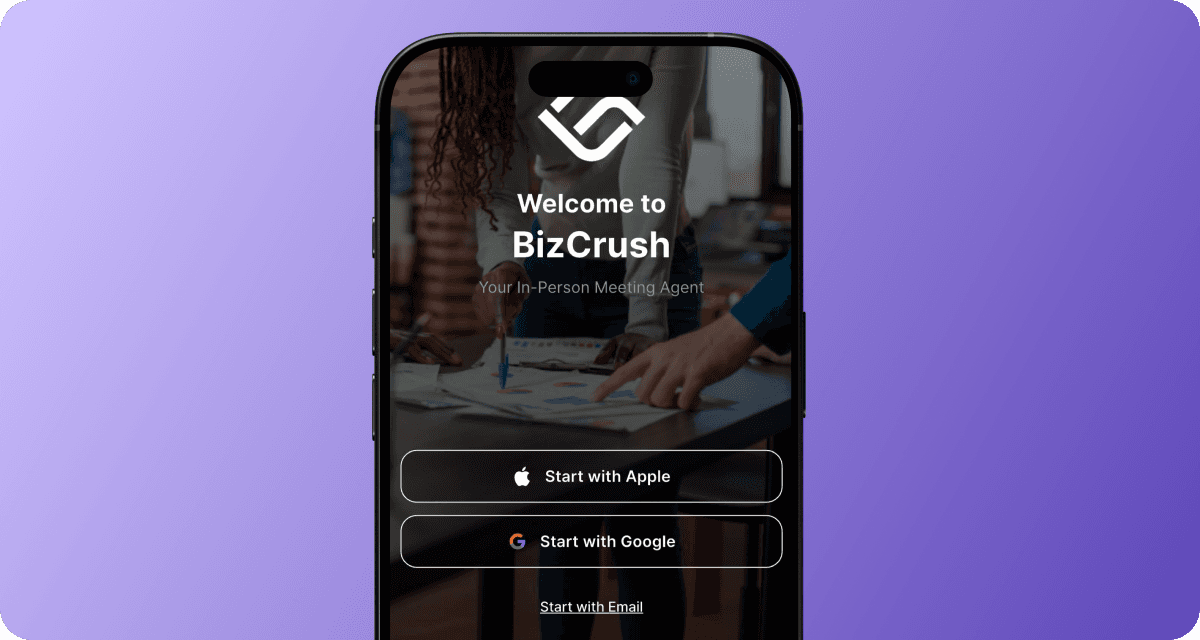
Once you log in, you'll see the home screen where all your meeting rooms are listed.
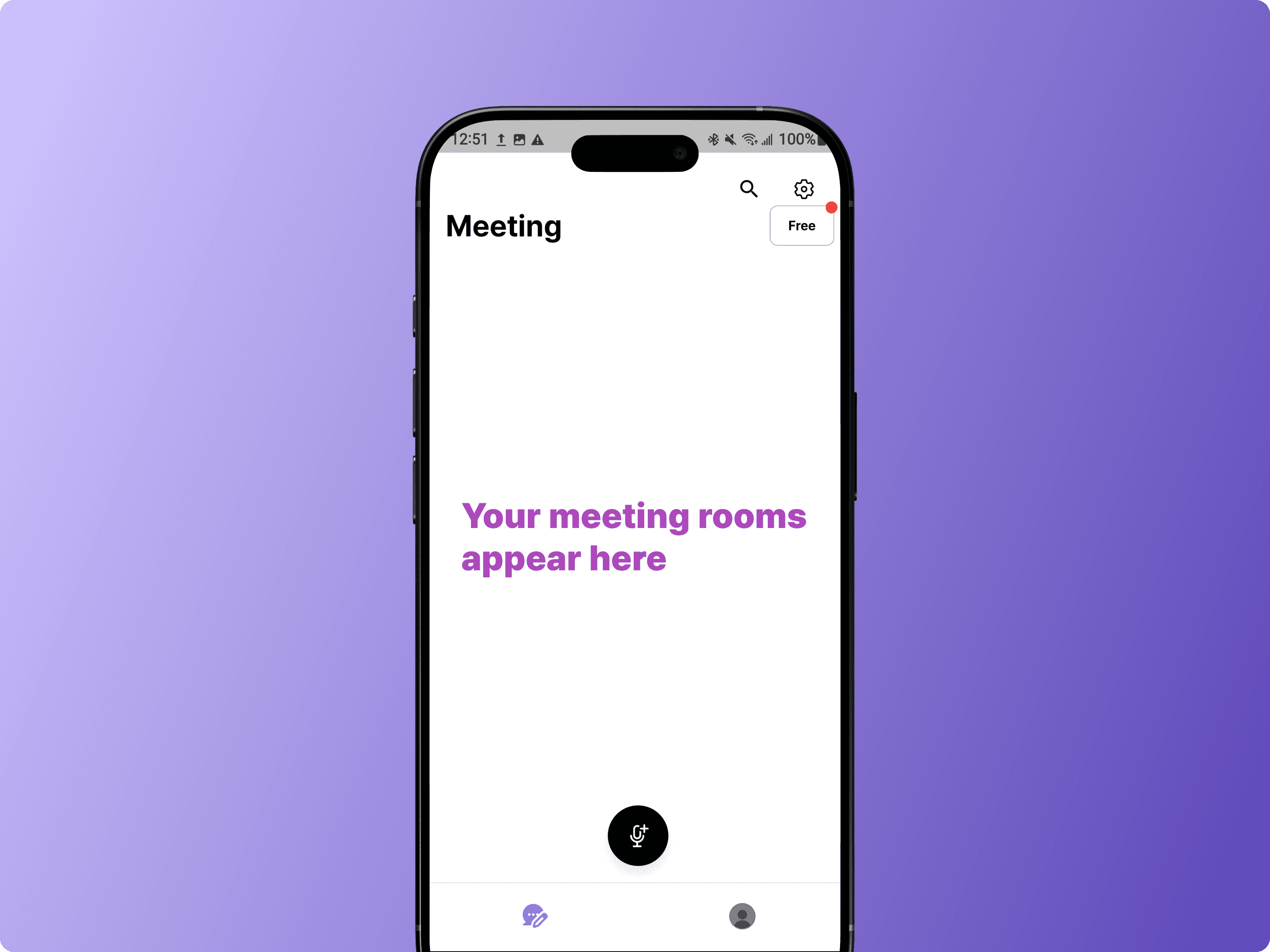
What's a Meeting Room?
A Meeting Room organizes your recordings, transcripts, and participants in one place.
You can create separate rooms for different meetings, or keep multiple recordings in the same room.
2. Record Your First Meeting
There are two ways to get started. Choose the one that fits your situation.
Option A: Record a Live Meeting
First, make sure microphone access is enabled. When prompted, tap Allow to grant permission.
Note: If you've already denied microphone access, go to Settings > Apps > BizCrush > Permissions and enable it.
Tap the microphone button on the home screen to create a new meeting and start recording.
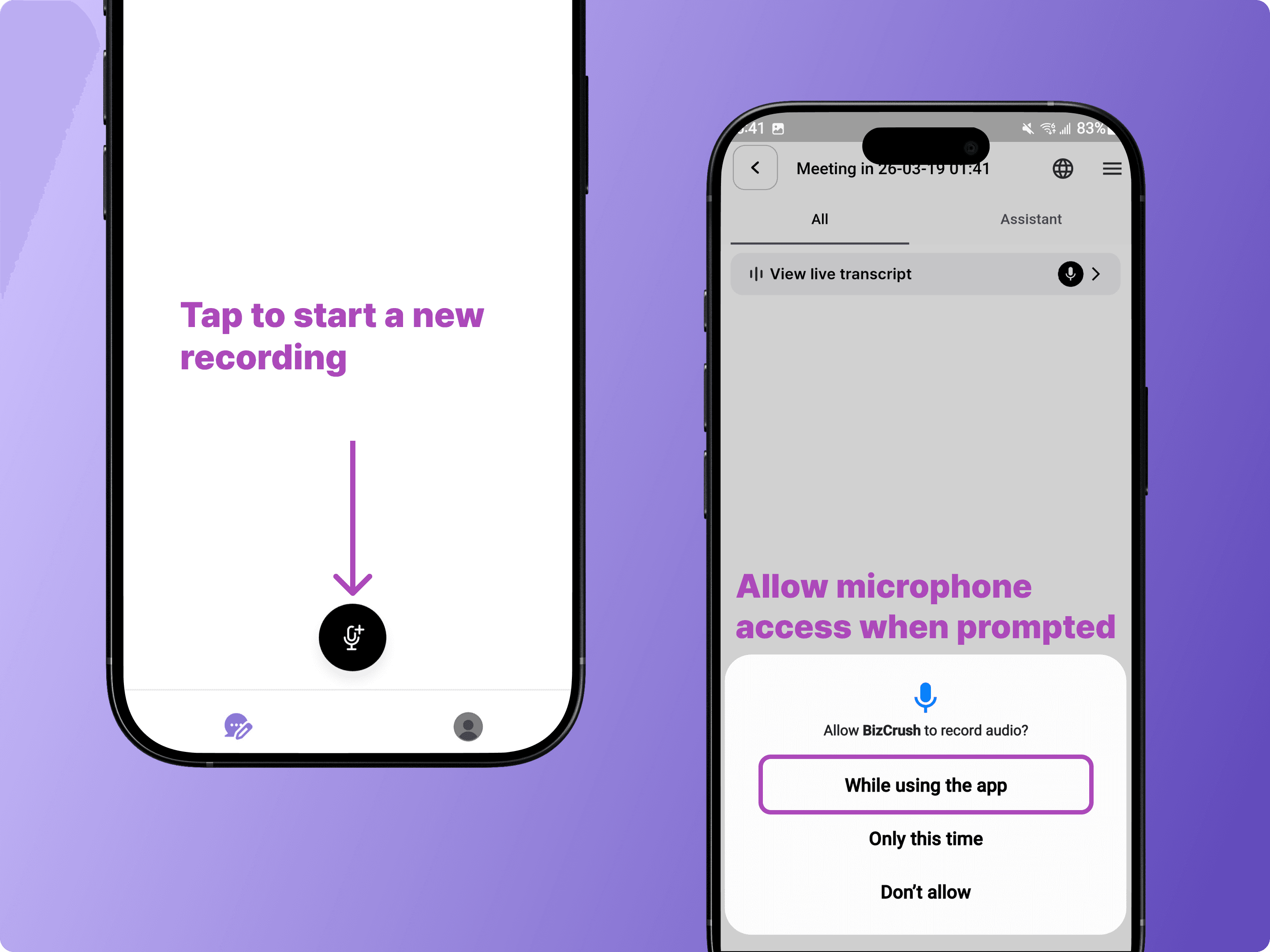
Once recording starts, tap View Live Transcript at the top to see real-time transcription and translation.
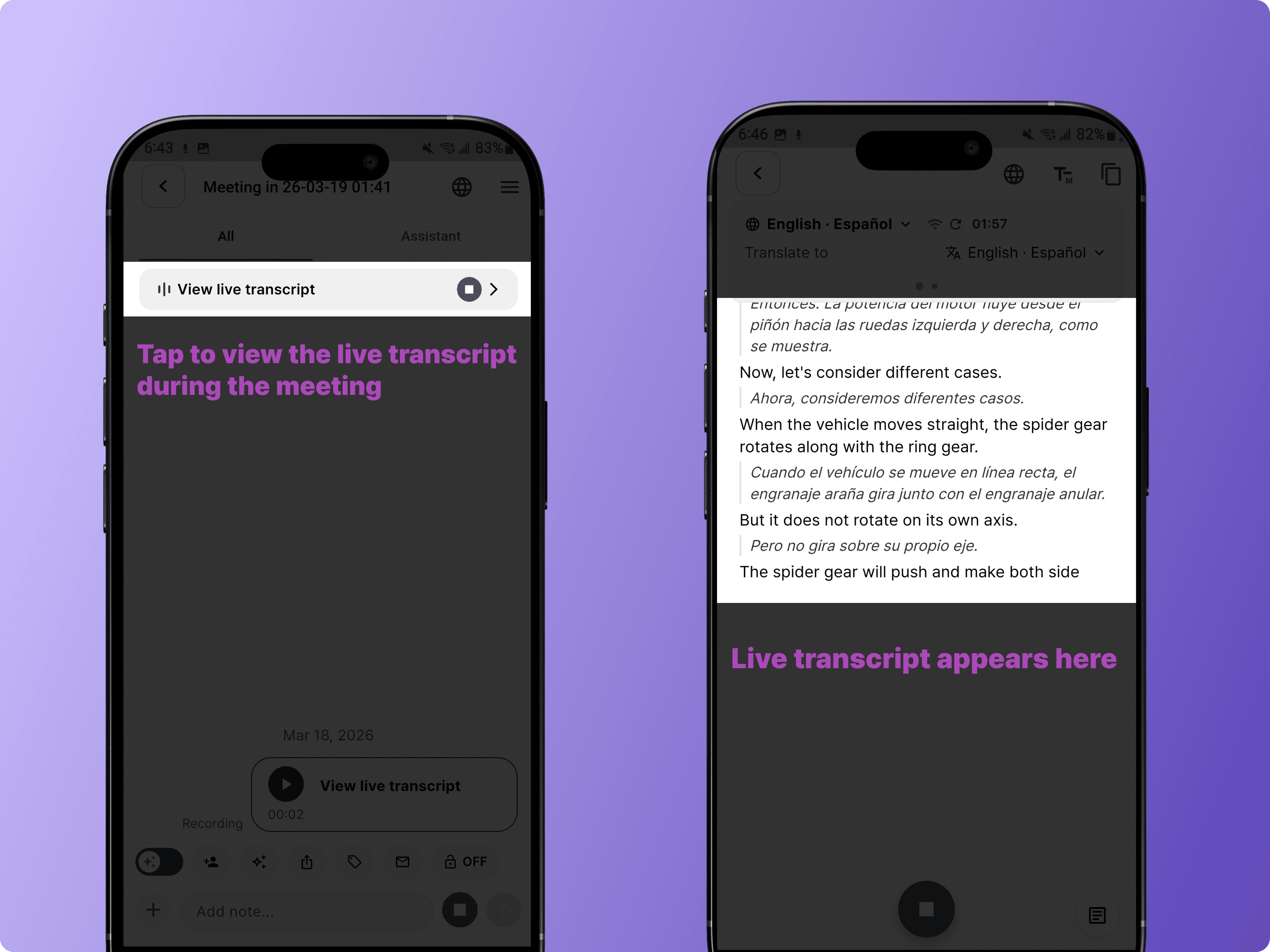
When the meeting is over, tap the Stop button to end and save the recording.
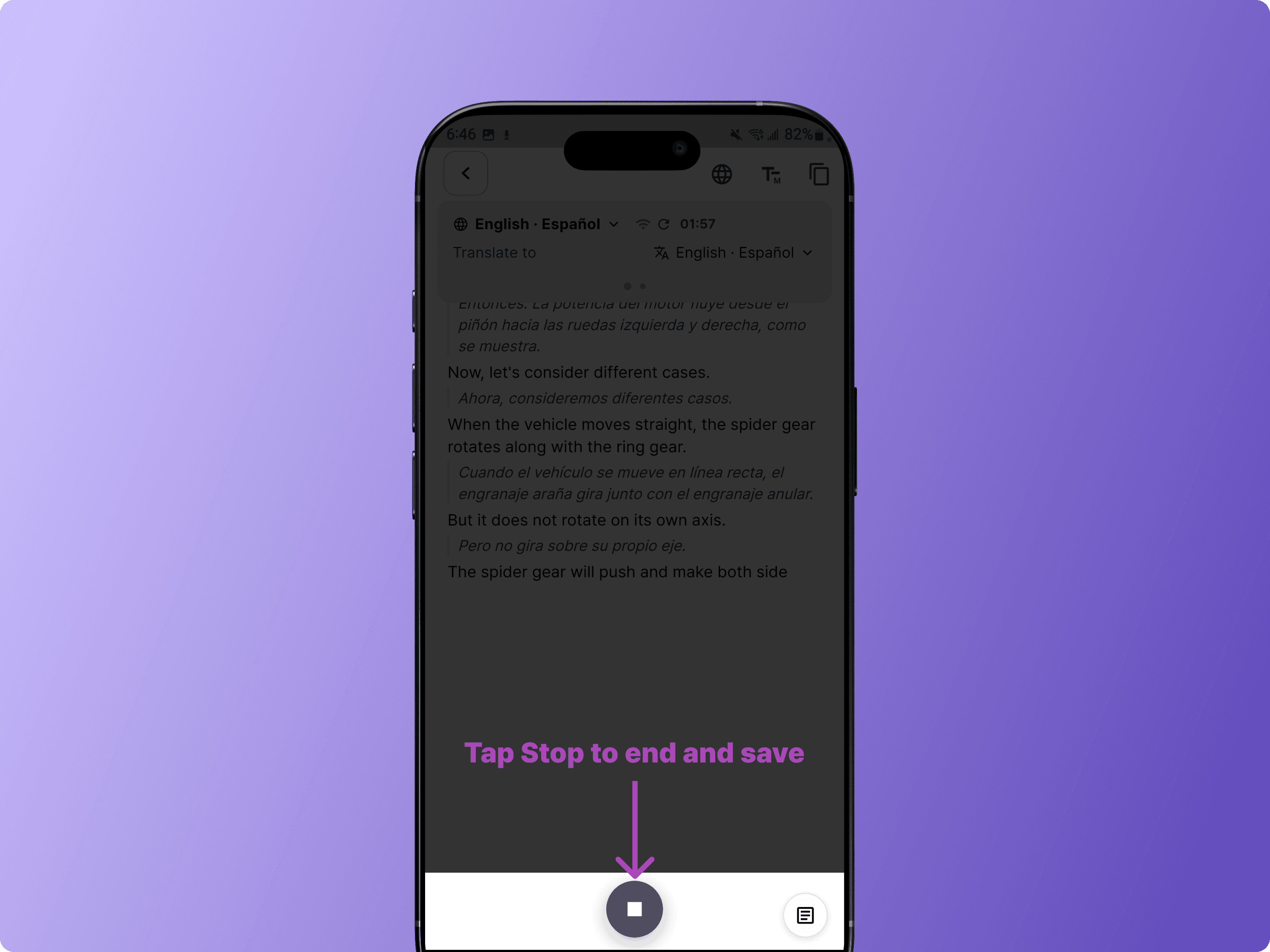
Note: To generate the post-meeting transcript and summary, you must tap the stop button to end and save the meeting.
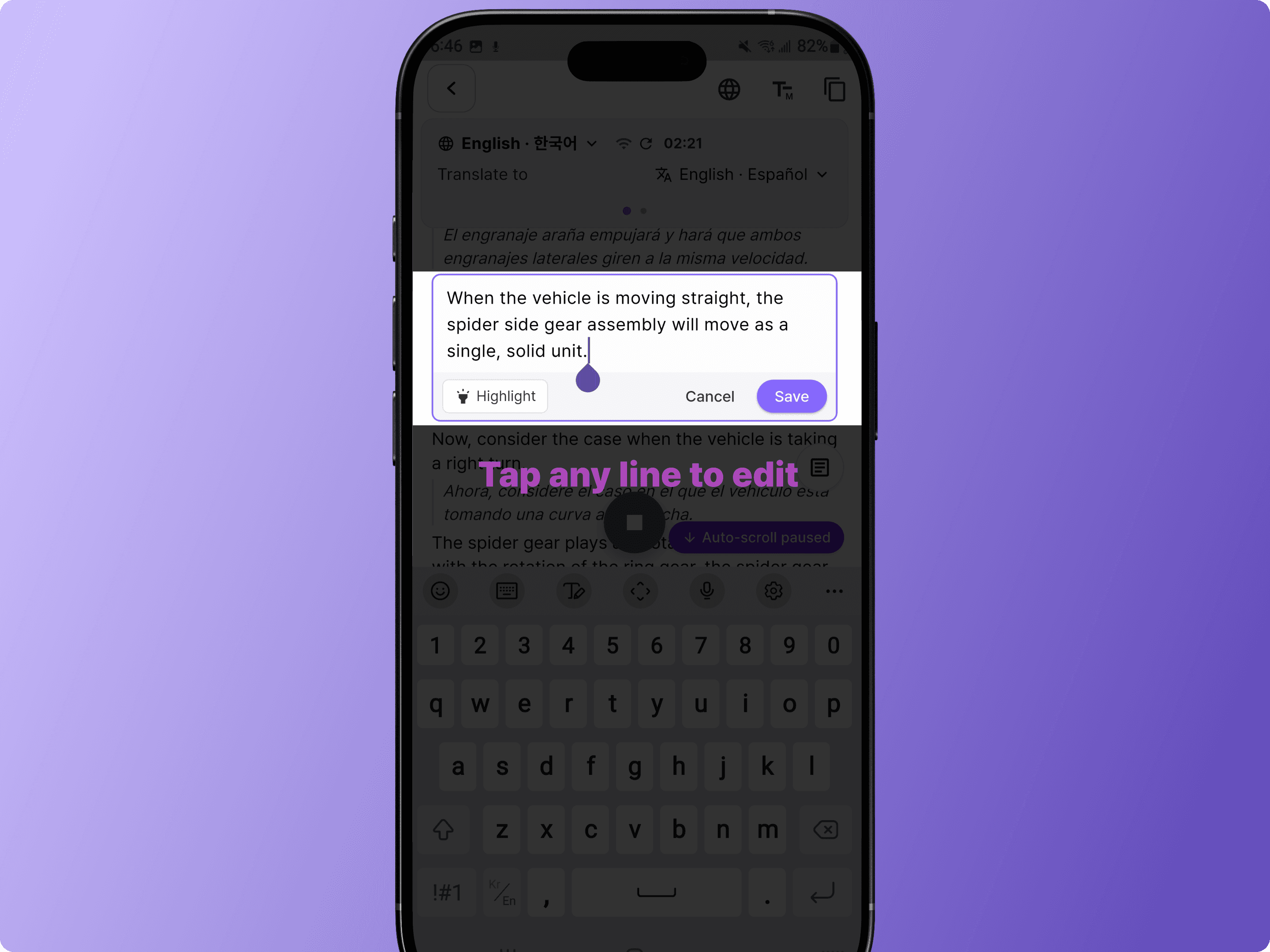
Tip: You can edit the transcript directly by tapping any line, even while recording is still in progress.
Option B: Import an Existing Recording
Use this option if you already have a recorded audio file, such as .mp3 or .m4a.
Tap the + icon in the meeting room toolbar.
Select <Upload audio>, then choose the file you want to import.
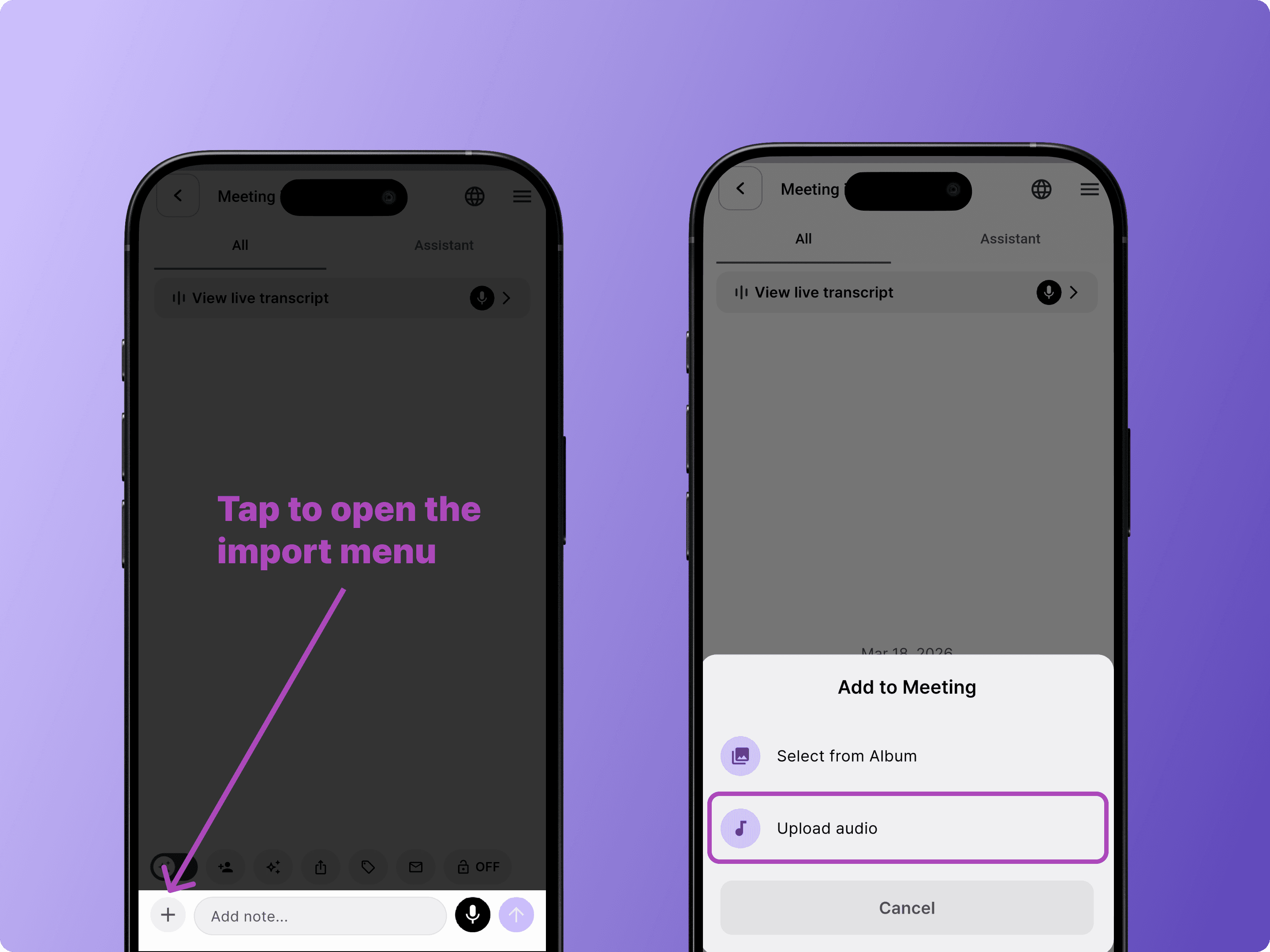
BizCrush will automatically transcribe the file and generate a summary.
3. Set Up Translation
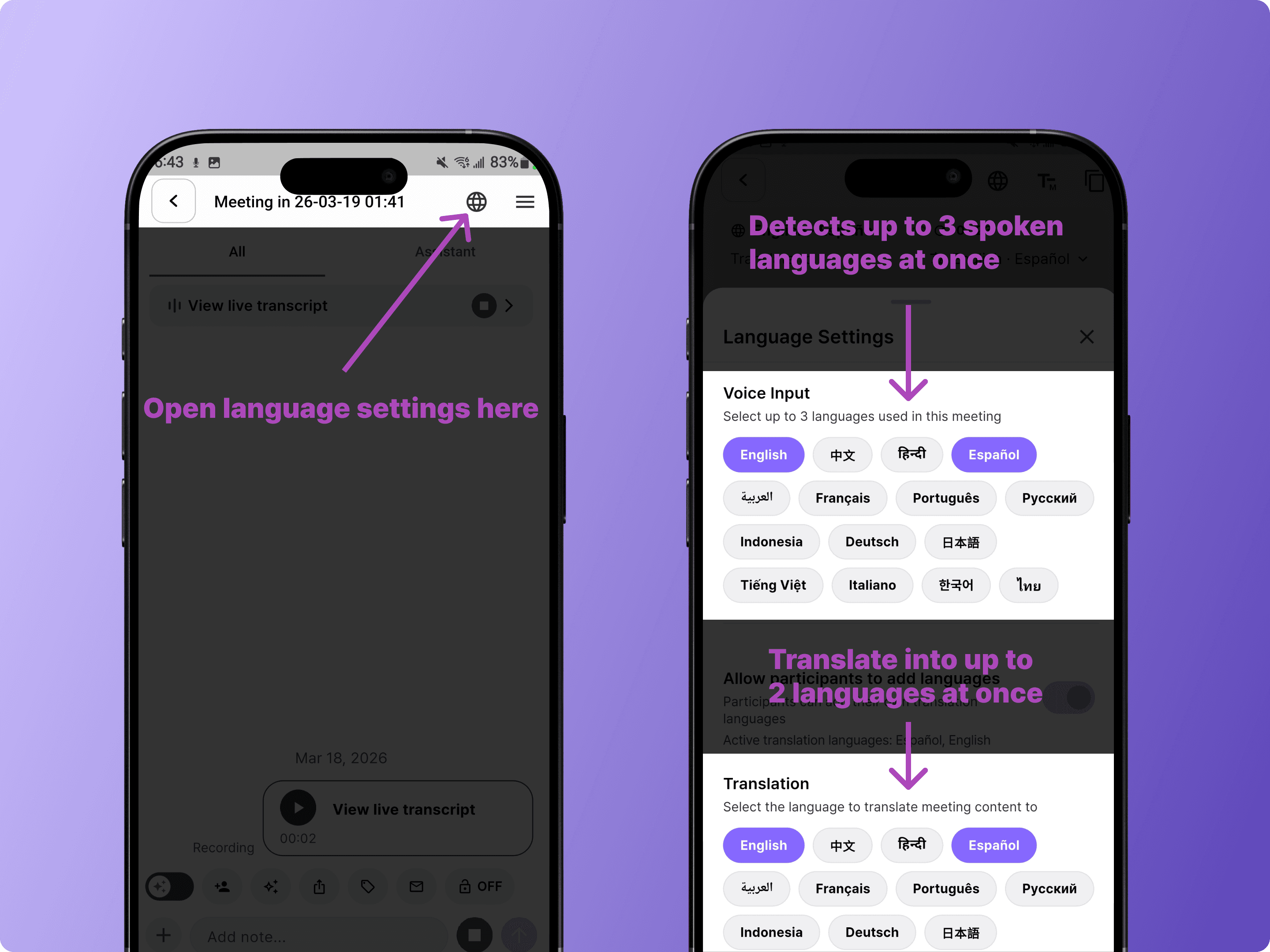
For multilingual meetings, tap the globe icon in the meeting room to open Language Settings.
BizCrush can detect up to 3 spoken languages at once and translate into up to 2 preferred languages in real time.
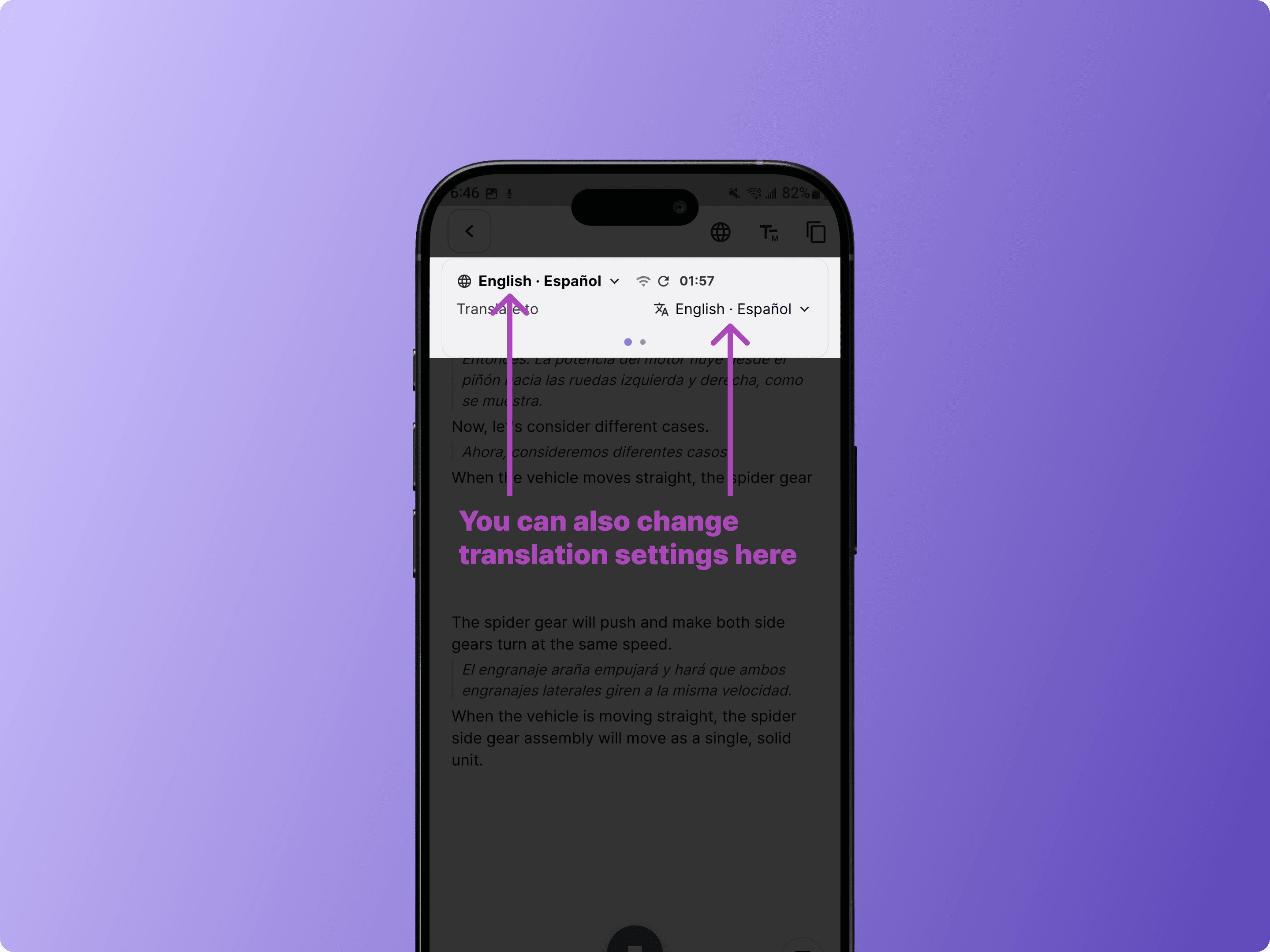
You can also change the translation language directly from the transcript view.
4. Review Your Transcript and Summary
After the meeting ends, BizCrush automatically generates a refined post-meeting transcript and summary.
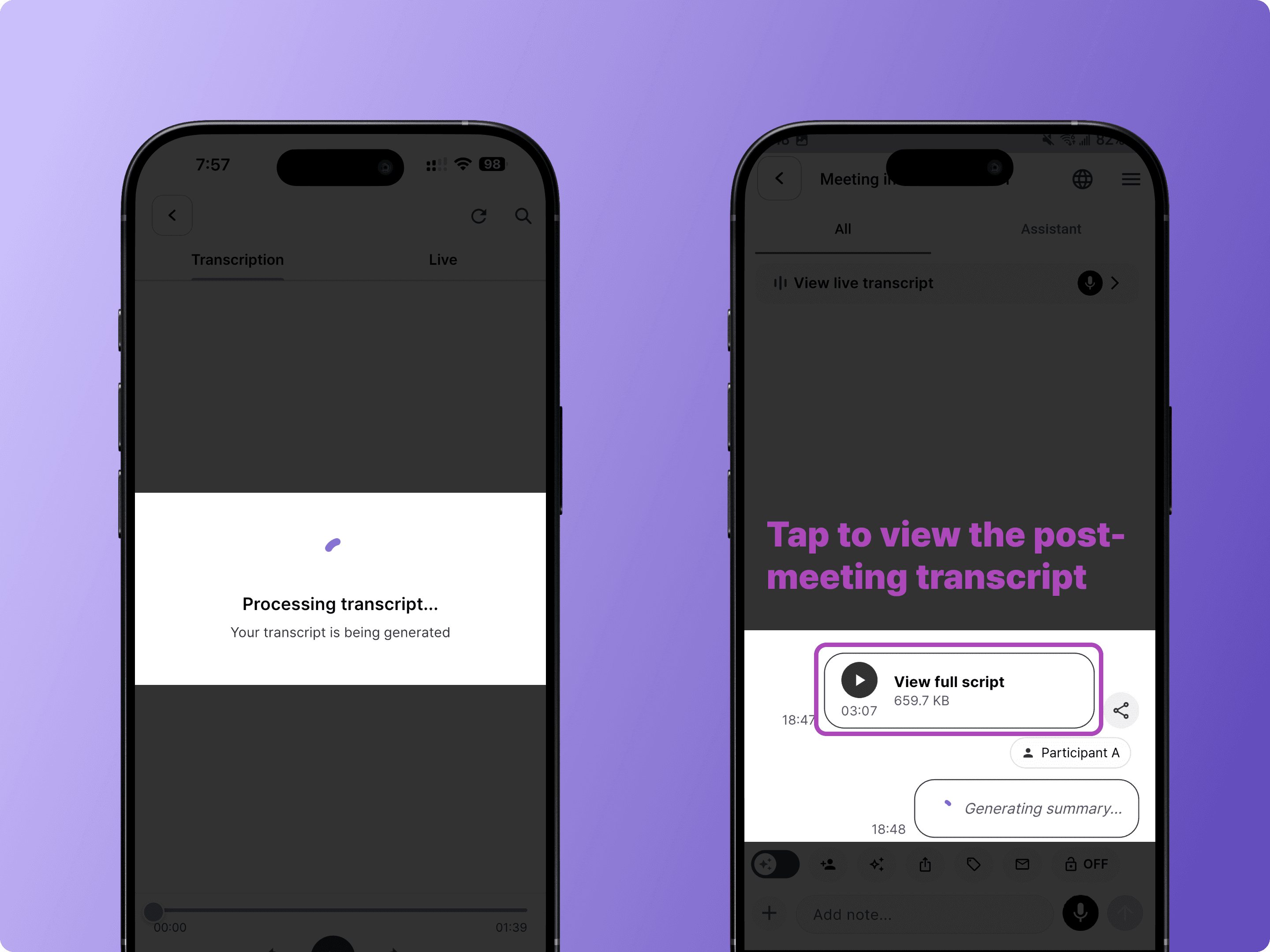
Note: Summary generation may take a few minutes depending on the recording length.
View the Summary
Tap the AI Summary card in the meeting room to view the full summary, including key discussion points and structured sections.
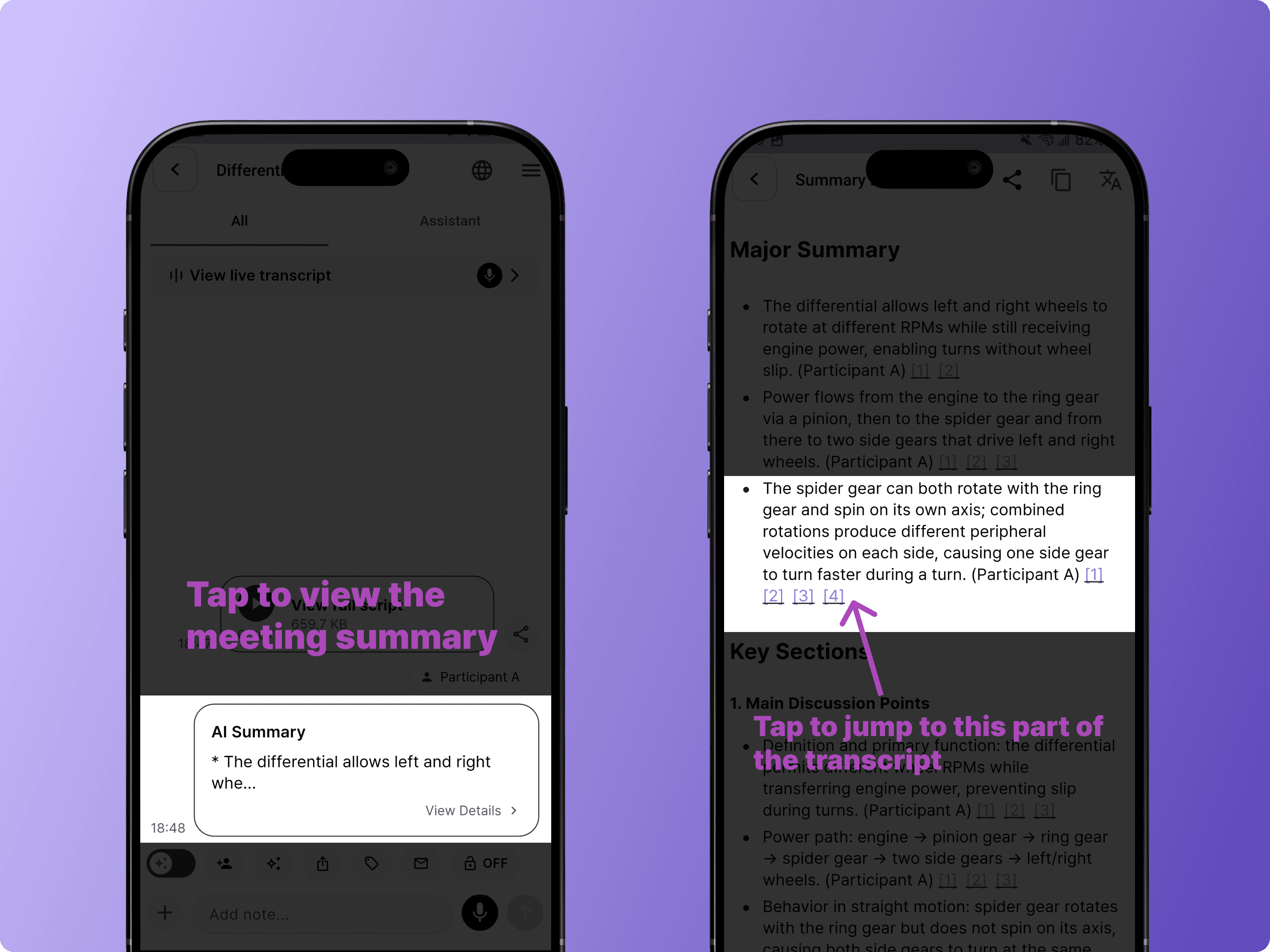
Tap any referenced section to jump directly to that part of the transcript.
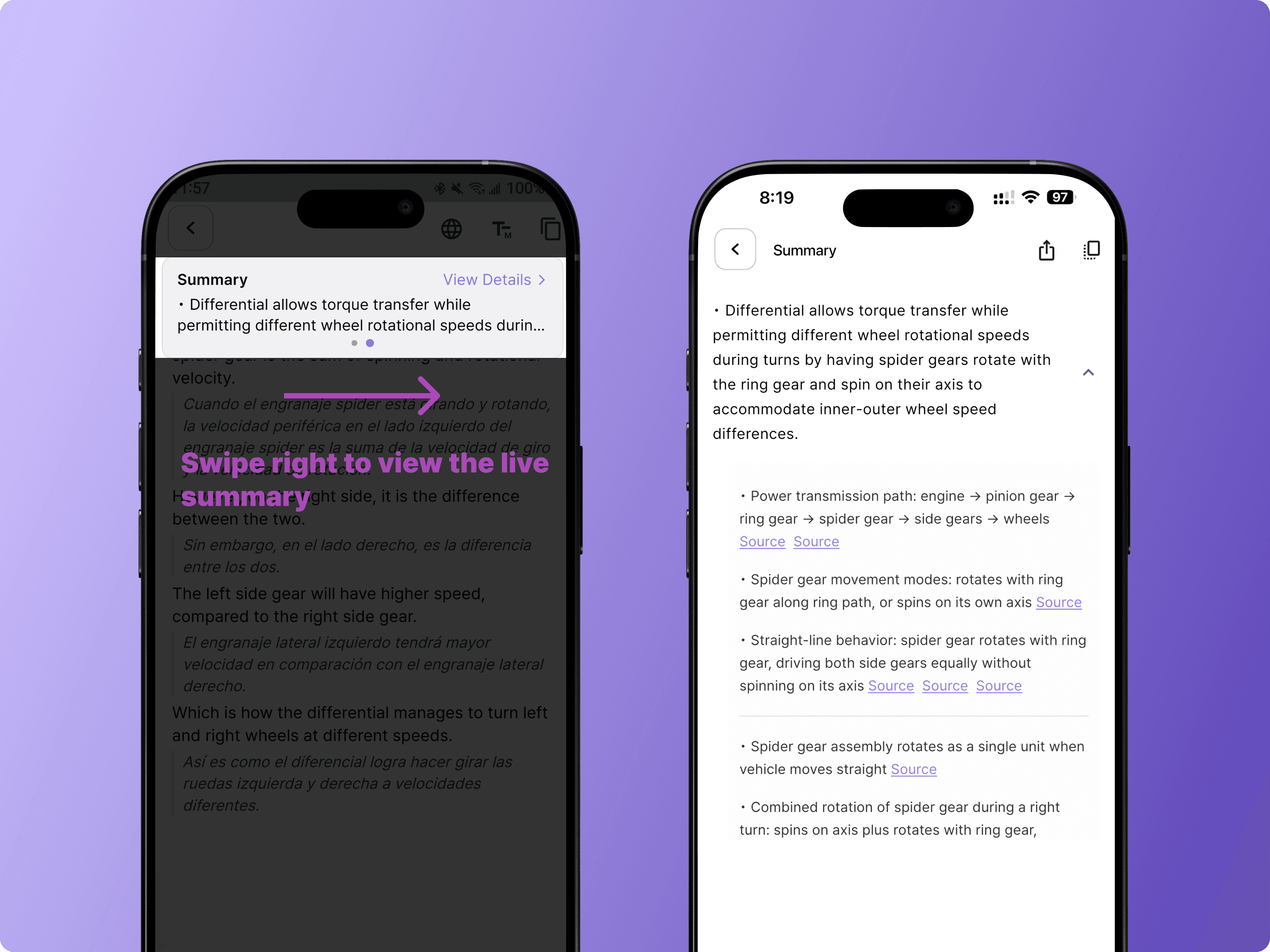
Swipe for Live Summary
During recording, you can swipe right on the transcript view to check the live summary as each discussion topic wraps up.
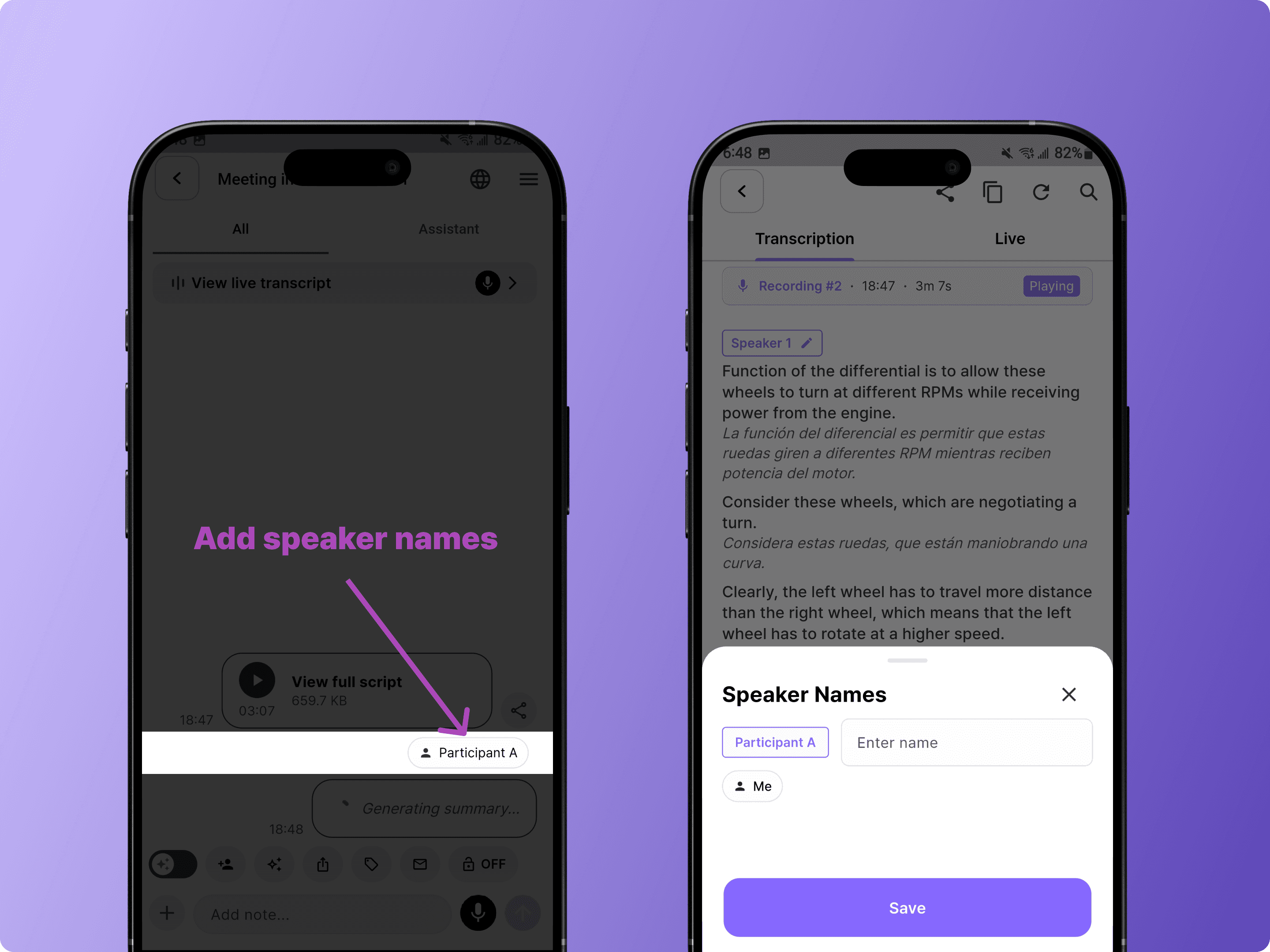
Assign Speaker Names
Tap a speaker label to assign names. This makes follow-up emails more personalized and helps you review conversation history by person.
Tip: Register your voice in Settings
BizCrush can better identify who's speaking.
Go to Settings > Meeting Settings > Voice Enrollment
Get Your Summary by Email
As soon as the recording ends, BizCrush automatically creates a structured summary and sends it to all invited participants in the meeting rooms via email.
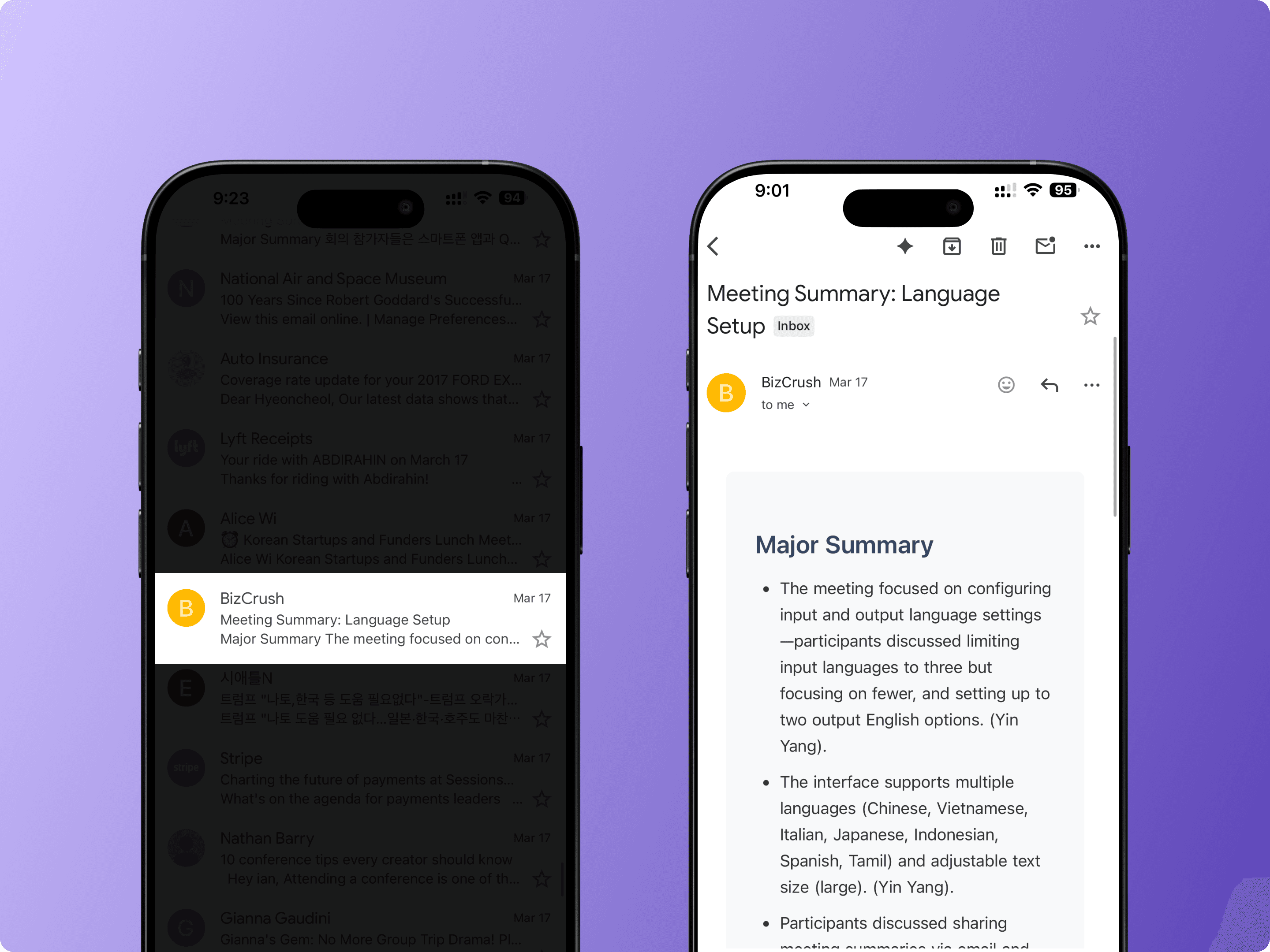
If you have a preferred summary format, you can customize it on the desktop version. Drag the meeting record into the <Ask AI> feature and request a tailored summary.
Depending on recording length, this may take a few minutes.
5. Generate a Follow-Up Email
Once the summary is ready, tap the email icon in the meeting room toolbar. BizCrush will generate a follow-up email based on your meeting content.
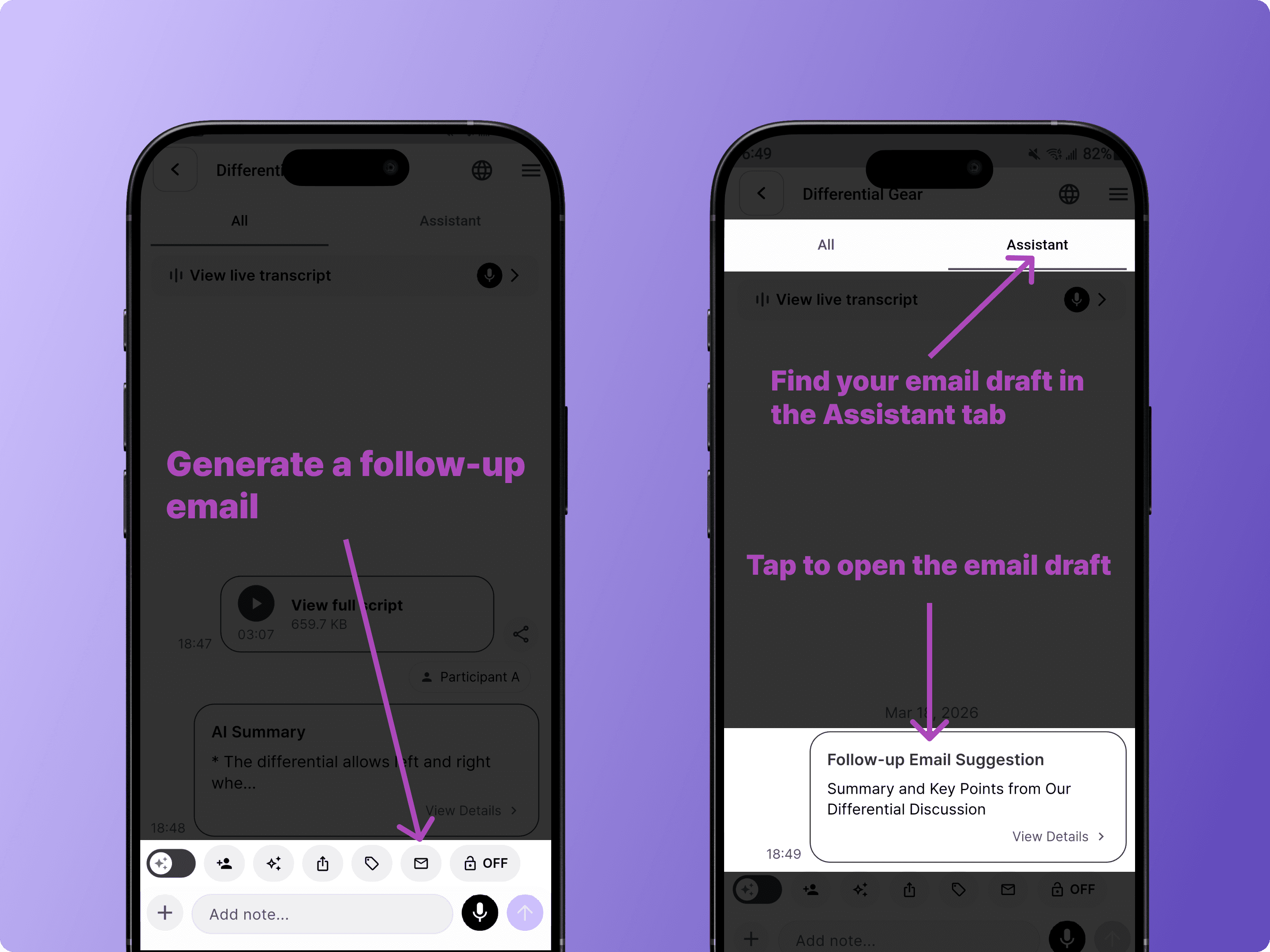
Open the email draft to review, edit, or send it.
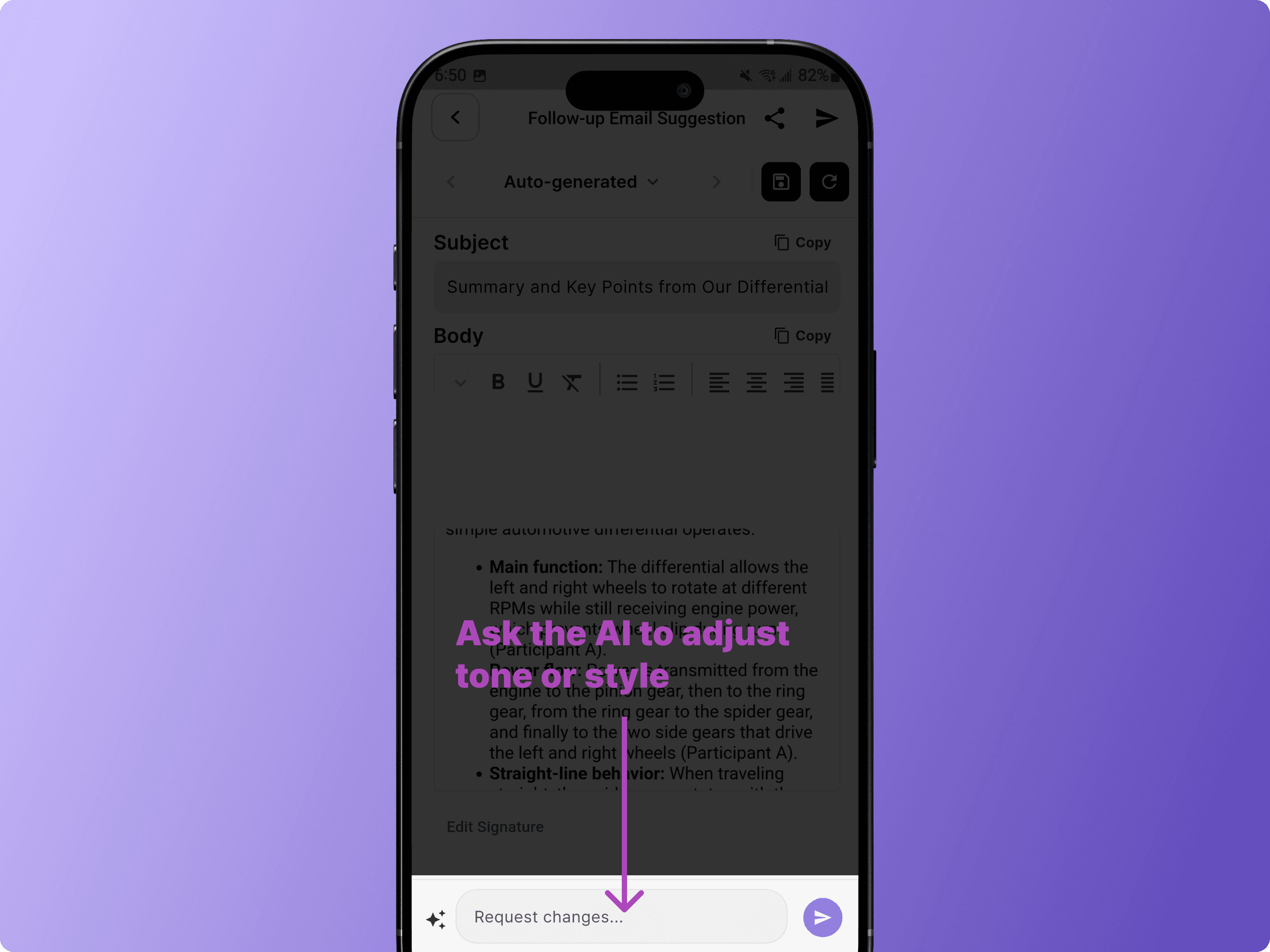
You can also ask the AI to adjust the tone or style — for example, type "Please make the tone more polite" in the request field.
6. Export and Share
Export to HubSpot or Notion
Tap the menu icon (☰) in the top-right corner of the meeting room to open the settings menu.
From there, you can sync your meeting to HubSpot or save it to Notion.
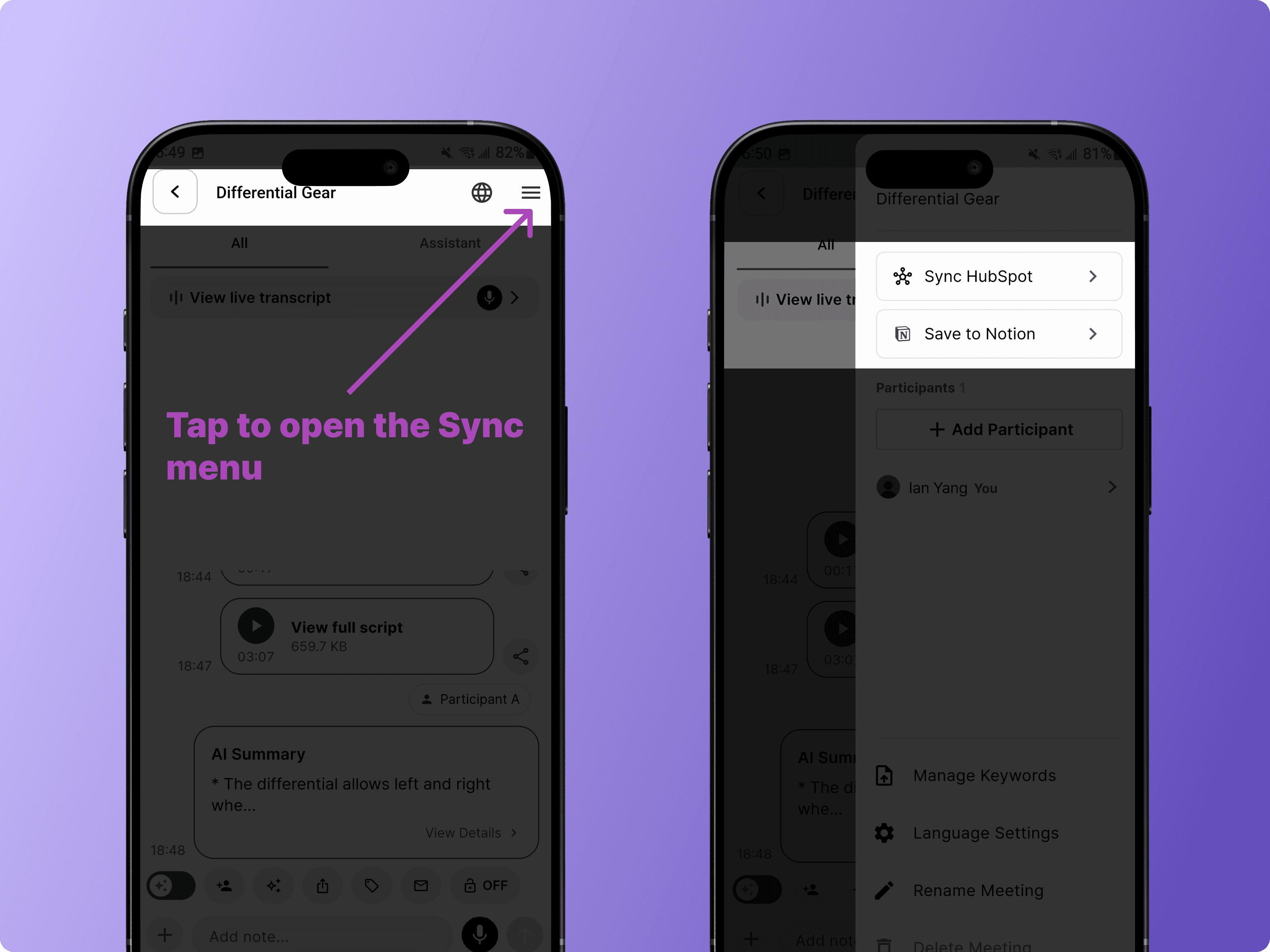
Note: You'll need to log in to HubSpot or Notion the first time you connect.
Share a Live Meeting
Share your live meeting with anyone — no app install or sign-up required
Tap the share icon in the toolbar to copy a link or display a QR code.
Recipients can view the live transcription and translation directly in their browser.
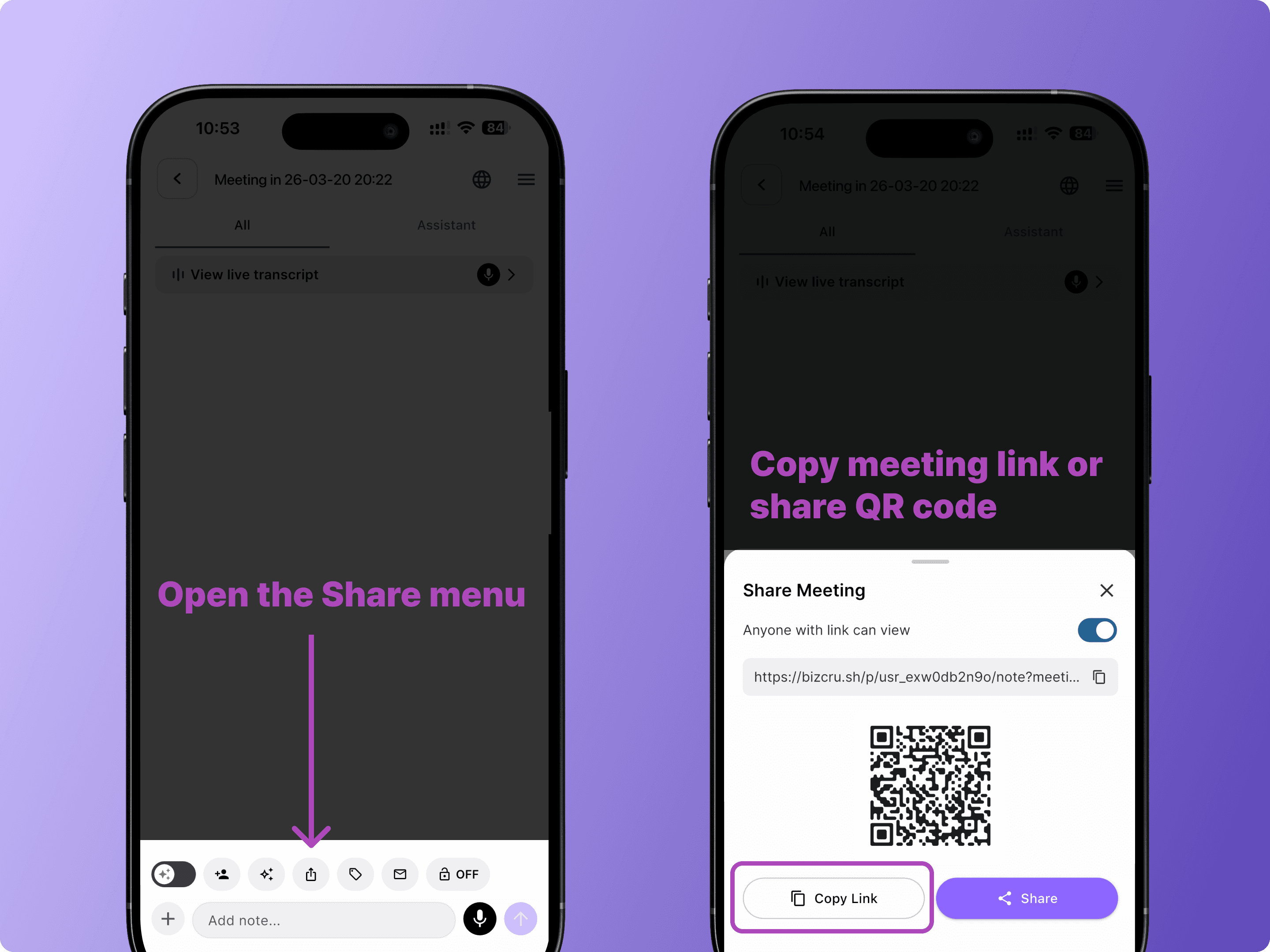
With <Anyone with the link can view> enabled,
Anyone can view the live transcript during the meeting or for up to one hour after the meeting ends.
No login or sign-up required—access available through a web browser.
Tip: If a participant signs up through the shared meeting room:
The host receives additional BizCrush meeting usage credits
The new user can access and revisit the meeting anytime from their logged-in account
Live Audio Translation for Viewers
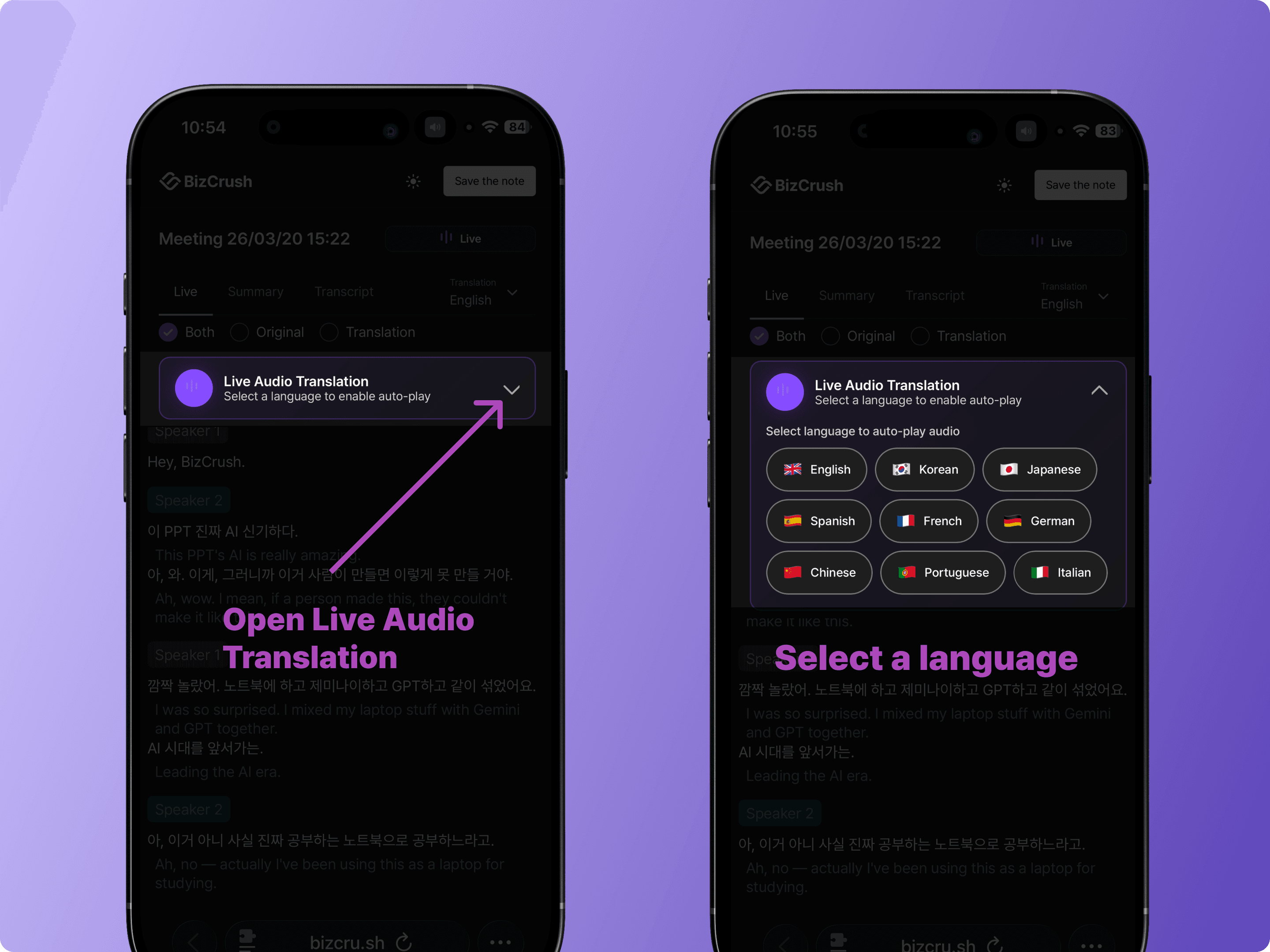
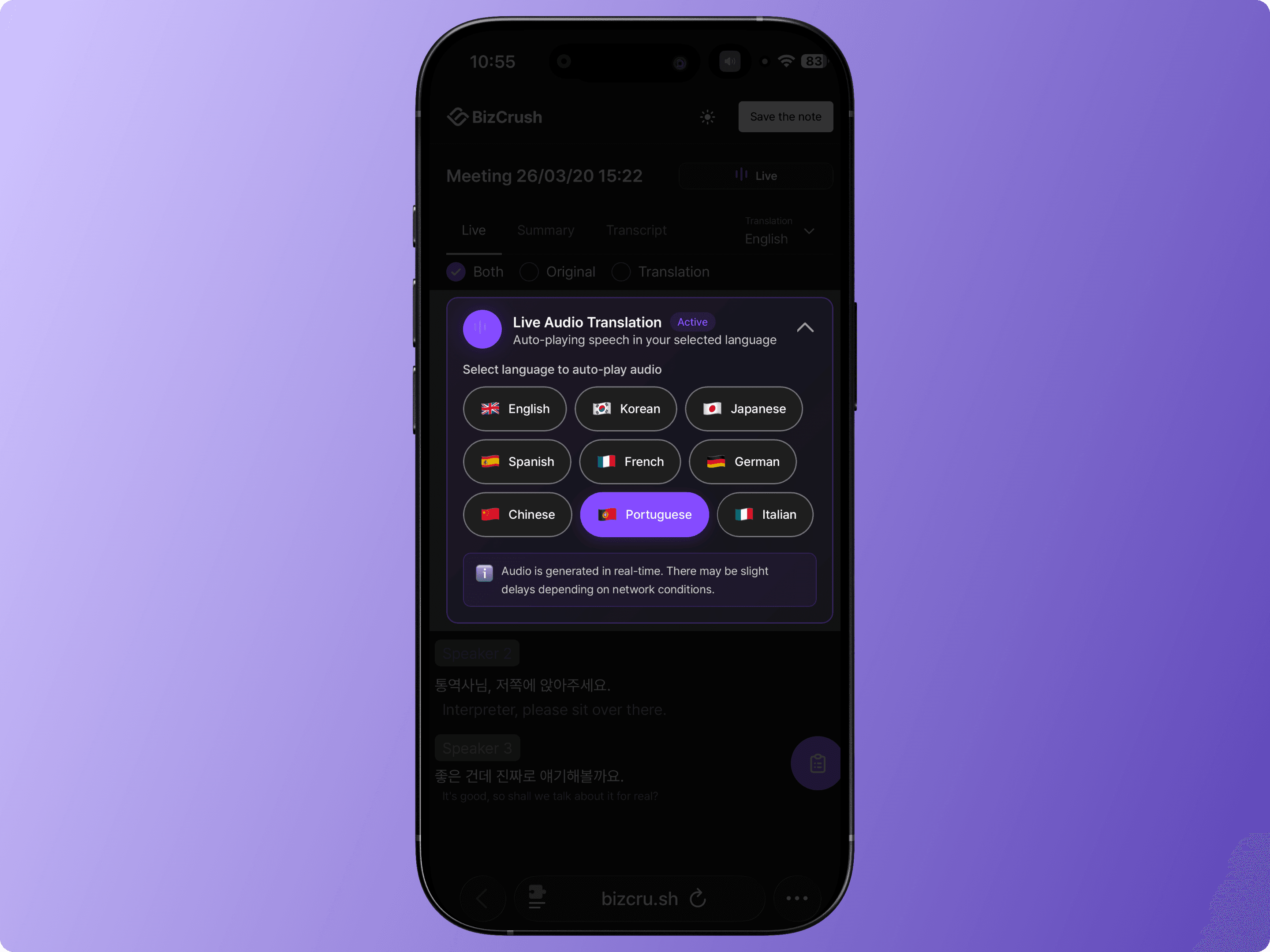
Anyone viewing the shared meeting in their browser can hear real-time audio translation. They simply select their preferred language from the Live Audio Translation menu.
Use Privacy Mode for Confidential Meetings
For meetings that involve private or confidential discussions, you can enable Privacy Mode.
Privacy Mode allows you to use real-time transcription and translation without retaining any voice recordings.
To enable Privacy Mode, tap the lock icon in the toolbar before or during the meeting.
As long as Privacy Mode is enabled before the recording is completed, audio will not be stored.
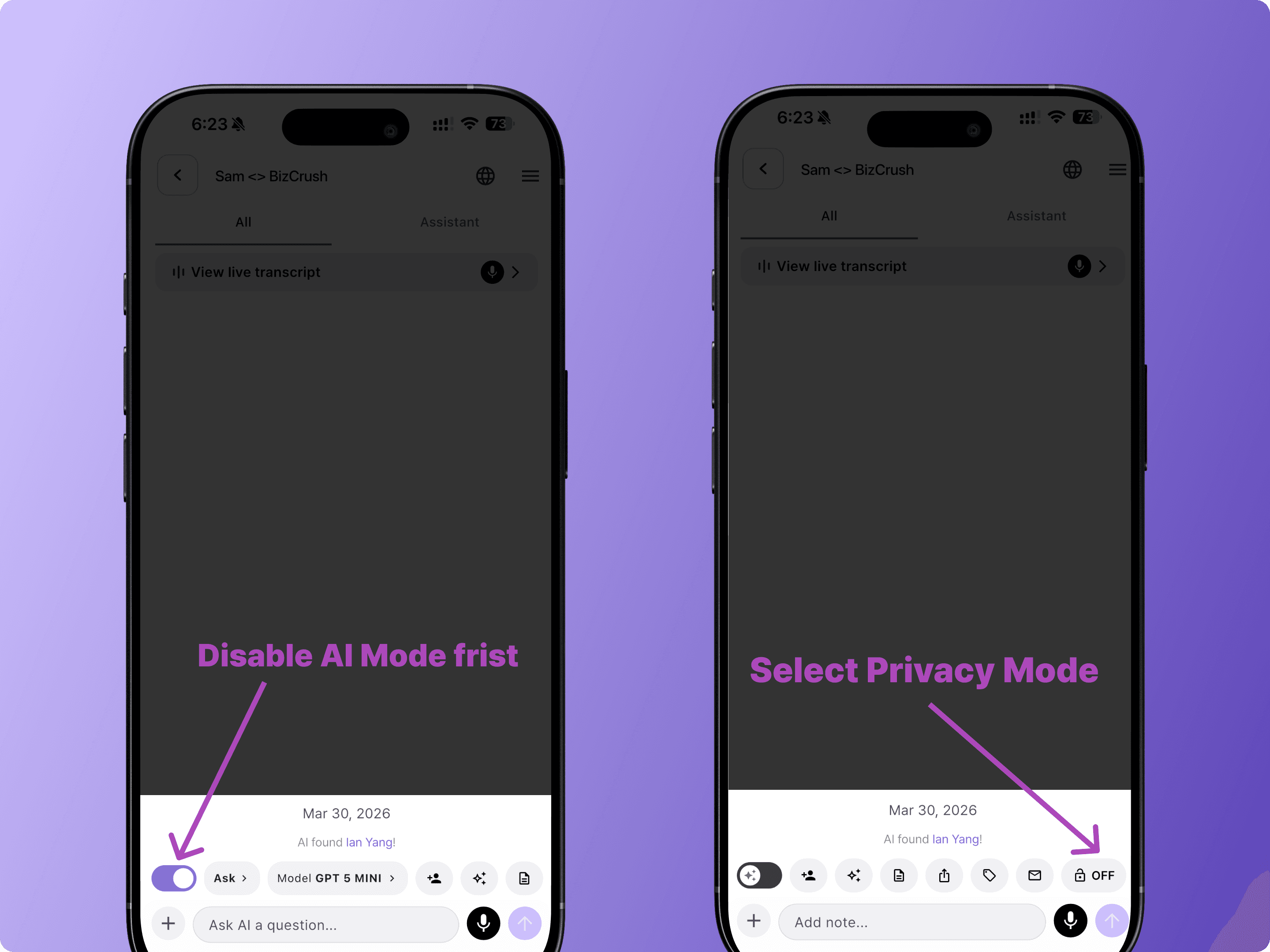
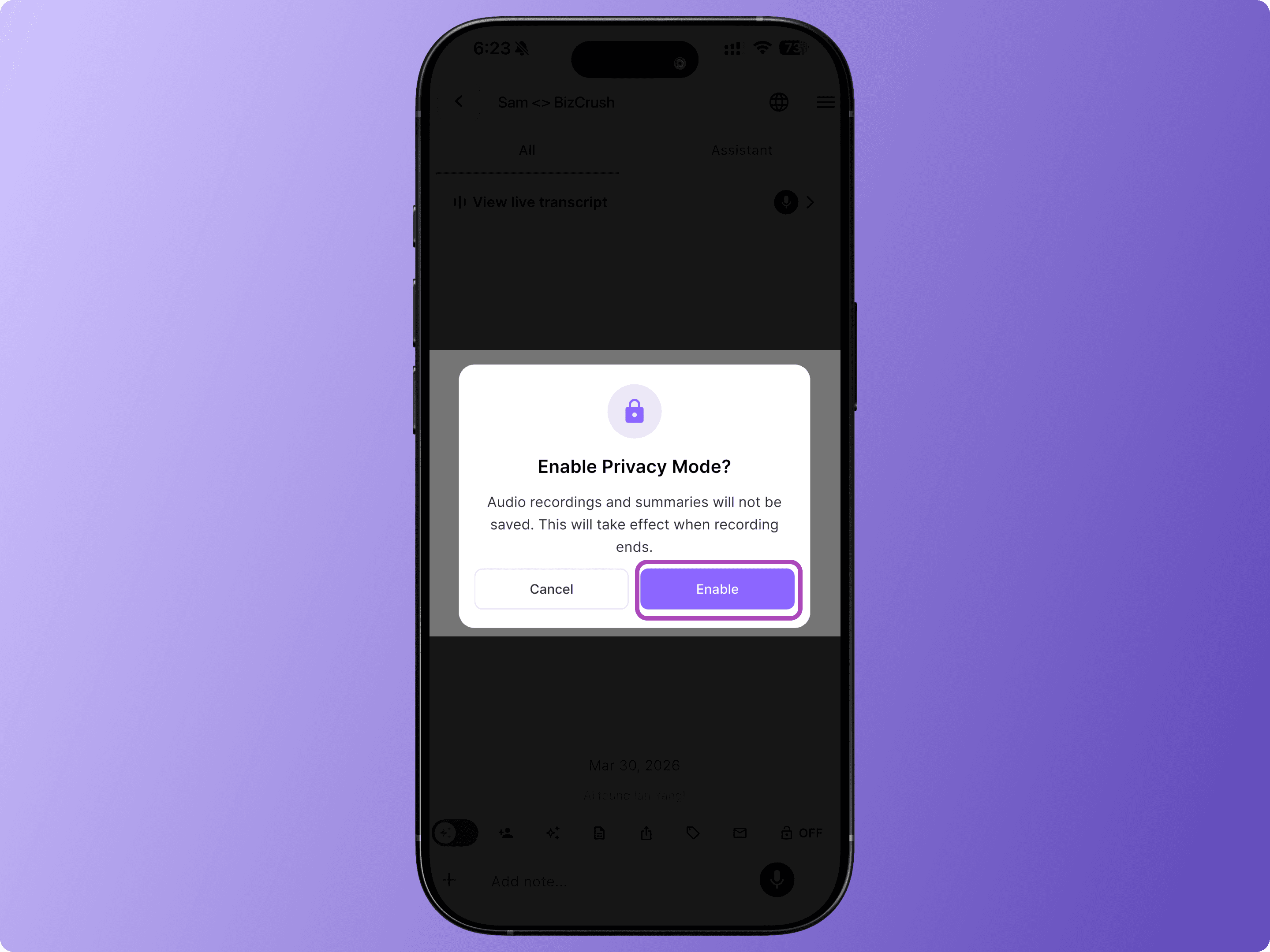
When Privacy Mode is enabled:
Real-time transcription and translation function as usual during the meeting.
No voice recording files are saved anywhere.
If you delete the meeting room after the meeting, no data remains on the server.
For organizations with stricter data requirements, BizCrush also supports:
Private cloud deployment.
On-premises deployment.
Enterprise configurations where data is stored only within the organization’s internal systems (e.g., internal wiki), and not on our private servers.
FAQ
What do I do if microphone access is blocked?
When you first open the app, a permission pop-up appears.
If you denied it, go to Settings > Apps > BizCrush > Permissions and allow microphone access.
Does BizCrush send meeting summaries by email?
BizCrush sends the meeting summary automatically after you end the meeting.
For longer recordings, summary generation may also take a few minutes.
Why didn’t I receive a meeting summary email?
Tap Stop to end the recording before closing the app—otherwise, the summary won’t be generated.
Summary emails are sent to the email address linked to your sign-in account from: no-reply@mail.bizcrush.ai
If you don't see it in your email, check your spam folder and add the sender to your contacts.
What is Privacy Mode?
Privacy Mode allows you to use live transcription and translation without retaining any voice recordings.
No audio data is stored on your device or on the server.
If the meeting room is deleted after the meeting, no data remains on the server.
Can BizCrush be used for confidential or security-sensitive meetings?
Yes. With Privacy Mode enabled, no voice recordings are stored. Only real-time transcription is provided during the meeting.
Does BizCrush comply with recording consent laws?
Recording consent laws vary by location. In the United States, requirements differ by state.
We recommend informing all participants and obtaining consent before recording.
What languages are supported?
BizCrush supports up to 45 languages.
Live Translation can recognize up to 3 languages at once and translate into 2 languages in real time.
Which CRMs does it integrate with?
BizCrush currently integrates with HubSpot and Notion.
You can export meeting notes automatically and share them with teammates.
For enterprise, we also support options like storing meeting records in your internal wiki.
If you need any additional integrations, feel free to email us.
Can I use it on both mobile and desktop?
Yes. BizCrush supports iOS, Android, Windows, and macOS.
With the same account, you can view and edit your data across devices.
Where are my recordings stored?
Original recordings are stored on your device only.
For multi-device sync, an encrypted copy is temporarily stored on the server for 48 hours and then automatically and permanently deleted.
Can I upload existing recordings?
Yes. You can upload audio files you already have, transcribe them, and generate summaries.
What file formats can I upload?
BizCrush supports common audio formats, including MP3, M4A, WAV, and OGA.
What's the difference between live transcription and post-meeting transcription?
Live transcription captures speech as it happens in real time.
Post-meeting transcription is generated after the recording ends, with AI refining the text for better readability and accuracy.
Where is the meeting summary?
As soon as the recording ends, BizCrush automatically organizes the meeting content into a structured summary, which is sent via email to all invited participants and to each meeting room.
If you have a preferred summary format, you can customize it on the desktop version. Drag the meeting record into the <Ask AI> feature and request a tailored summary.
Depending on recording length, this may take a few minutes.
How does email follow-up work?
BizCrush analyzes the conversation and creates a personalized follow-up email draft based on the meeting content.
You can edit it or ask the AI to adjust the tone before sending.
If you skip this step, the summary won't be created.
Can I use BizCrush for free?
Yes. BizCrush offers up to 7 hours of use with a free subscription, but advanced features like translation and live audio translation use tokens faster.
You're All Set
Start your first meeting with BizCrush today — BizCrush handles the notes and follow-up.
Questions or Partnership? Reach us anytime at business@bizcrush.ai.