BizCrush Event Host Operations Guide
5
min

BizCrush
Growth
This guide walks you through everything you need to run BizCrush smoothly at an event—from pre-event setup and live caption display to on-site checklists, MC announcement scripts, and frequently asked questions.
With just a laptop or smartphone and Wi-Fi, you can provide real-time multilingual captions and voice translation—no special equipment or professional interpreter required.
1. Getting the Most Out of BizCrush
With BizCrush, you can offer the following features at your event:
Real-time captions: Converts the presenter's voice into text and displays it on screen.
Multilingual translation: Provides captions in multiple languages, including Korean, English, Japanese, and more.
Easy access for attendees: Attendees can scan a QR code and view captions instantly on their own smartphones.
Audio translation: Attendees can listen to translated audio in their preferred language in real time.
How BizCrush Works
Microphone pickup — the device microphone captures the presenter's voice.
AI translation — speech is converted to text and translated into the selected language.
On-screen captions — the recognized speech appears as real-time captions.
You do not need a separate microphone. BizCrush uses the built-in microphone on the smartphone or laptop running the app, so place the device where it can hear the sound clearly.
Good placement options include:
Near the presenter on stage
Close to the venue's loudspeaker
Anywhere the presenter's voice can be heard clearly
2. Pre-Event Setup
Preparing these items beforehand will make event-day operations much easier.
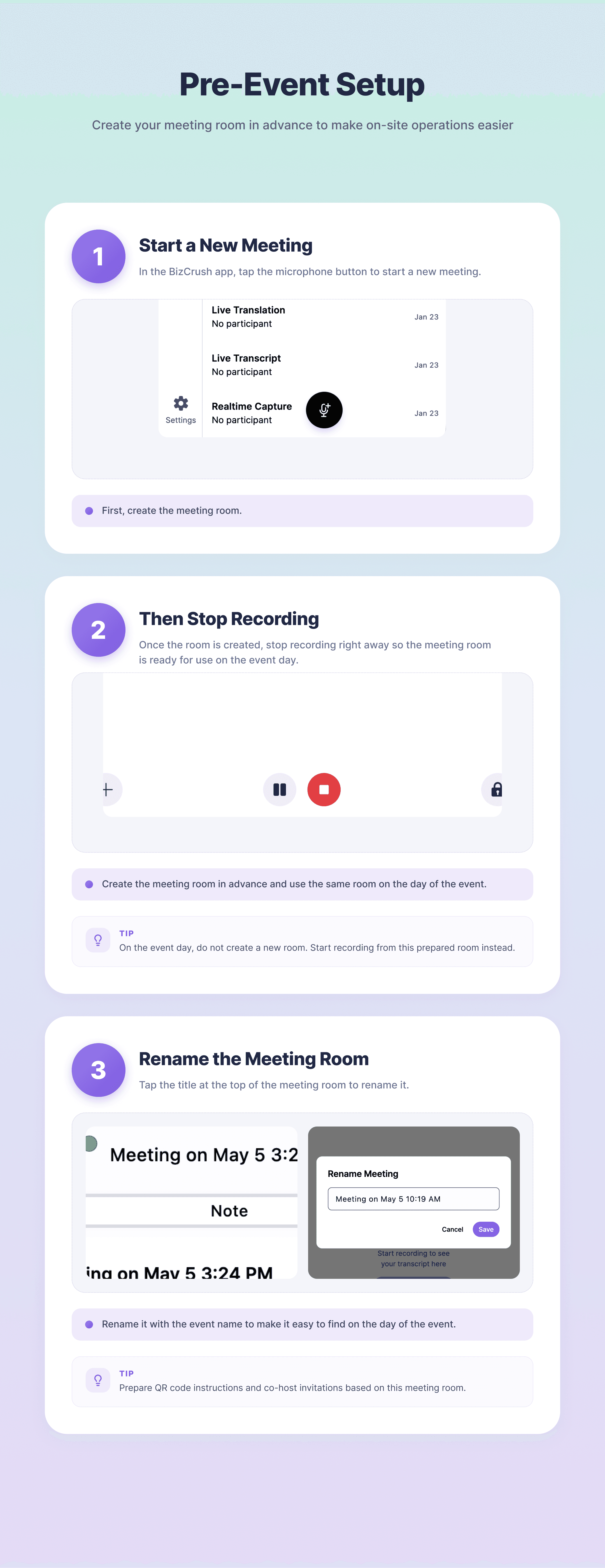
A. Create a Meeting Room in Advance
Creating a meeting room ahead of time allows you to prepare the attendee QR code for signage, printed materials, or a waiting screen before the event begins.
In the BizCrush app, tap the microphone button to start a new meeting.
Once the room is created, immediately tap Stop Recording. This saves the prepared meeting room without leaving the recording active.
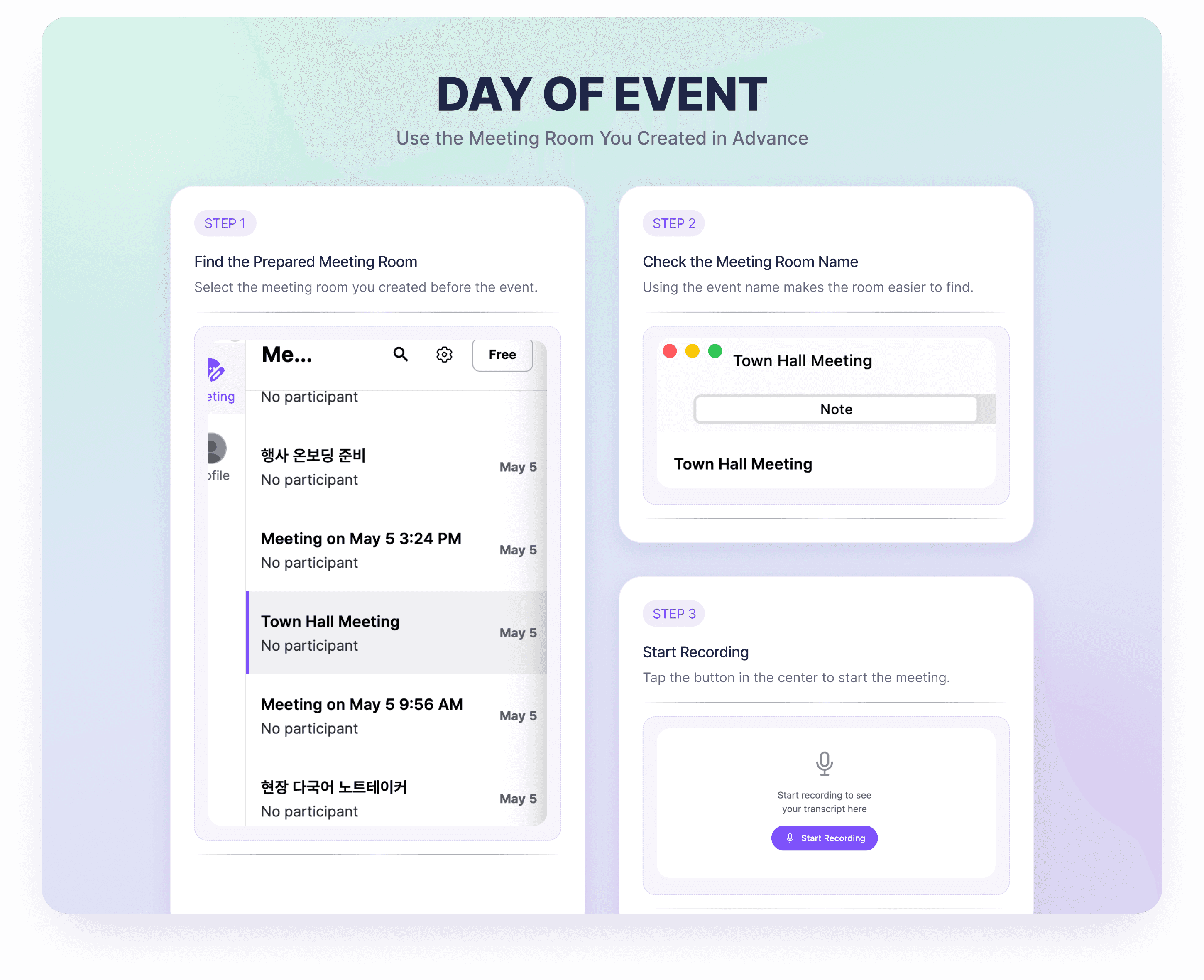
Rename the meeting room to match the event name. This will make it easier to find on the day of the event.
B. Invite and Assign Co-Host Access
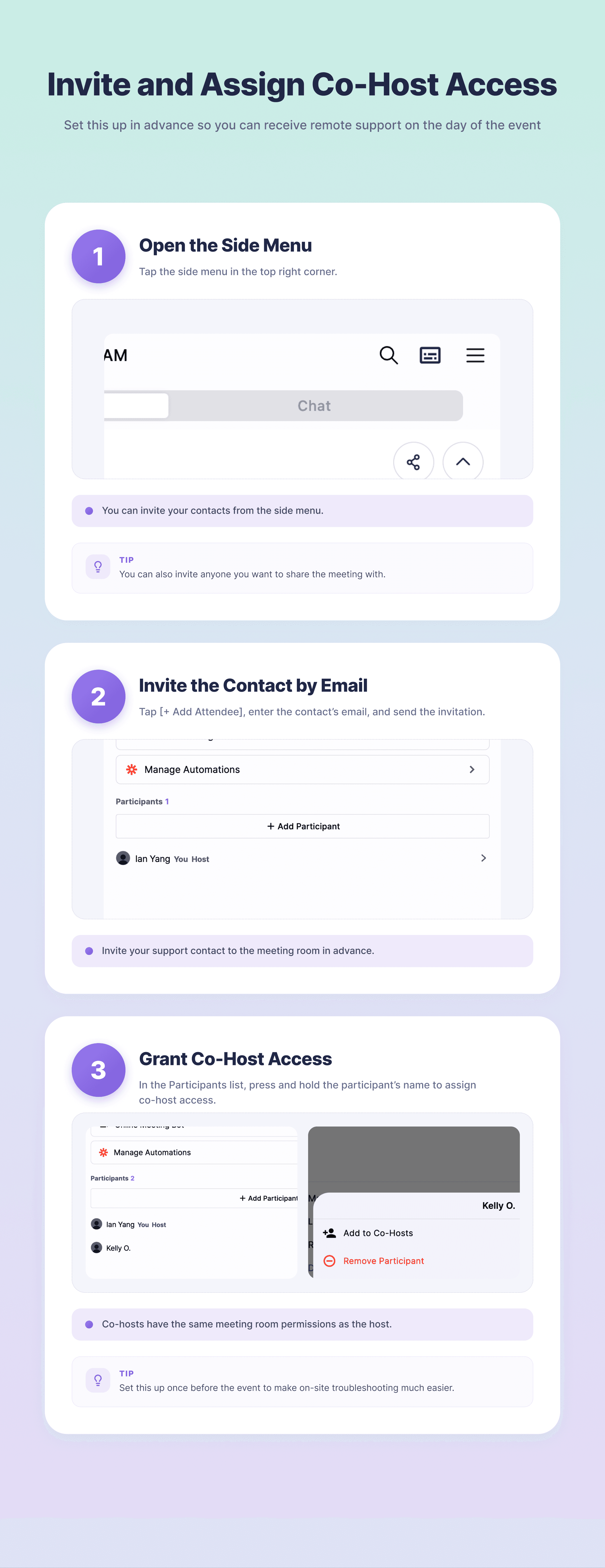
If you invite your BizCrush support contact to the meeting room in advance and assign them as a co-host, they can help you remotely on the day of the event.
Open the ☰ Side Menu in the top-right corner.
Tap + Add Participant and enter the support contact's email address.
In the participant list, press and hold the support contact's name for about 3 seconds, then assign Co-Host access.
👉 For the full step-by-step walkthrough with screenshots, see [Setup Guide, Section 4: Assigning Co-hosts].
C. Upload Presentation Materials
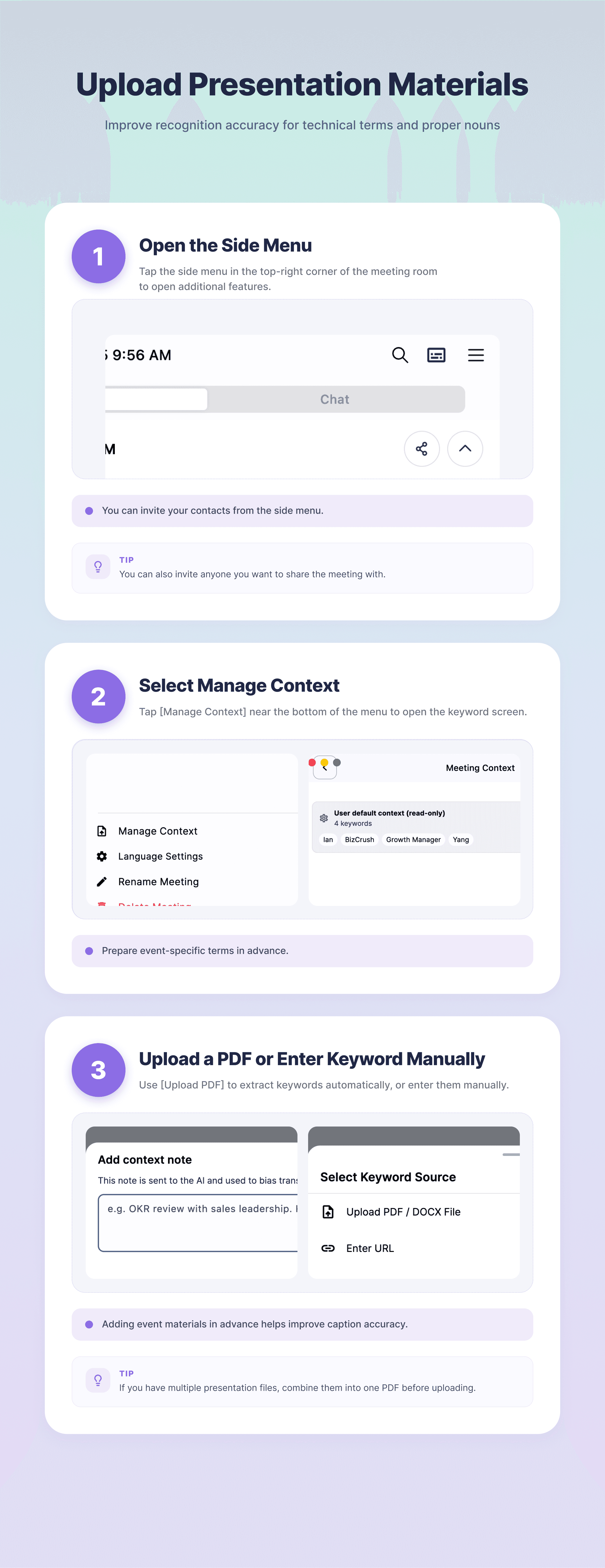
To help the AI recognize technical terms, proper nouns, and other event-specific vocabulary more accurately, upload your presentation materials and extract Context from them.
Open the ☰ Side Menu in the top-right corner.
Tap Manage Context.
Use the Upload PDF / DOCX File at the top to automatically extract Context, or manually add Context in the input field.
Need to upload multiple files?
Currently, the system supports uploading only one file at a time. If you have multiple presentation files, combine them into a single PDF before uploading.
👉 For the full walkthrough with screenshots, see [Setup Guide, Section 5: Registering Custom Keywords].
D. Day-of-Reminder
On the day of the event, do not create a new meeting room. Open the meeting room you prepared above and start recording from there.
Find the meeting room you created earlier (using the event name to locate it quickly).
Confirm the meeting room name.
Start recording from that room.
3. Caption Display Options for Different Event Setups
There are two main ways to display captions on the event screen. Choose the option that best fits your venue setup and equipment.
Which Option Should You Use?
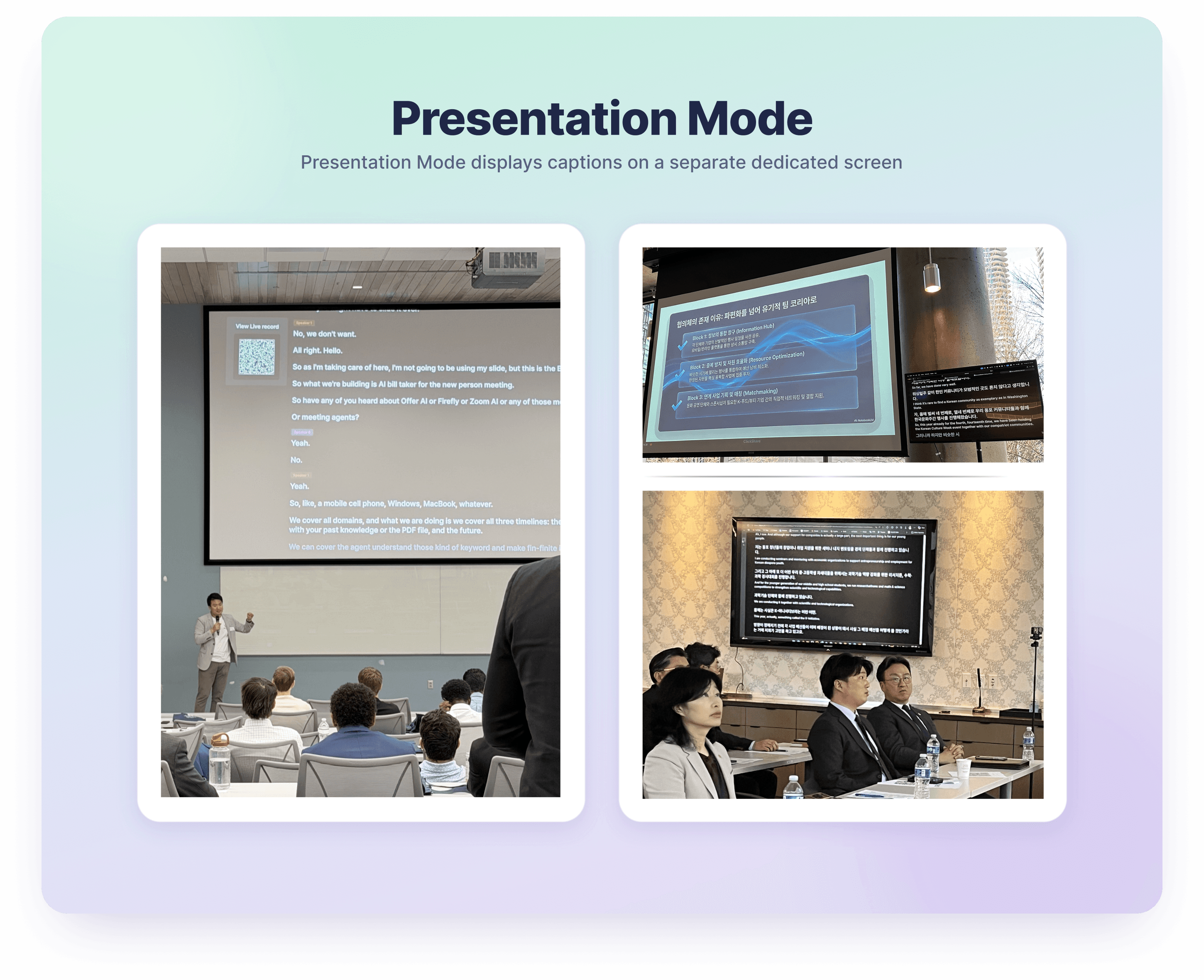
A. Presentation Mode
Setup: Uses two devices
How it works: Displays captions on a separate full-screen caption view
Best for: Mid-sized to large events with a dedicated caption screen
Requirement: Open the shared link in a browser
Advantage: More stable operation because the caption screen is separate. The presentation laptop does not need the BizCrush app installed.
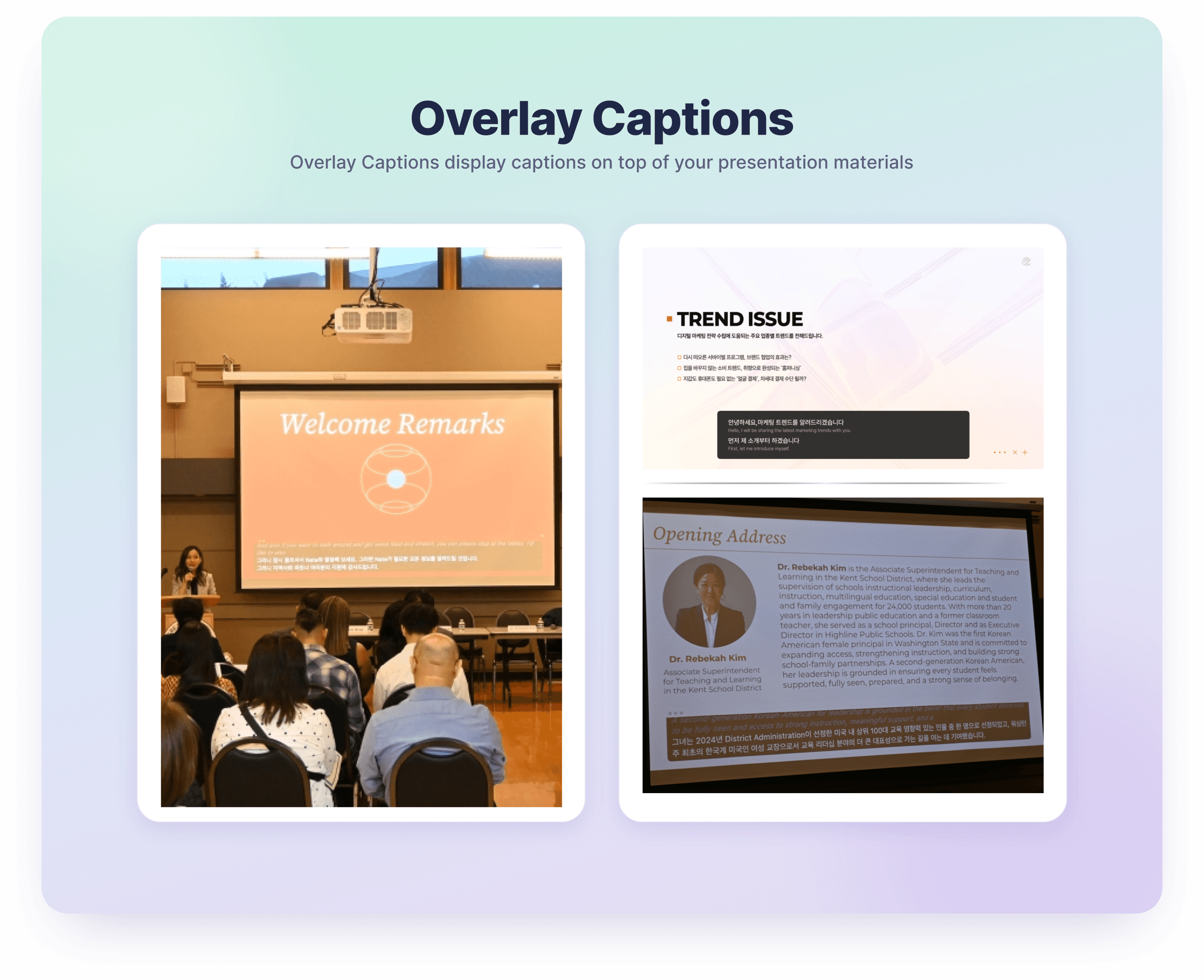
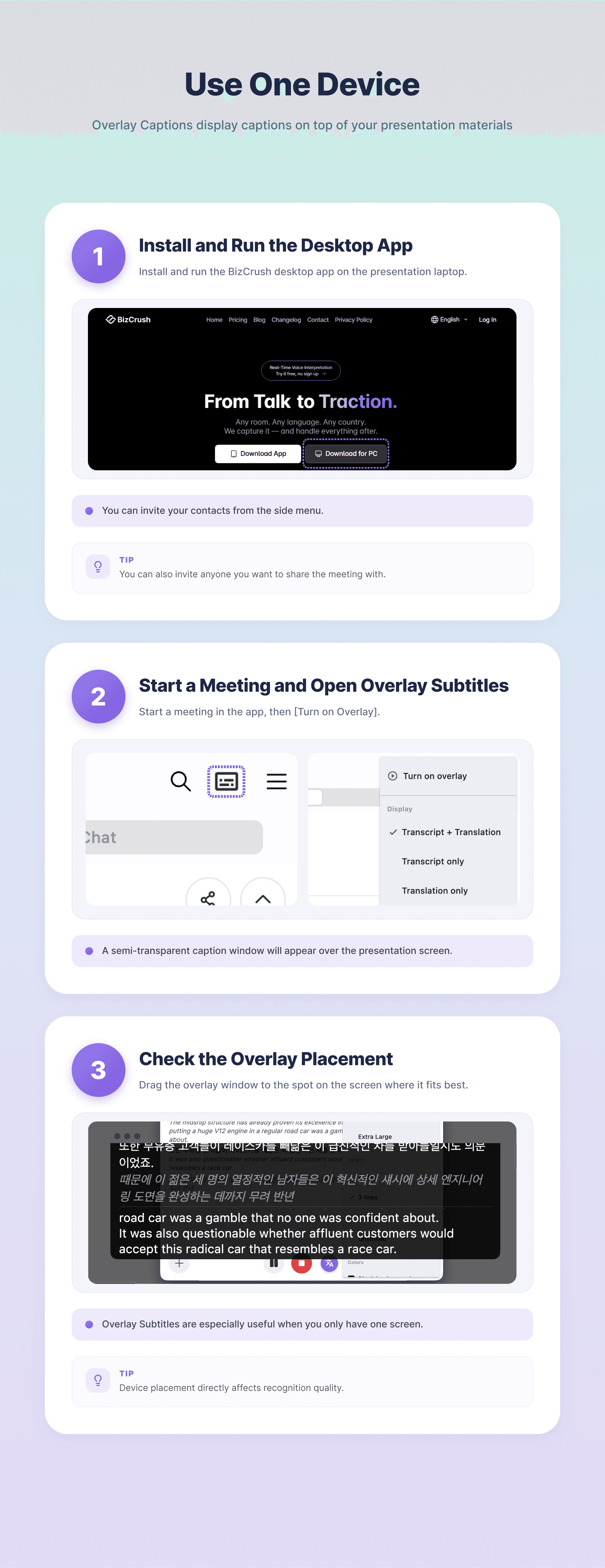
B. Overlay Captions
Setup: Uses one device
How it works: Displays a semi-transparent caption window over the presentation slides
Best for: Small events with a single display
Requirement: Run the desktop app on the presentation laptop
Advantage: Captions can appear directly on top of the slides, so you do not need a separate caption screen.
Feature | A. Two Devices: Presentation Mode | B. One Device: Overlay Captions |
|---|---|---|
What it is | A dedicated, full-screen caption view. | A semi-transparent caption window floating over your slides. |
Best for | Medium-to-large events with a separate, dedicated screen for captions. | Small events with only one main screen or projector. |
Requirements | Any web browser (via a Share Link). | BizCrush Desktop App must be running. |
Pros | No app installation needed on the display device; just open the link. | Stays on top of everything; freely adjustable size and position. |
Watch out for | Needs a second device dedicated to running the app. | Anything that disrupts the presentation laptop affects both slides and captions at once. |
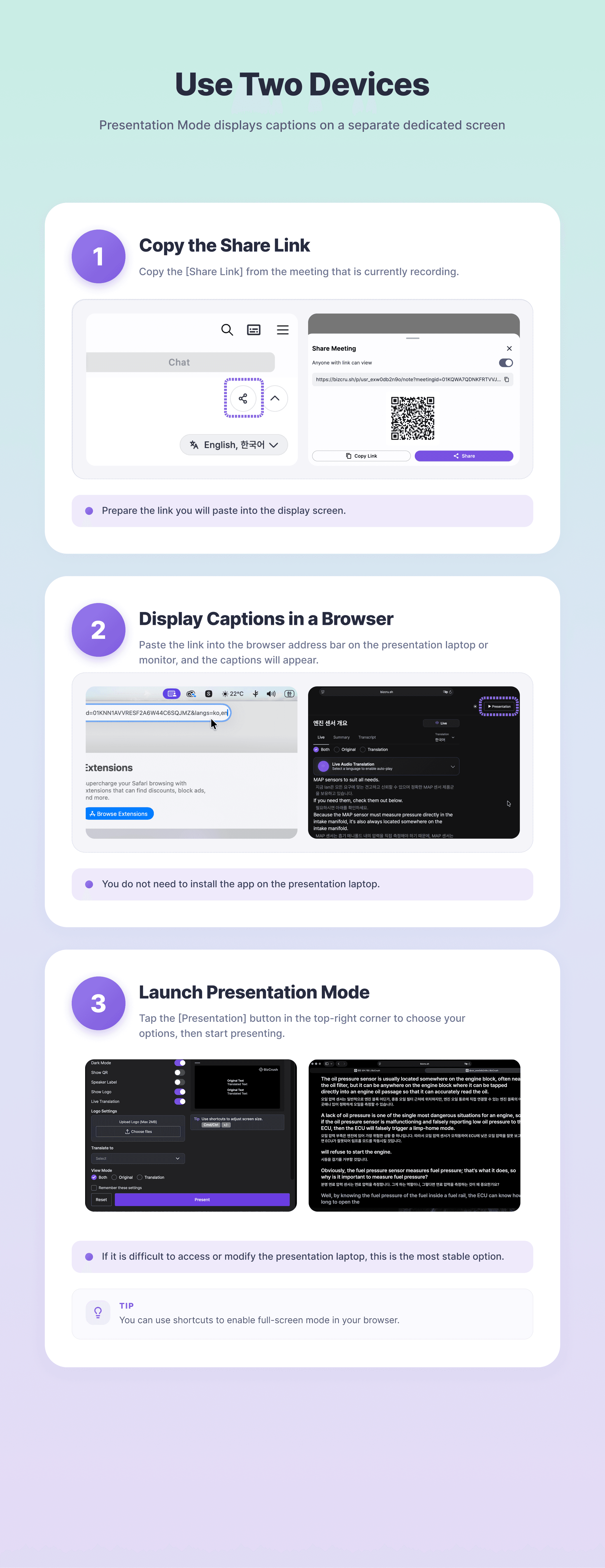
A. Use Two Devices: Presentation Mode
Presentation Mode is the recommended option when you prefer not to touch or modify the presentation laptop.
1. Sound Recognition: Place the Device Running BizCrush
Open the BizCrush app on a staff member's smartphone or an extra laptop, then start the meeting.
Place this device near the presenter on stage or right in front of the venue's loudspeaker.
Once the event starts, avoid moving or touching the device unless necessary.
2. Display: Set Up the Output Screen
The presentation laptop or monitor connected to the display does not need the BizCrush app installed.
Open an internet browser, such as Chrome, and paste the share link for the BizCrush meeting that is currently recording.
The captions will appear on screen.
👉 For instructions on copying links and displaying screens, see [Setup Guide, Section 3.B: Presentation Mode Setup].
B. Use One Device: Overlay Captions
Use Overlay Captions when you need to show both the presentation slides and captions on the same screen.
Install and run the BizCrush desktop app on the presentation laptop connected to the screen.
Start a meeting in the app, then tap Open Overlay Captions to turn it on.
Make sure the presentation laptop can clearly hear the presenter's voice. Ideally, place it near the front of the stage or close to a loudspeaker.
Note: The desktop app can be downloaded from the BizCrush main homepage.
👉 For instructions on enabling overlays, see [Setup Guide, Section 3.A: Overlay Subtitle Setup].
4. Pre-Event Checklist
To keep the event running smoothly, check the following items before the event starts.
Basic Installation and Permissions
Install the app on the devices you will use for the event.
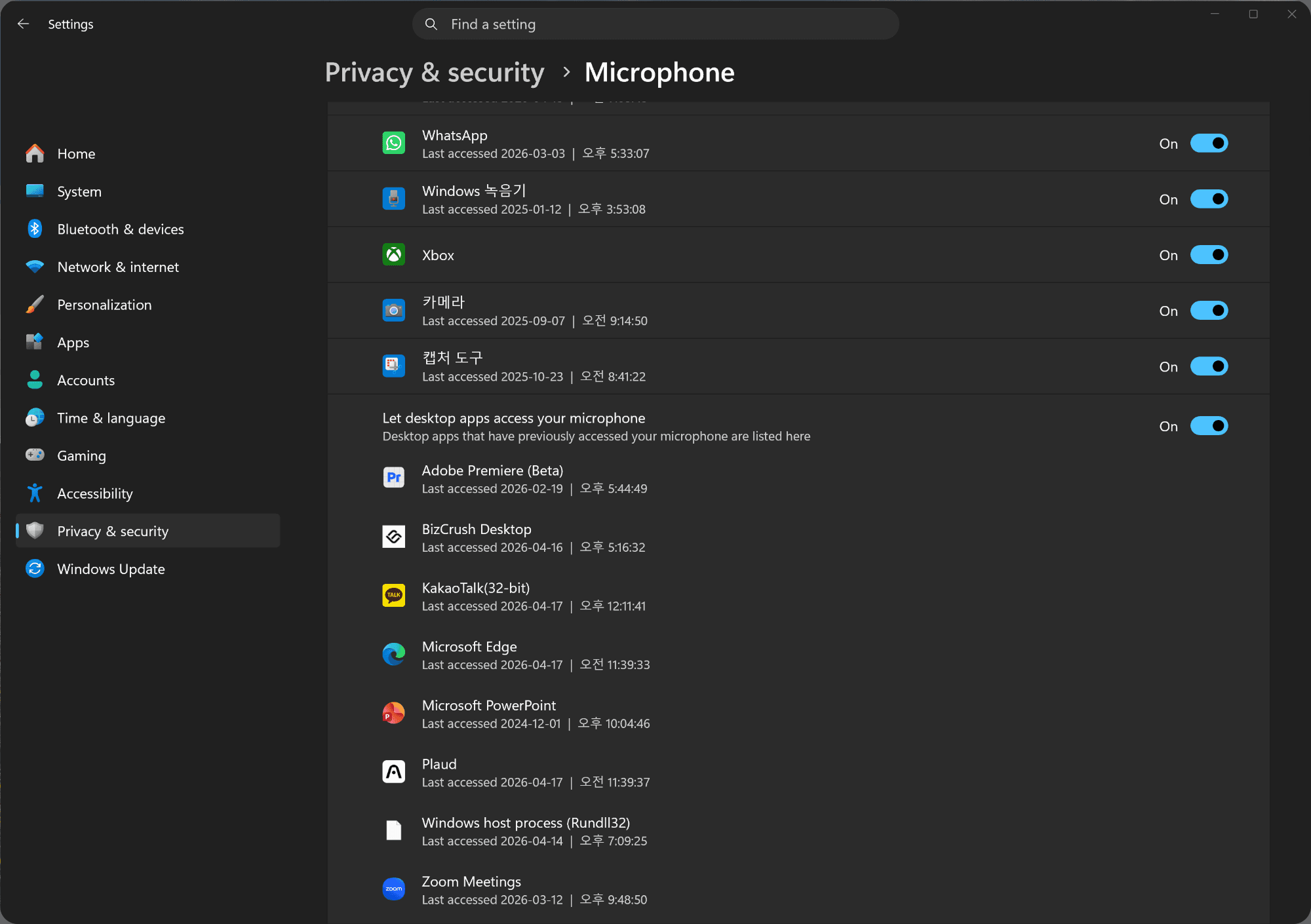
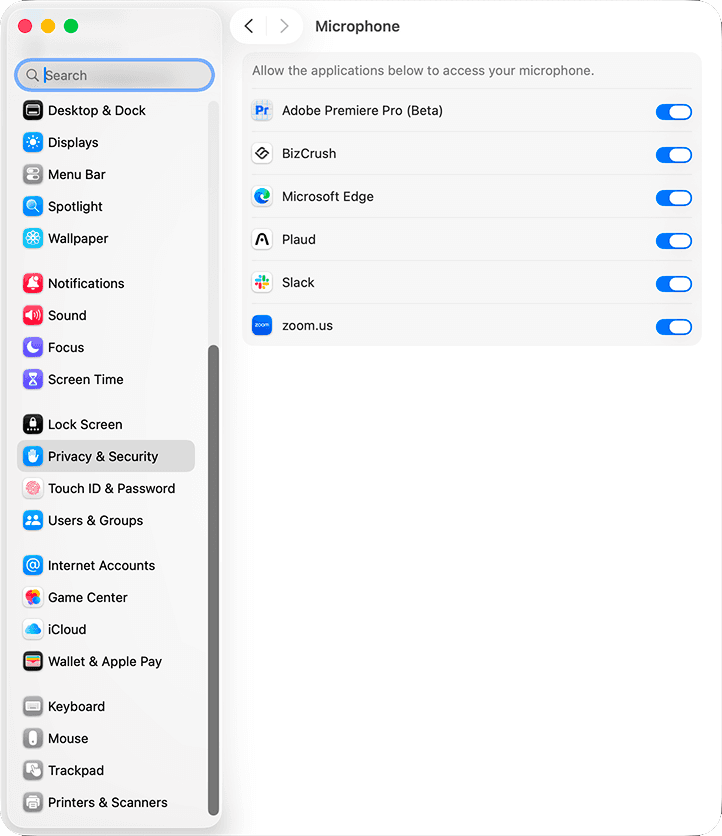
Allow the installed app to access the microphone.
If you allowed permissions during the first launch and a test recording works properly, your setup is complete.
If recording does not work, check the Microphone section in your device settings and confirm that BizCrush has permission.
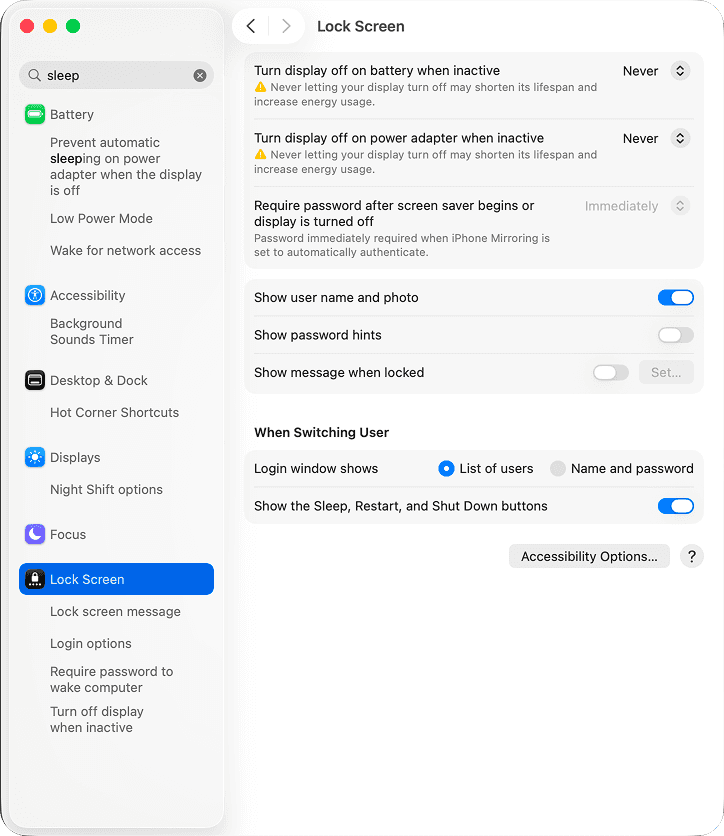
Prevent the Screen from Turning Off
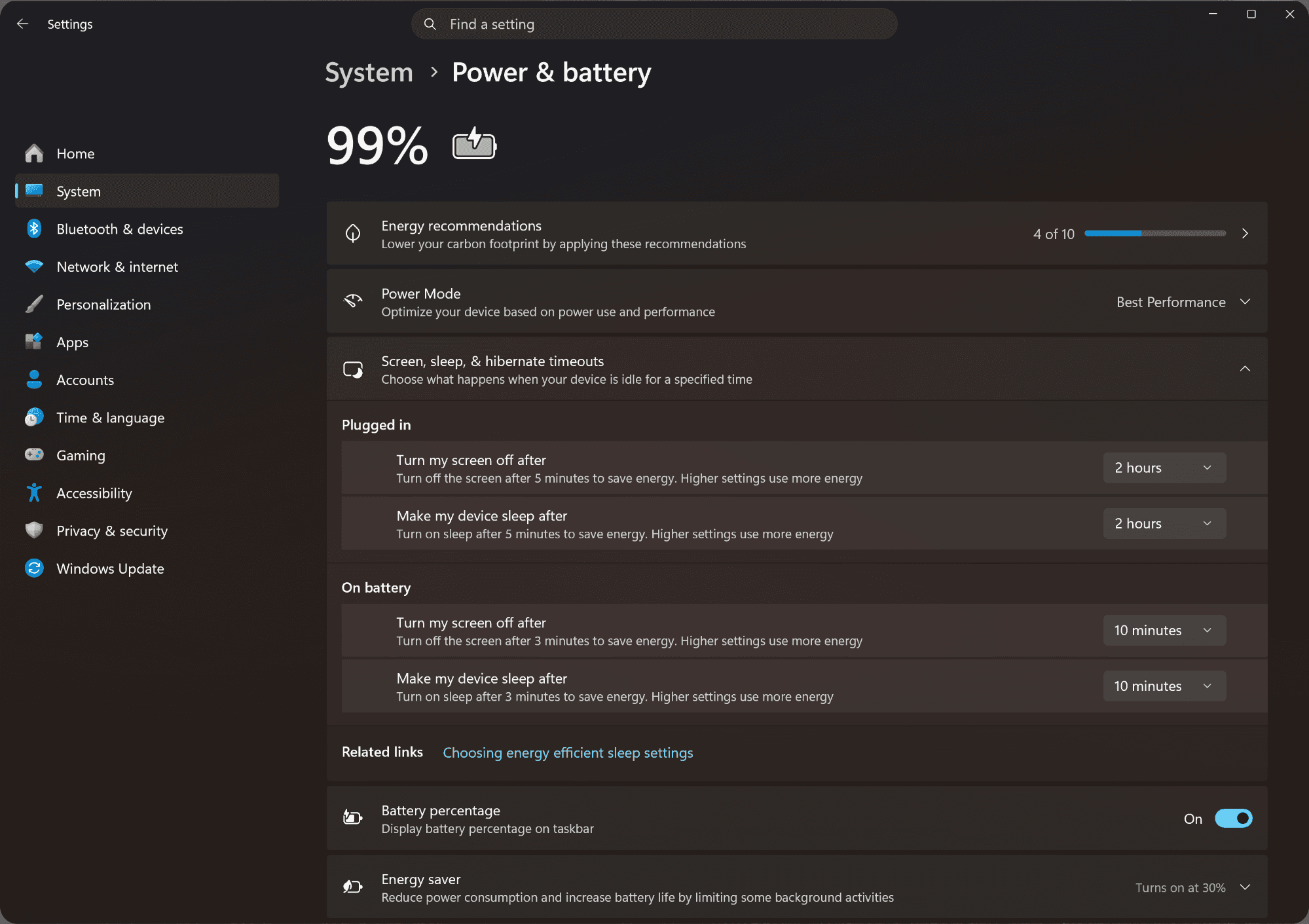
If the recording device screen turns off during the event, especially on a laptop, recording may stop.
Make sure to disable auto screen lock, display sleep, or power-saving mode in the device settings.
Language Settings
Select the presenter's language and the language you want captions to be translated into.
If your event requires multiple languages, check the necessary language combinations in advance.
👉 For instructions on setting the language, see [Setup Guide, Section 3 → Common Setup Steps, Steps 2–3].
Keyword Registration
Add frequently used proper nouns, organization names, presenter names, and technical terms before the event.
You can upload a presentation PDF or DOCX, or add Context manually.
👉 For instructions on registering keywords, see [Setup Guide, Section 5: Registering Custom Keywords].
Microphone Test
Place the device in its actual event location, then test it using the stage microphone.
Confirm that text appears on screen and that the caption response speed feels appropriate.
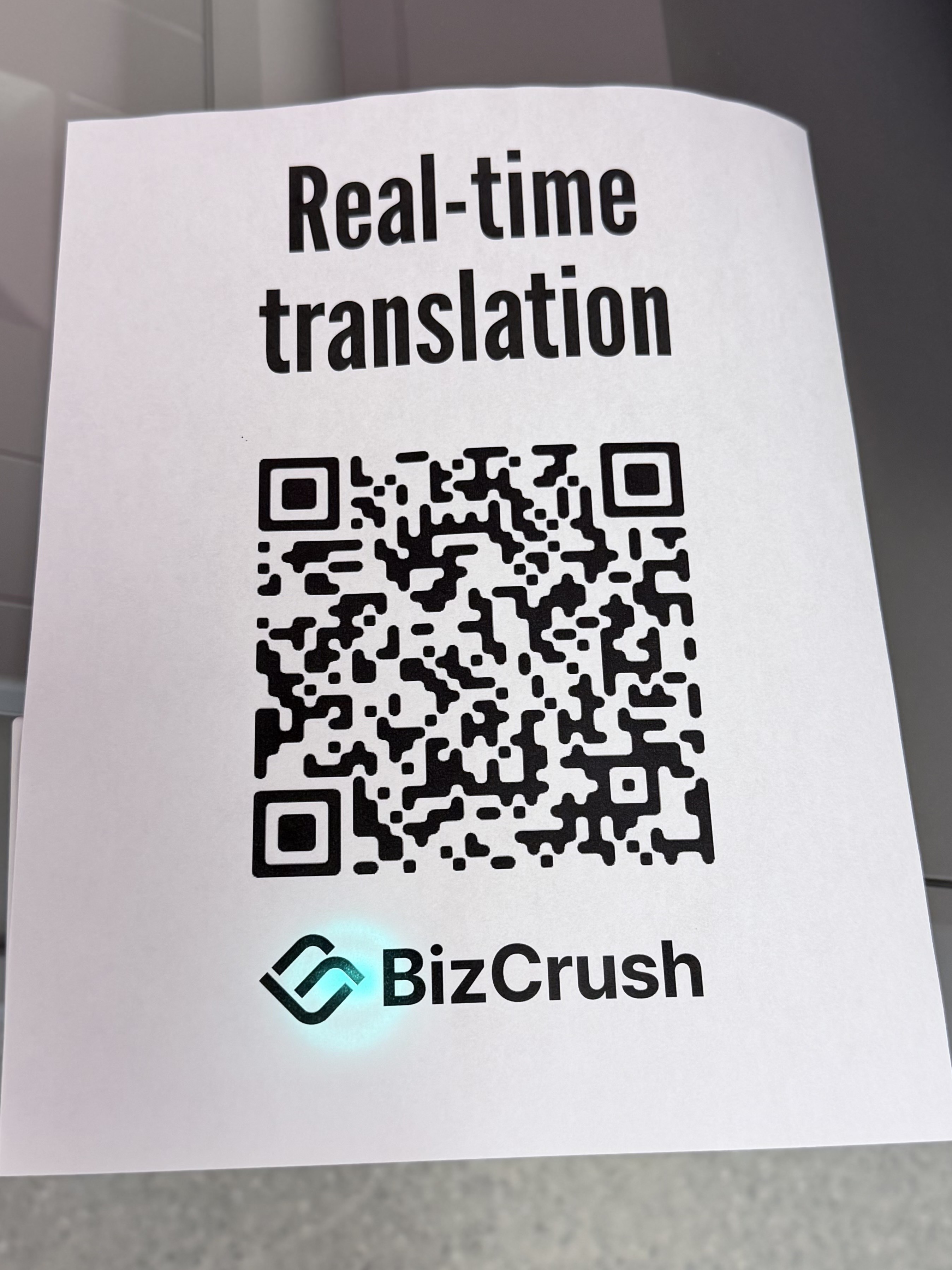
QR Code Placement
Display the QR code at the venue entrance or on the waiting screen so attendees can view captions on their own smartphones.
👉 For instructions on finding the QR code, see [Setup Guide, Section 6: Sharing Subtitles with Attendees].
Final Rehearsal
Under conditions similar to the actual event, test the full flow once: start recording → display captions → share the QR code.
5. MC / Host Announcement Script
If you would like to introduce BizCrush at the beginning of the event, you can use the script below.
Today's event offers real-time multilingual captions and voice translation for our global attendees.
Please scan the QR code shown on screen using your smartphone camera.
You can choose your preferred language and view captions instantly without installing an app.
If you use personal earphones, you can also listen to translated audio in real time.
Q&A
Q. How do I stop the recording? Can I stop it from any device that is logged in?
A. A session recording can only be stopped from the device that started the recording.
For example, if you started the meeting on a smartphone, you cannot stop the recording from a laptop. Plan accordingly during the event.
Q. The presenter is talking, but captions are not appearing on screen.
A. The device may not be hearing the sound clearly.
Try moving the recording device, whether it is a smartphone or laptop, closer to the venue loudspeaker or to a location where the sound is clearer.
Also, check that recording is actually in progress and that microphone access has been allowed.
Q. Captions are showing, but the translation language is wrong.
A. Check whether the correct translation language is selected in the real-time transcript panel.
Change it back to the language you need.
Q. I am using the real-time caption overlay feature, but the caption text is too small.
A. For Overlay Captions, change the caption size to Large or Extra Large in the caption settings.
For Presentation Mode, you can adjust the display size using your browser shortcuts: Cmd/Ctrl + +/-.
Q. Can I run the event without recording for privacy reasons?
A. Yes — click the Padlock icon in the bottom toolbar to enable Privacy Mode. Real-time translation continues to work, but no voice data or transcripts are saved to your device or BizCrush servers.
If the issue is not resolved, please contact us anytime at business@bizcrush.ai.
👉 For more troubleshooting scenarios, see [Setup Guide, Section 7: Event Day Checklist & Troubleshooting].